
How to use 2Pay at checkout
Process integrated payments using Tap to Pay, QR scans, or remote payment links.
Before you begin
Make sure:
- Your mobile device is linked and the 2Hippo 2Pay app is open.
- Your iPhone is updated to the latest iOS version if using Tap to Pay.
Step 1 — Initiate a 2Pay payment
- In the POS checkout, click the Pay button.
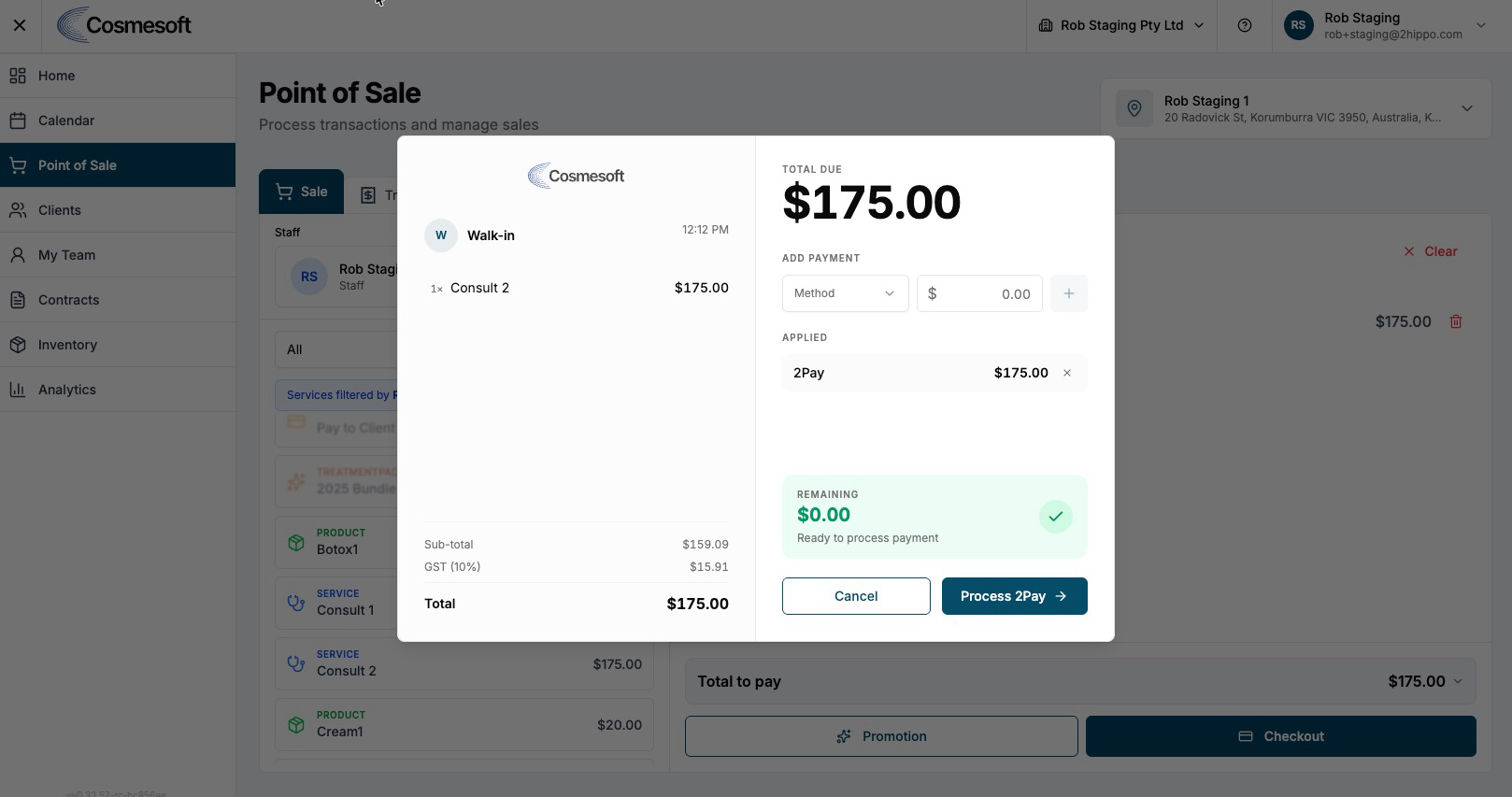
Select 2Pay as the payment method.
- Take Payment (Tap):
- Choose your linked mobile device from the list.
- Instruct the client to tap their card or mobile wallet against your device.
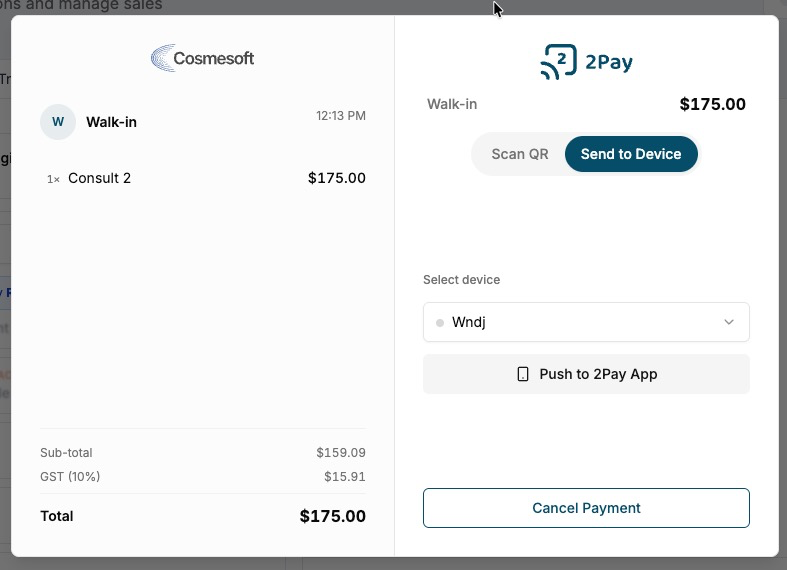
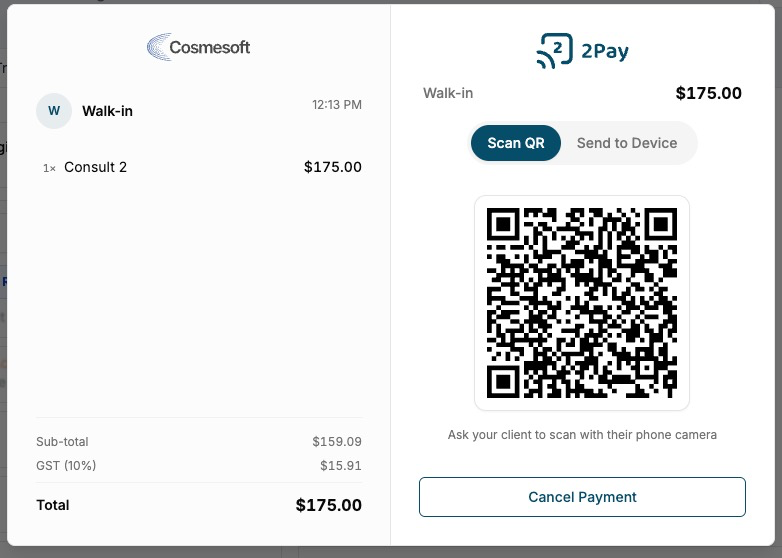
- Take Payment (Scan):
- Select the Scan tab in the 2Pay window.
- A dynamic QR code will appear. Ask the client to scan this with their phone to pay securely online.
- Send Payment Link:
- Select the Link tab.
- Click Send Link to message the payment request directly to the client's phone.
Step 2 — Verify and finalise the sale
- Monitor the payment status (e.g., "Awaited") directly within the POS.
- Once the payment is successful, a confirmation message will appear.
- Click Confirm and Finish Sale to record the transaction and issue a receipt.
What to do next
- Learn how to reconcile daily sessions.
Last updated: 9/5/26, 1:43 AM