
Fix common service issues
Fix common service issues
Use this guide to diagnose and fix the most common problems with the Services catalogue in Cosmesoft.
If you are not sure how the inventory system works, start with About Services.
Problem 1 — Service is missing from the Online Booking site
How you recognise it
- A client reports they cannot find a specific treatment on your public booking page.
- You view the booking site and the service is not listed under its category.
Most likely causes
- Online Booking Toggle — The service may have "Allow Online Booking" turned off.
- Category Settings — The service may not be assigned to the category the client is browsing, or the relevant category may be set to "Internal Use Only." A service can belong to more than one category, which helps organise services for clients navigating online booking.
- Staff Assignment — No staff members are assigned to perform this service at the selected location.
How to fix it
- Navigate to Settings > Services from the Main Menu, then find the service.
- Click Edit and ensure the Allow Online Booking toggle is ON.
- Check the service’s category settings. Ensure the service is assigned to the correct Primary Category and add any relevant Additional Categories so clients can find it in multiple sections of online booking.
- Open the Service Categories tab and ensure each online booking category where the service should appear is NOT marked as Internal Use Only.
- Check Settings > My Team to ensure at least one staff member assigned to the location has this service enabled in their profile.
How to confirm it's fixed
- Refresh your online booking site; the service should now appear in its assigned category or categories.
Problem 2 — Service duration is incorrect on the calendar
How you recognise it
- When you book a service, it takes up more (or less) space on the calendar than expected.
- There is an unexpected time before, after or during the appointment.
Most likely causes
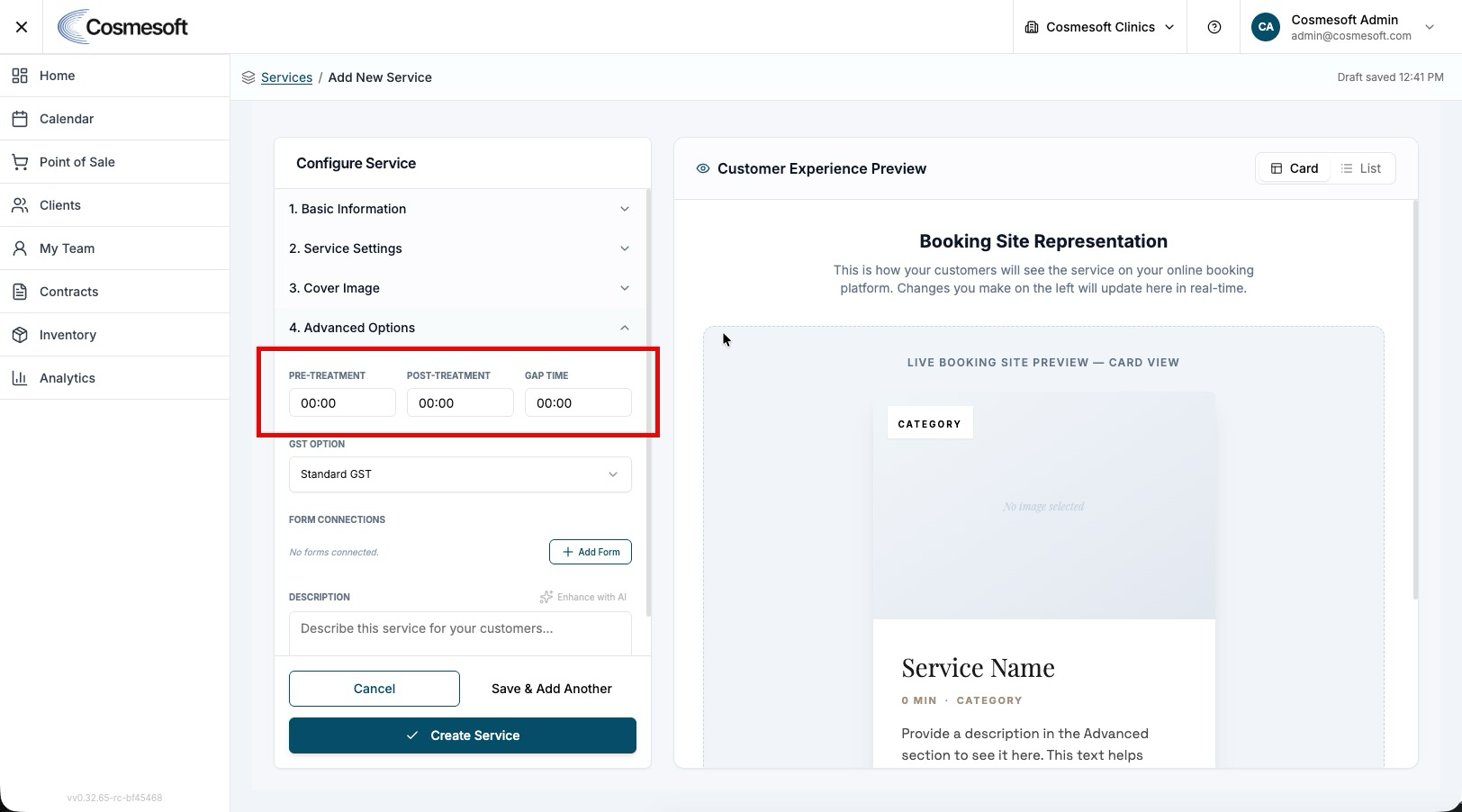
- Advanced Timing — You may have configured Pre-Treatment, Post-Treatment or Gap times that add to the total duration.
How to fix it
- Open the service and check the Duration in Basic Information.
- Expand Advanced Options and check if there are values in Pre-Treatment, Post-Treatment or Gap times that require adjustment.
- Adjust these values to 0 if they are not needed.
Problem 3 — Cannot delete a Service Category
How you recognise it
- The Delete button for a category is greyed out or shows an error when clicked.
Most likely causes
- Active Services — You cannot delete a category if it still contains services (even if those services are inactive).
How to fix it
- Navigate to the Services tab.
- Filter by the category you want to delete.
- Either delete all services in that category or edit them and move them to a different category.
- Return to the Service Categories tab and delete the category.
Still not working?
If the issue persists, gather the following before contacting support:
- The name of the service and its category.
- A screenshot of the service configuration (Basic and Advanced options).
- The name of the staff member(s) who should be able to perform it.
Last updated: 9/9/26, 12:27 PM