
Fix common My Team issues
Fix common team management issues
Use this guide to diagnose and fix problems with staff invitations, visibility, and access permissions.
If you're not sure how team management works, start with About My Team.
For setup steps, see How to invite and manage your team.
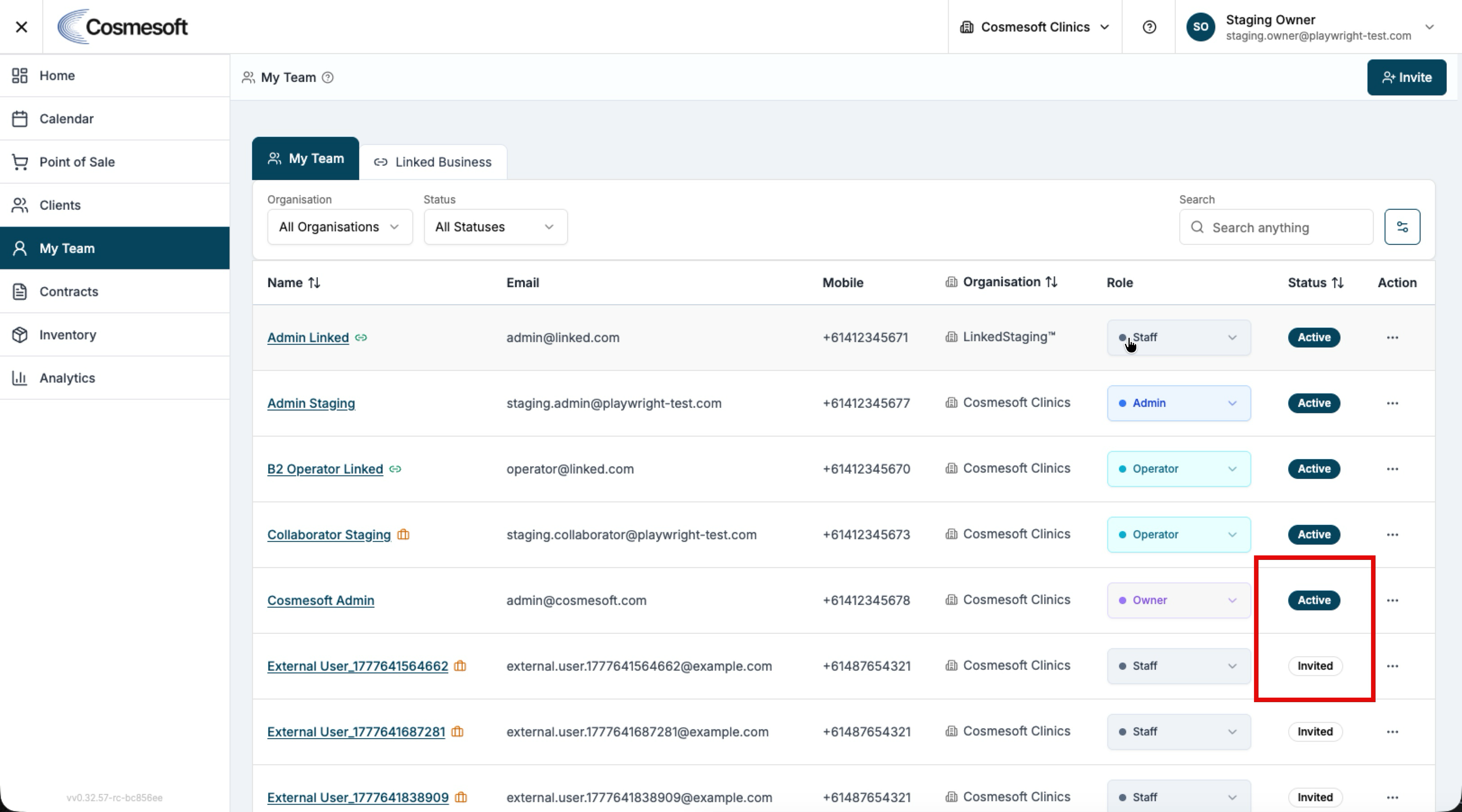
Problem 1 — A team member hasn't received their invitation
How you recognise it
- The staff member reports they haven't received an activation email.
- Their status remains as 'Pending' in your list.
How to fix it
- Check Email — Confirm the email address was entered correctly in the Invited tab.
- Spam Check — Ask them to check their junk or spam folder.
- Resend — Click the Actions menu next to their name and select Resend Invite to trigger a new email.
Problem 2 — Staff member is missing from the Calendar
How you recognise it
- You are looking at the calendar for a site, but a clinician's column is missing.
How to fix it
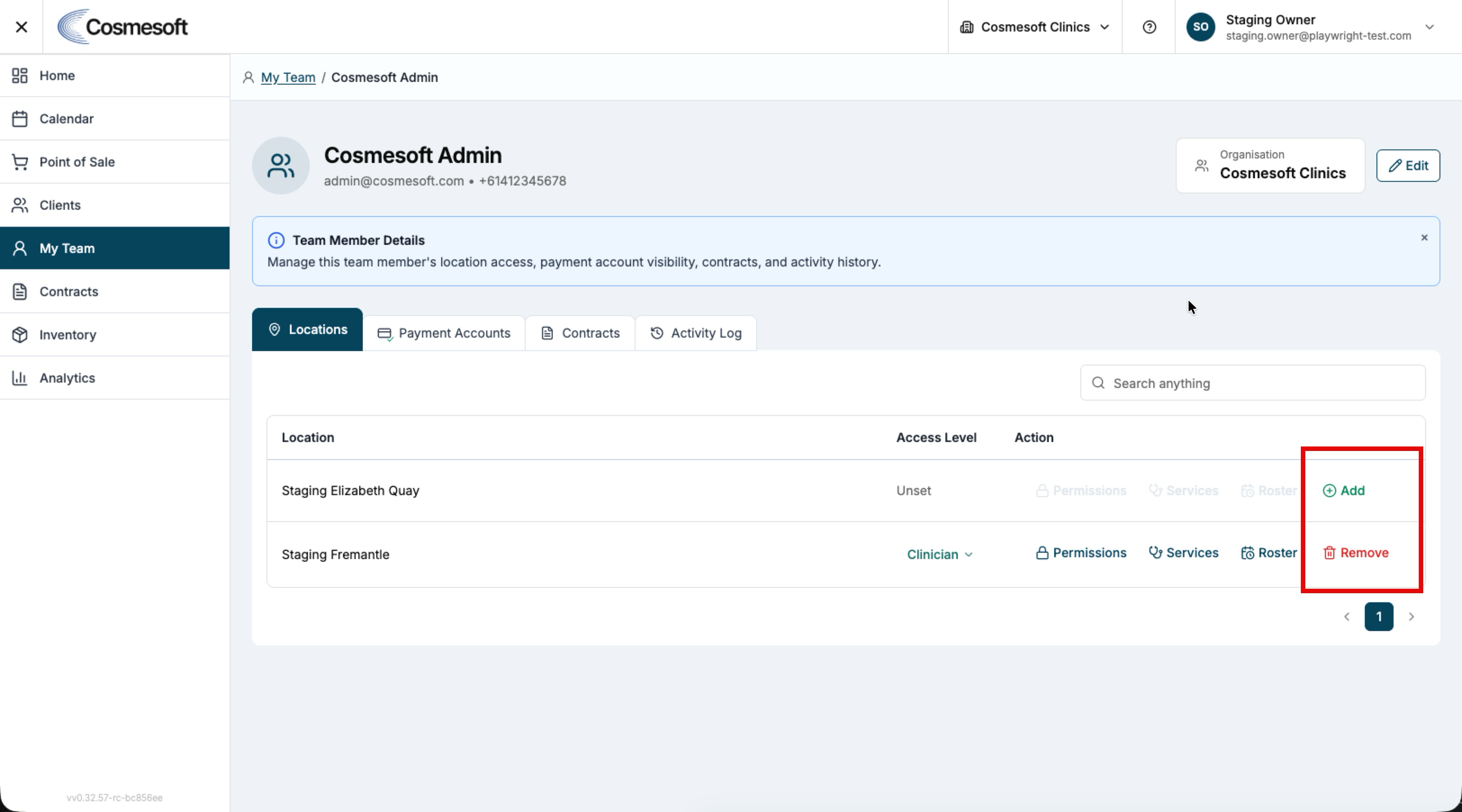
- Check Location — Open their profile and ensure they are assigned to the current clinic Location.
- Check Roster — Verify they have an active Roster entry for the date you are viewing.
- Active Status — Ensure their status is set to Active and not 'Inactive'.
Problem 3 — User cannot access specific reports or dashboards
How you recognise it
- The menu option is missing, or they see an "Access Denied" error.
How to fix it
- Review Role — Check the user's primary Role to see if it includes the required access.
- Override Permissions — Open the user's profile and manually enable the specific permission toggle (e.g., 'View Financial Reports').
- Sync — Ask the user to log out and back in, or refresh their browser page to apply the new security settings.
Problem 4 — Cannot delete a team member
How you recognise it
- The Delete option is greyed out or returns an error.
How to fix it
- Note: You cannot delete a staff member who has historical financial or clinical data linked to them (to maintain the audit trail).
- Solution: Set their status to Inactive. This revokes all clinic access while preserving your business records.
Still not working?
If the issue persists, gather the following before contacting support:
- The staff member's name and email.
- A description of what they cannot see or do.
- A screenshot of their profile's Permissions tab.
Last updated: 9/1/26, 10:27 PM