
How to review an updated form or treatment profile template
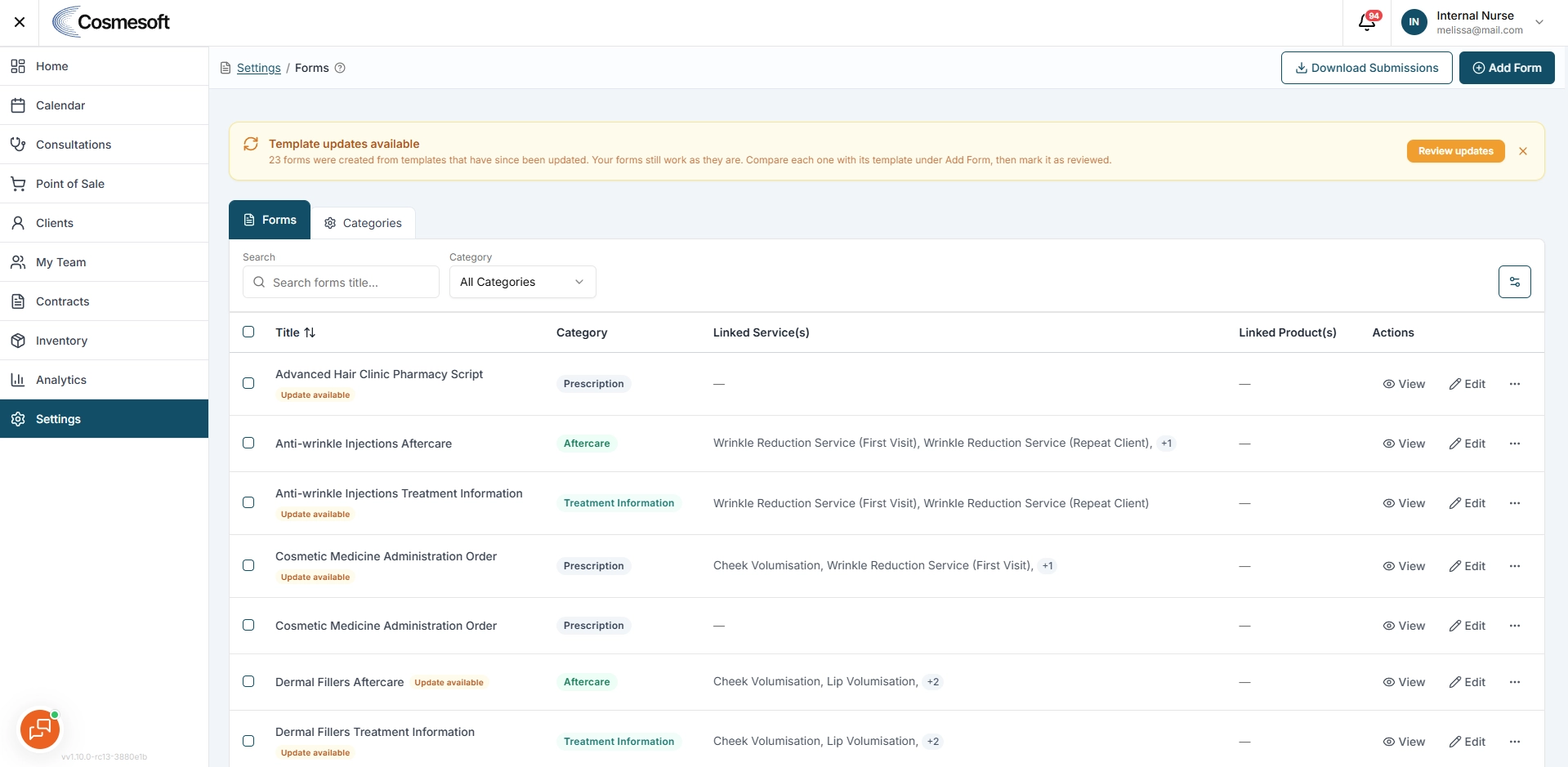
Cosmesoft shows an update notice when a copied form or treatment profile no longer matches the latest source template version.
Where to find template updates
Open either:
- Settings > Client Forms
- Settings > Treatment Profiles
Open an item showing the Outdated status or template update notice.
Before you begin
- Confirm that the current clinic version still works as expected.
- Review any clinic-specific changes before replacing or rebuilding content.
- Do not assume that acknowledging the notice applies the new template.
Step 1 – Open the item
Open the Client Form or Treatment Profile showing the update notice.
The notice identifies that the source template has changed or that the current version needs review.
Step 2 – Review the current setup
Check:
- The form or profile definition.
- Linked services.
- Required fields and instructions.
- Clinic-specific wording.
- The Injection Notes Template, when reviewing an Injectables profile.
Step 3 – Compare with the latest template
Review the latest available template and decide whether your clinic needs to update its local version.
Step 4 – Mark the review complete
When you have checked the current setup, select Mark as reviewed.
This clears the update notice for the reviewed version. It does not automatically replace the item with the latest source template.
What to do next
Test the form or treatment profile in staging before using it in a live consultation.