
How to set up Online Booking
Use this guide to enable Online Booking for a location and configure the main rules that control what clients can book.
Before you begin
Make sure:
- The location is active.
- The services you want to offer are enabled for Online Booking.
- Practitioners and rosters are configured.
- Deposit and communication settings are ready if you use them.
Step 1 — Open the location's Booking Settings
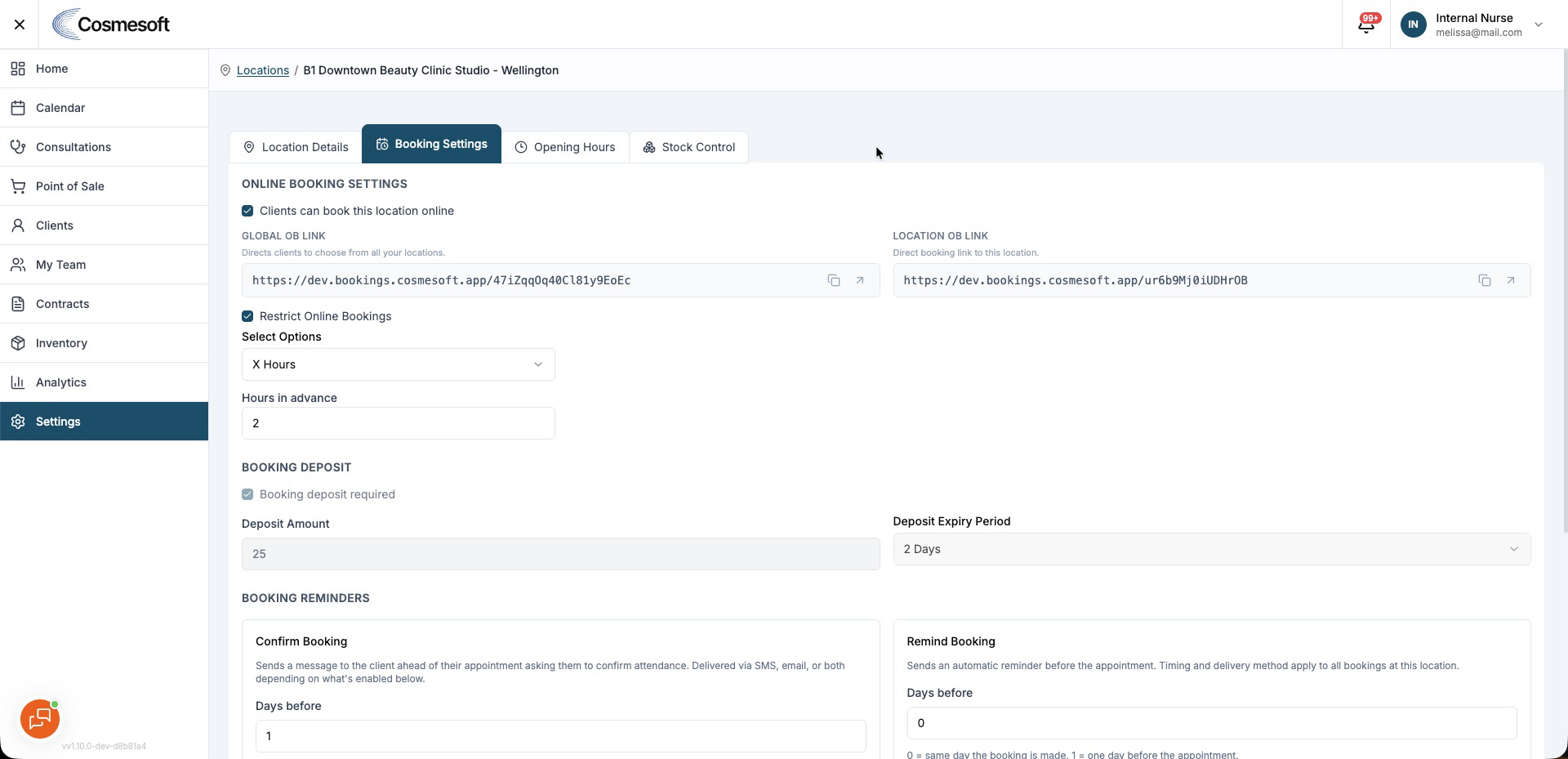
Open the location settings and go to Booking Settings.
Review the options that control Online Booking for that location.
Step 2 — Configure client booking messages
Set the confirmation and reminder timing your clinic wants to use.
Choose the available client delivery methods, such as:
- SMS
These messages are sent to the client.
Step 3 — Set up an Online Booking Alert for staff
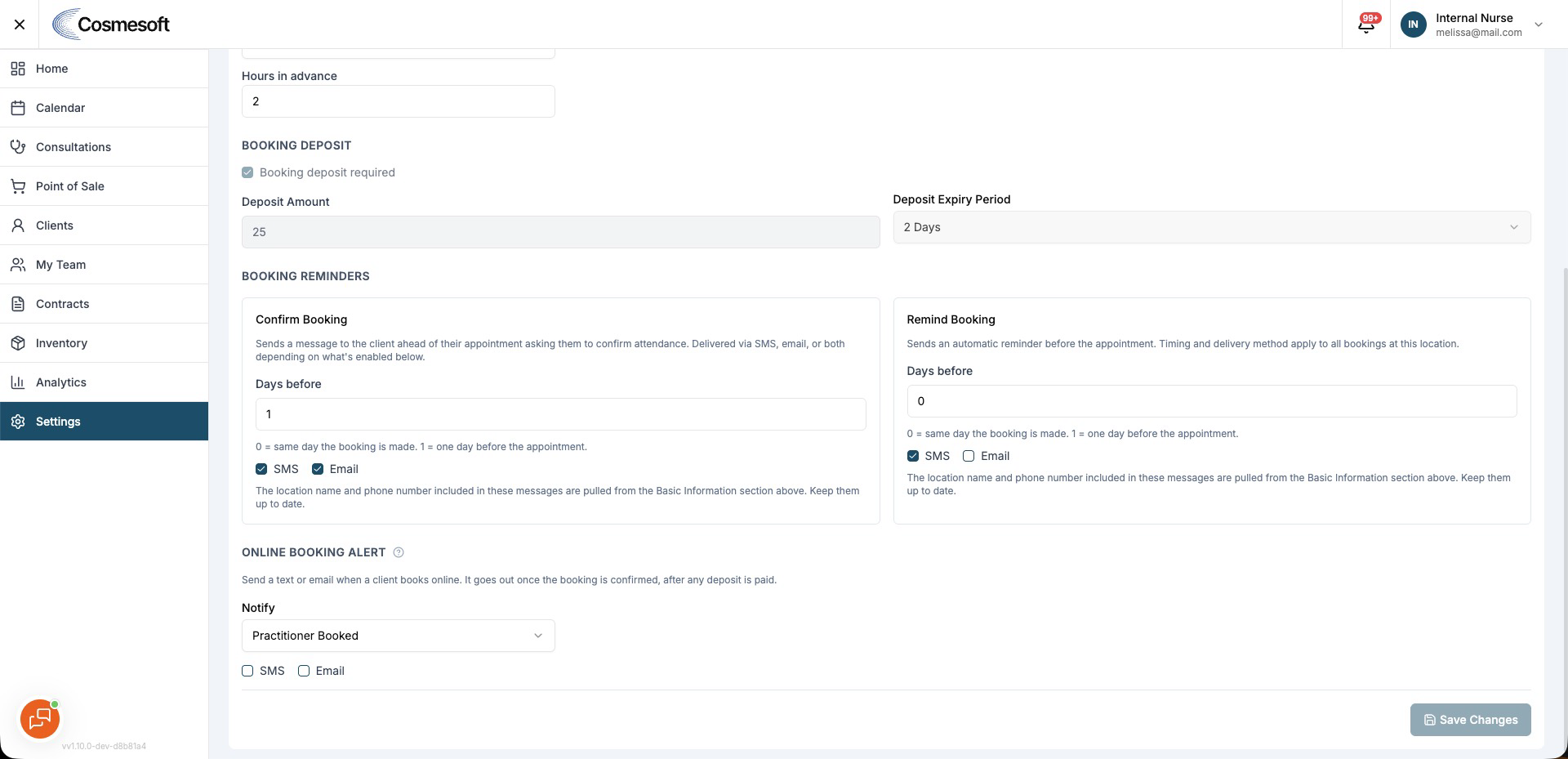
Use Online Booking Alert when someone at the clinic should be notified each time a client completes an online booking.
- Turn on Online Booking Alert.
- Choose SMS, Email or both.
- Choose who receives the alert.
- Select the booked practitioner or another active team member.
- Save the location settings.
The setting is configured separately for each location and is off by default.
SMS alerts use message credits.
The selected recipient must be an active team member in the business.
The alert is informational. Replying to the alert does not confirm or cancel the client’s booking.
Step 4 — Review services and booking categories

Confirm the services that should appear online.
A service can be listed under more than one Online Booking category. This changes how clients find the service on the booking site without changing its primary internal category.
See How to manage services and categories.
Step 5 — Check practitioner availability
Confirm that practitioners have the required location, service and roster setup.
Online Booking only offers times that satisfy the active booking rules.
Step 6 — Test the booking site
Open the location's booking link and complete a test through the same flow a client will use.
Confirm:
- The expected services appear.
- The expected practitioners and times are available.
- Deposit rules behave correctly.
- Client messages are correct.
- Staff receive the Online Booking Alert when it is enabled.