
How to process a sale
Use Point of Sale (POS) to charge a client for services, products, vouchers, treatment series and other supported items.
Before you begin
Confirm:
- the correct POS location is selected
- the correct client is selected
- the correct operator is assigned before finalising the sale
- the cart contains the items you intend to charge
Step 1 — Select the client
When the client has a booking today, POS can show them under Today's Clients.
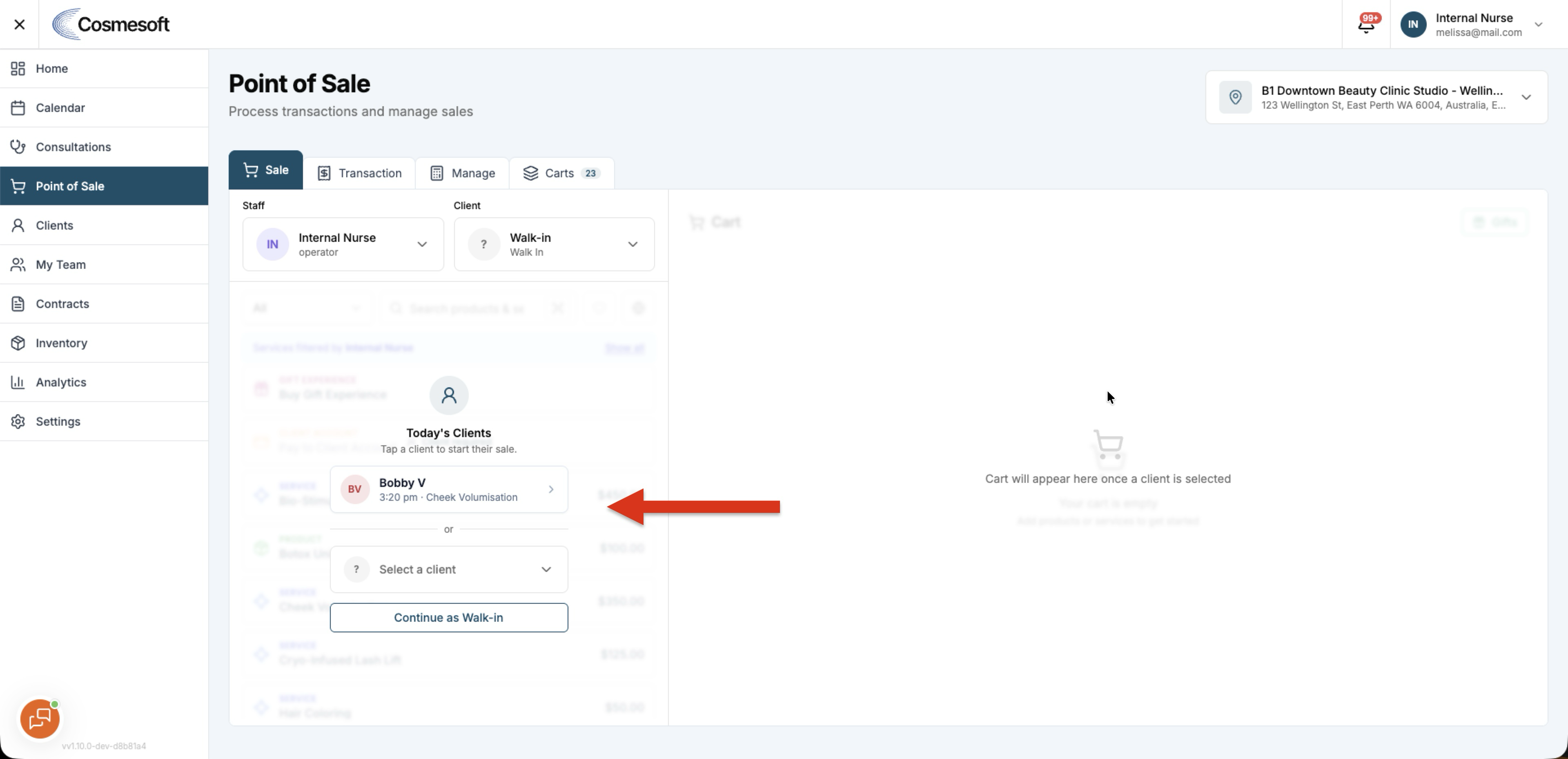
Select the client from Today's Clients to start the sale without searching for their profile manually.
Today's Clients follows the selected POS location and its timezone.
You can still search for a client when they do not appear in the list.
Step 2 — Review the cart
Add or review the services, products, vouchers or other items that should be included.
If the cart came from a consultation, check that the treatment items and quantities are correct before payment.
Step 3 — Check prices and totals
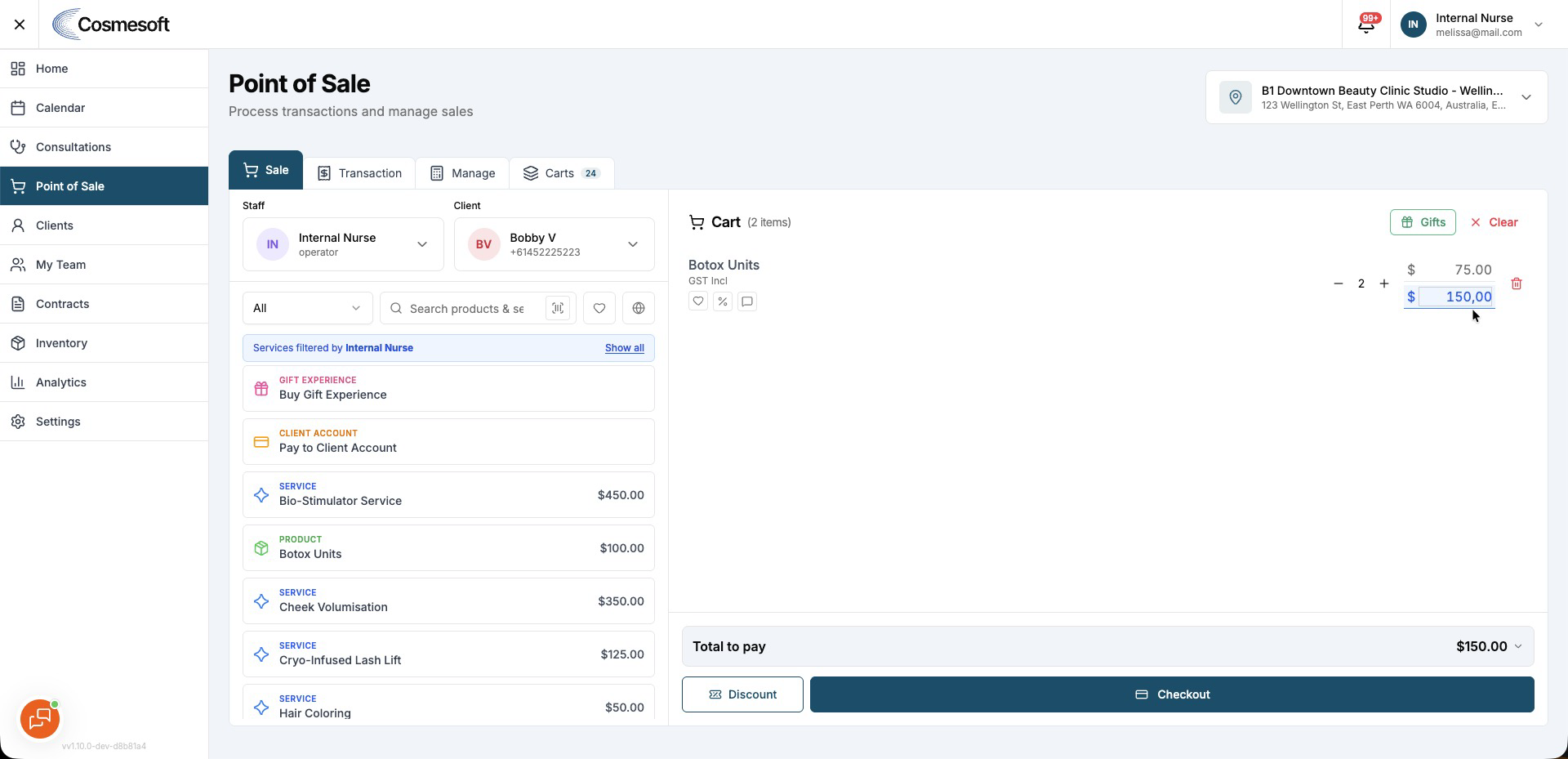
Review each line before taking payment.
When you enter a final Treatment Series price or edit a POS line total, Cosmesoft charges the amount entered to the cent.
If the final amount needs to be distributed across related lines, Cosmesoft balances the cents so the line amounts add up to the exact total you entered.
Step 4 — Confirm the operator
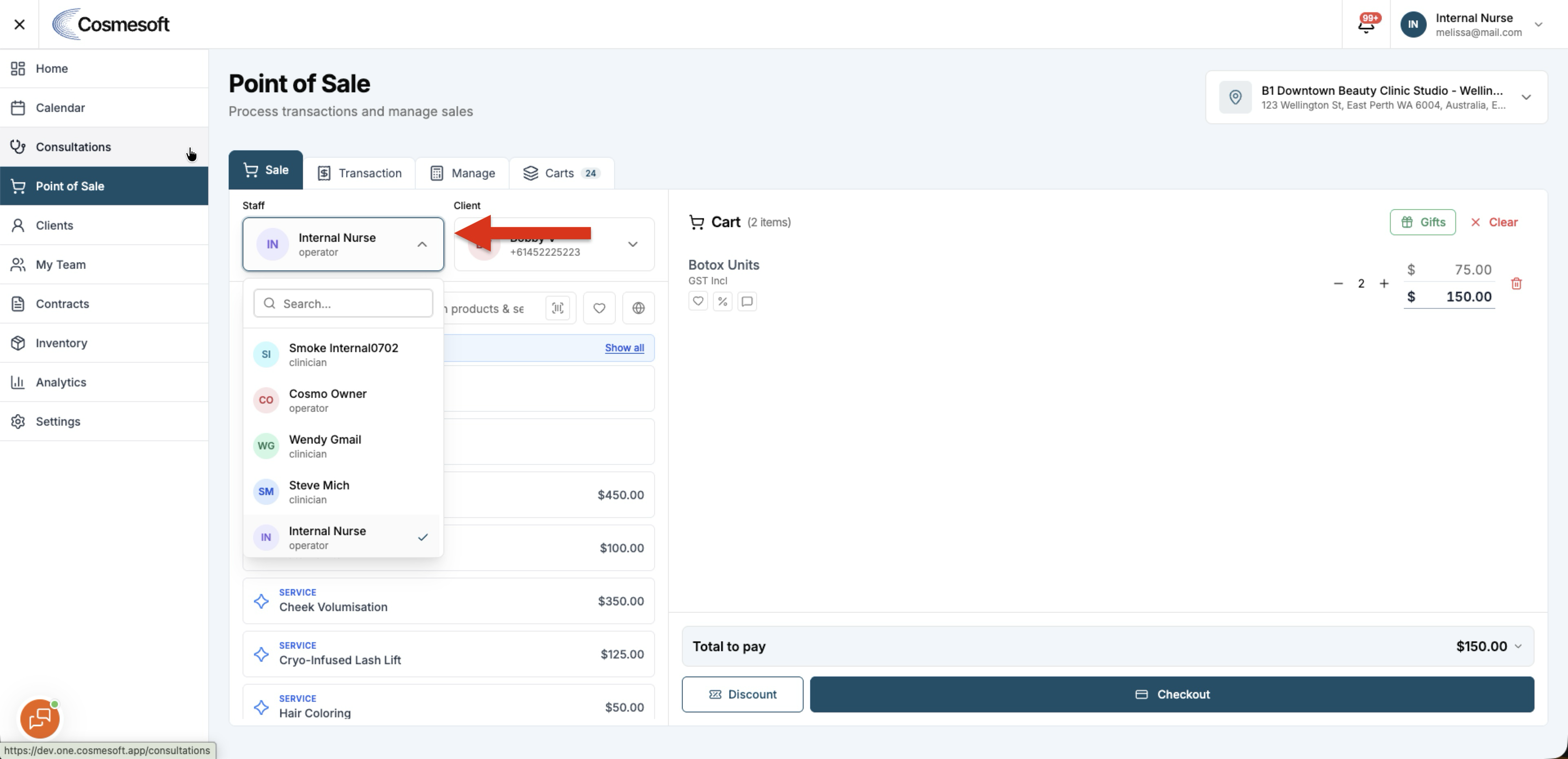
Check the operator assigned to the relevant items before finalising the transaction.
The operator can affect reporting or commission, so confirm it before payment is completed.
Step 5 — Take payment
Choose the payment method the client wants to use.
Available methods depend on the clinic setup and may include cash, card, 2Pay, gift voucher, loyalty points, client account credit or split payment.
For split payments, enter each payment amount and method until the balance is fully paid.
Step 6 — Complete the sale
Review the final amount and payment methods, then complete the sale.
Once finalised, the transaction is recorded in POS history.
Related articles
- How to start a POS sale from Today's Clients
- How to process a partial-quantity refund
- How to manage gift vouchers