
How to Create and Repeat Staff Rosters
Use Rosters to plan when and where practitioners are working.
This guide covers one-off rosters and repeating patterns.
Before you start
Make sure:
- the location is set up
- the practitioner is available in My Team
- the practitioner has the required access for the location
- you know the shift pattern you want to create
Roster access is location-specific.
A linked group member can manage a roster at a location when they have the required roster permission for that location. Permission at one location does not automatically provide access at another.
Create a roster
- Open Rosters.
- Select the location and practitioner.
- Add a roster entry for the required date.
- Choose the roster type when required.
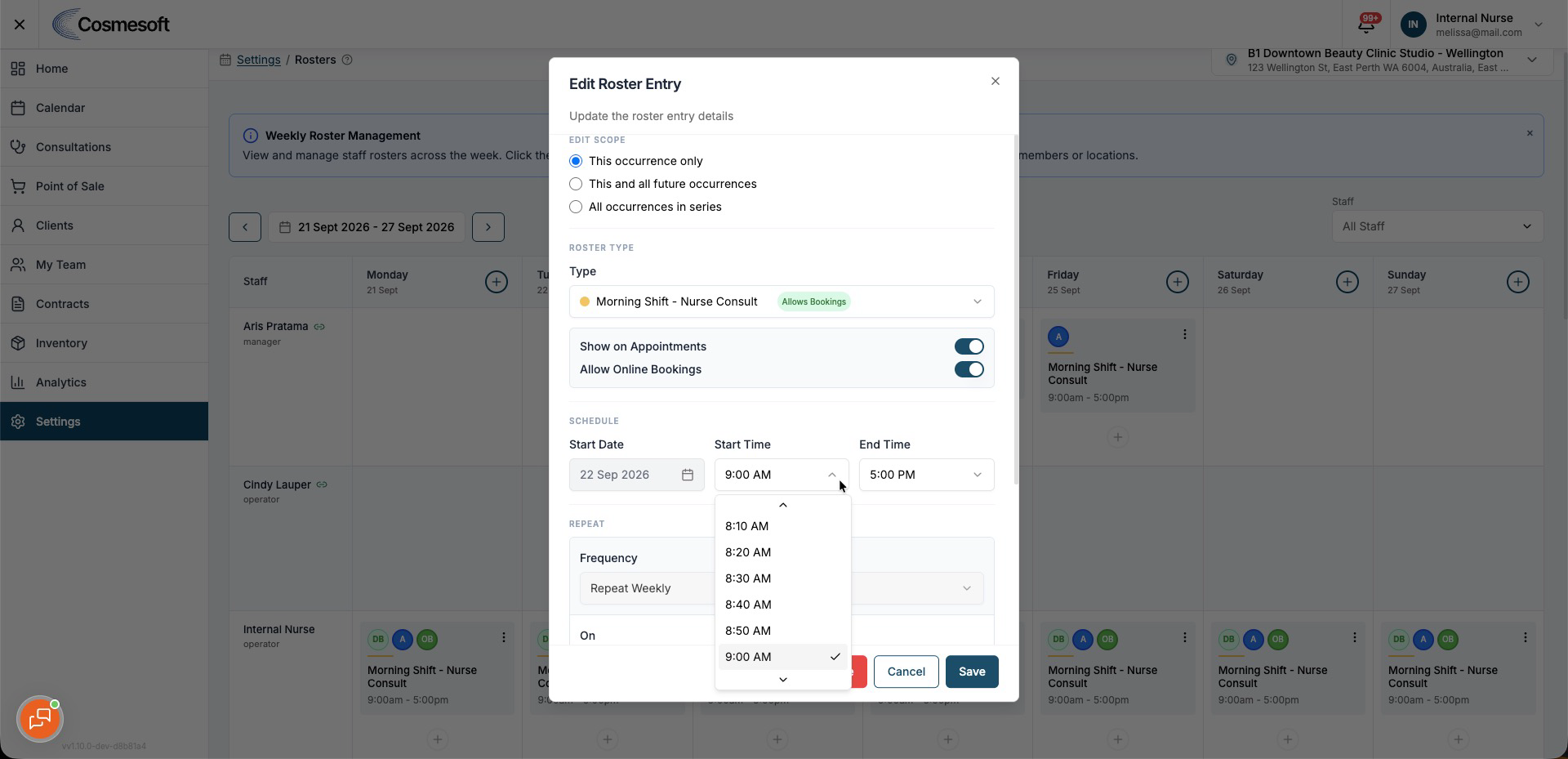
- Set the start and end time.
- Save the roster.
Roster start and end times can be selected in 10-minute increments.
Create a repeating roster
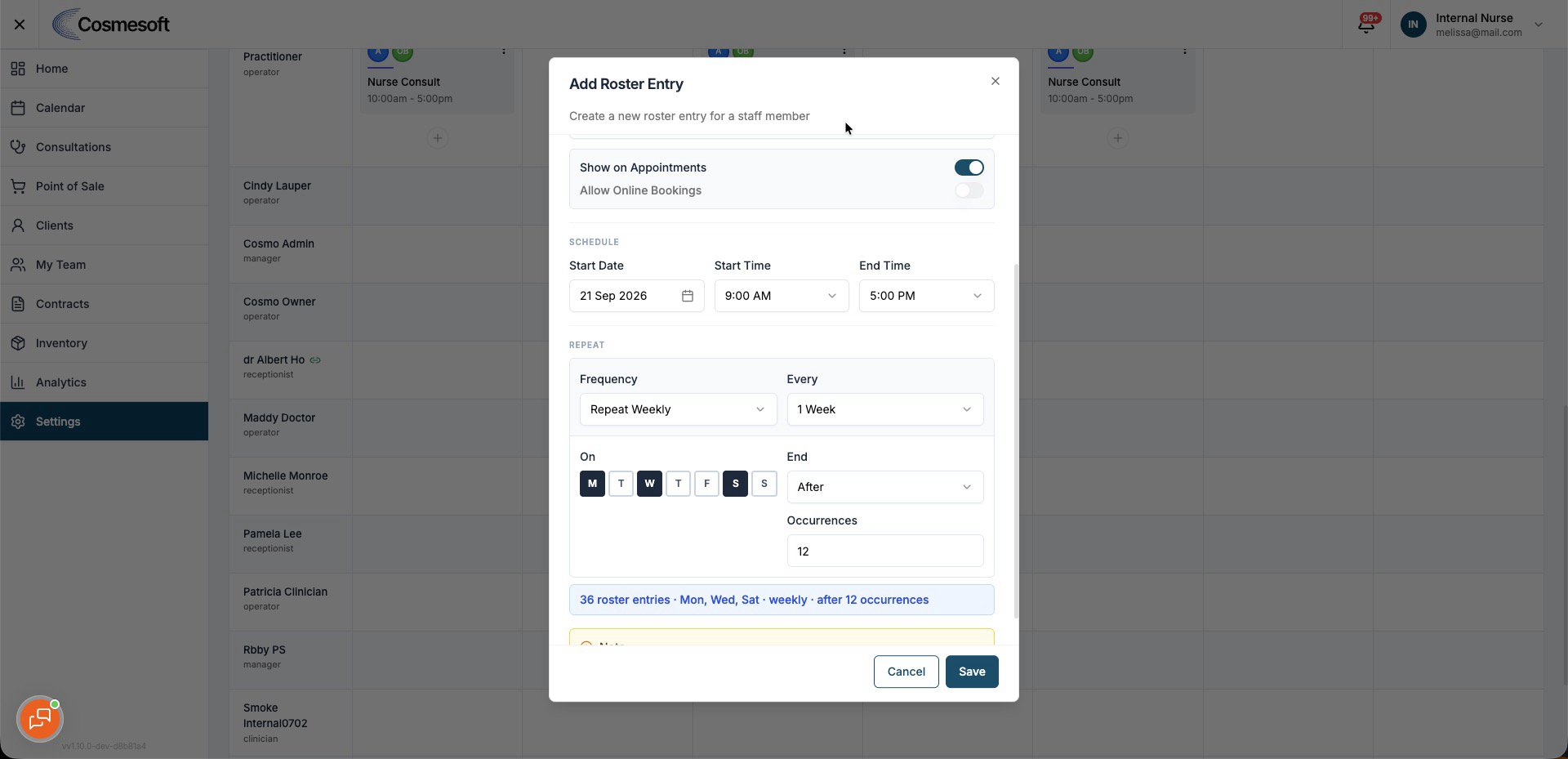
Use a repeat pattern when the same shift should occur regularly.
Choose the frequency your clinic needs, such as weekly, every two weeks or monthly.
Set:
- the start date
- the days that should repeat
- how often the pattern repeats
- the end date or number of occurrences
The repeat end date follows the selected location's local timezone.
This helps keep the final occurrence on the date you selected when your team works across different timezones.
Fortnightly patterns
For an alternating fortnightly roster:
- Create the first roster and repeat it every 2 weeks.
- Create the second pattern on the alternate week.
- Repeat that roster every 2 weeks as well.
Different shifts on different days
Create separate repeat patterns when the practitioner's hours differ by day.
For example:
- Monday to Wednesday, standard hours
- Thursday, late shift
- Friday, shorter shift
Keeping these as separate patterns makes later changes easier.
Limited-period rosters
Use a specific end date when a roster should only apply for a temporary period.
Examples include:
- temporary contracts
- seasonal hours
- annual leave
- short-term location coverage
Conflicts
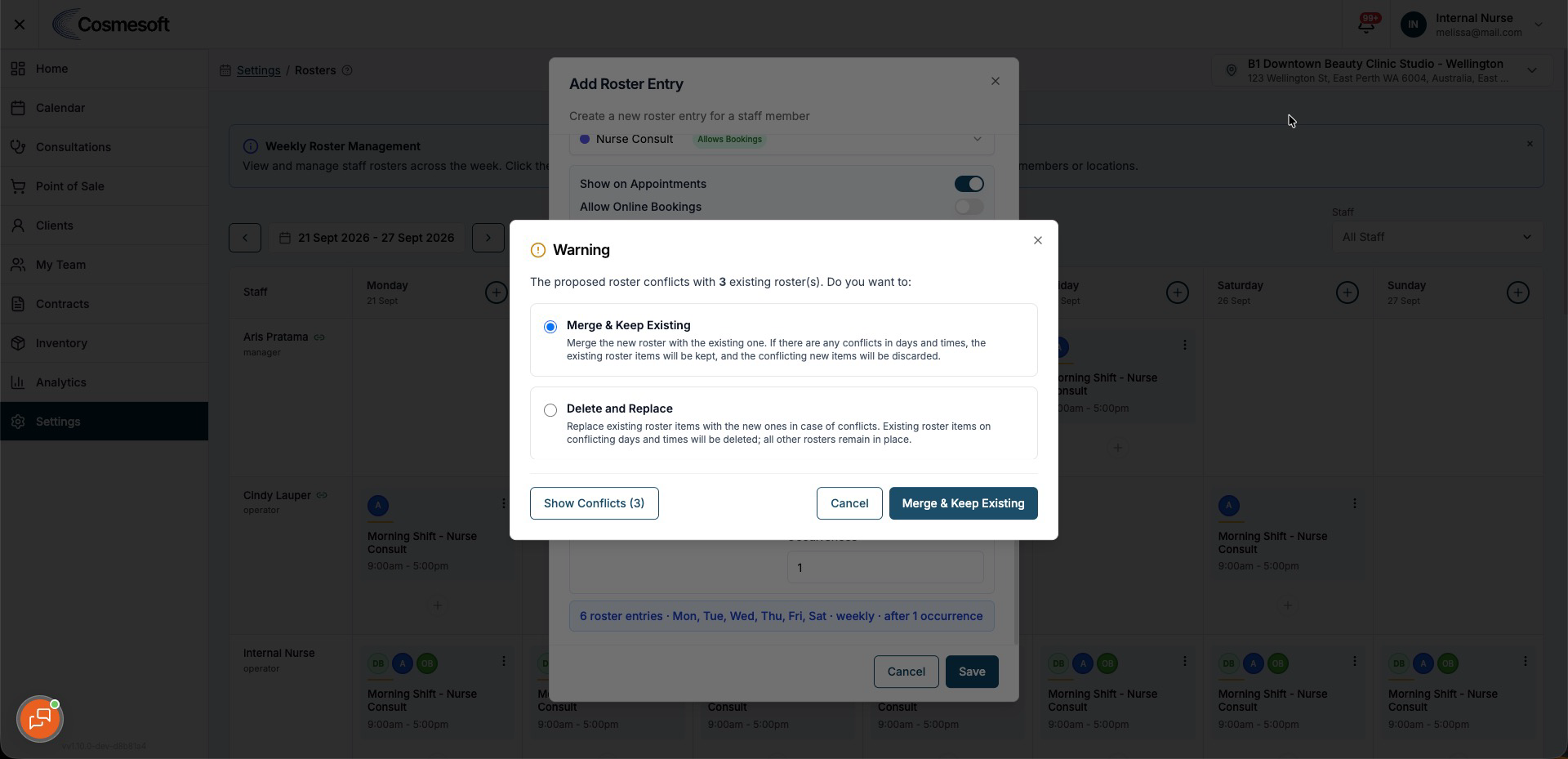
Cosmesoft warns you when the new roster conflicts with existing roster entries.
Review the conflict carefully before replacing or changing existing entries.
Check your rostered coverage
After saving:
- check the weekly roster view
- confirm the practitioner is at the correct location
- confirm the start and end times
- check that the repeat pattern ends where expected
- confirm Calendar and Online Booking show the expected availability