
Fix common form issues
Use this guide to diagnose and fix problems with digital client forms and SmartForm automation.
If you're not sure how forms work, start with About Client Forms.
For setup steps, see How to manage client forms.
Problem 1 — Form not sending to client
How you recognise it
- The "Forms" section on an appointment tile shows as empty or "Not Sent."
- The client reports they haven't received a link via SMS or Email.
Most likely causes
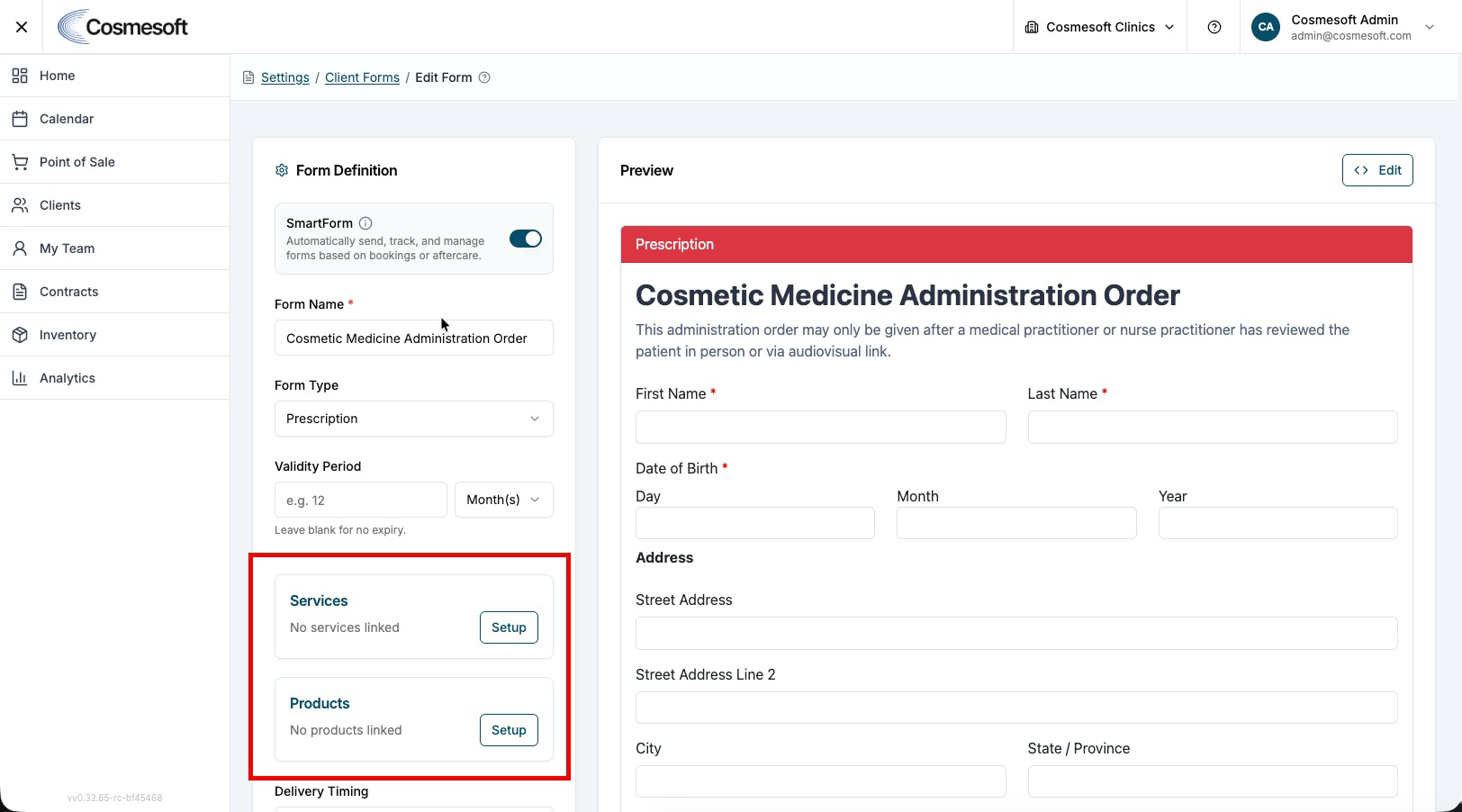
- Missing Link — The service booked hasn't been linked to the form in SmartForm settings.
- Delivery Timing — The form is set to send "1 Day Before Visit," but the appointment was only just created.
- Contact Details — The client's profile is missing an email address or mobile number.
How to fix it
- Go to Client Forms > Edit and verify the SmartForm toggle is on and the service is linked.
- Check the Delivery Timing to ensure it hasn't been set to a future date.
- Verify the client's contact details in their profile and click Resend Forms from the appointment tile.
Problem 2 — SmartForm not triggering
How you recognise it
- Staff have to manually attach forms to every new booking.
Most likely causes
- Automation Disabled — The SmartForm toggle is turned off for that specific form.
- Service Conflict — Multiple forms are linked to the same service with conflicting rules.
How to fix it
- Ensure the SmartForm toggle is enabled for the form.
- Check that the service is correctly linked in the Automation section of the form editor.
- Refresh the page and test with a new booking to see if the form now attaches automatically.
Problem 3 — Cannot edit form fields
How you recognise it
- The drag-and-drop builder is unresponsive.
Most likely causes
- Permission Issue — You may have "View" only access to forms.
- In-use Lock — The form might be temporarily locked if it's currently being completed by a client.
How to fix it
- Verify your permissions with an administrator (Settings → My Team).
- Ensure you are clicking Edit and not just View from the list.
- Try refreshing your browser or clearing your cache if the builder UI seems stuck.
Problem 4 — Submission download is empty
How you recognise it
- The downloaded ZIP file contains no PDFs.
Most likely causes
- Date Filters — The date range selected in the download dialog doesn't include the submission dates.
- Unfinished Forms — Only fully completed and signed forms are included in the bulk download.
How to fix it
- Double-check the Start Date and End Date filters in the download dialog.
- Ensure the clients have actually submitted their forms (check the Forms tab on their profile).
- Try downloading for a smaller date range or a specific form type to narrow down the issue.
Still not working?
If the issue persists, gather the following before contacting support:
- The name of the affected form.
- The client's name and appointment date.
- A screenshot of the Automation settings for the form.
Last updated: 9/24/26, 10:53 PM