
How to request and review a prescription
Use this guide to send a prescription for review and complete the prescriber’s decision in Cosmesoft.
Where to find prescriptions
- Prescription requests start inside the client’s consultation.
- Prescribers can find requests awaiting review in Scripts to Sign.
Before you begin
- The consultation must contain the information required by your clinic.
- The requester and prescriber must have the correct access.
- Select the prescriber who should receive the request.
Prescriber access: The team member who will prescribe must have Can prescribe enabled in My Team.
Step 1 – Open the prescription section
- Open the client’s consultation and go to Compliance.
- Review the client, treatment and prescription details before continuing.
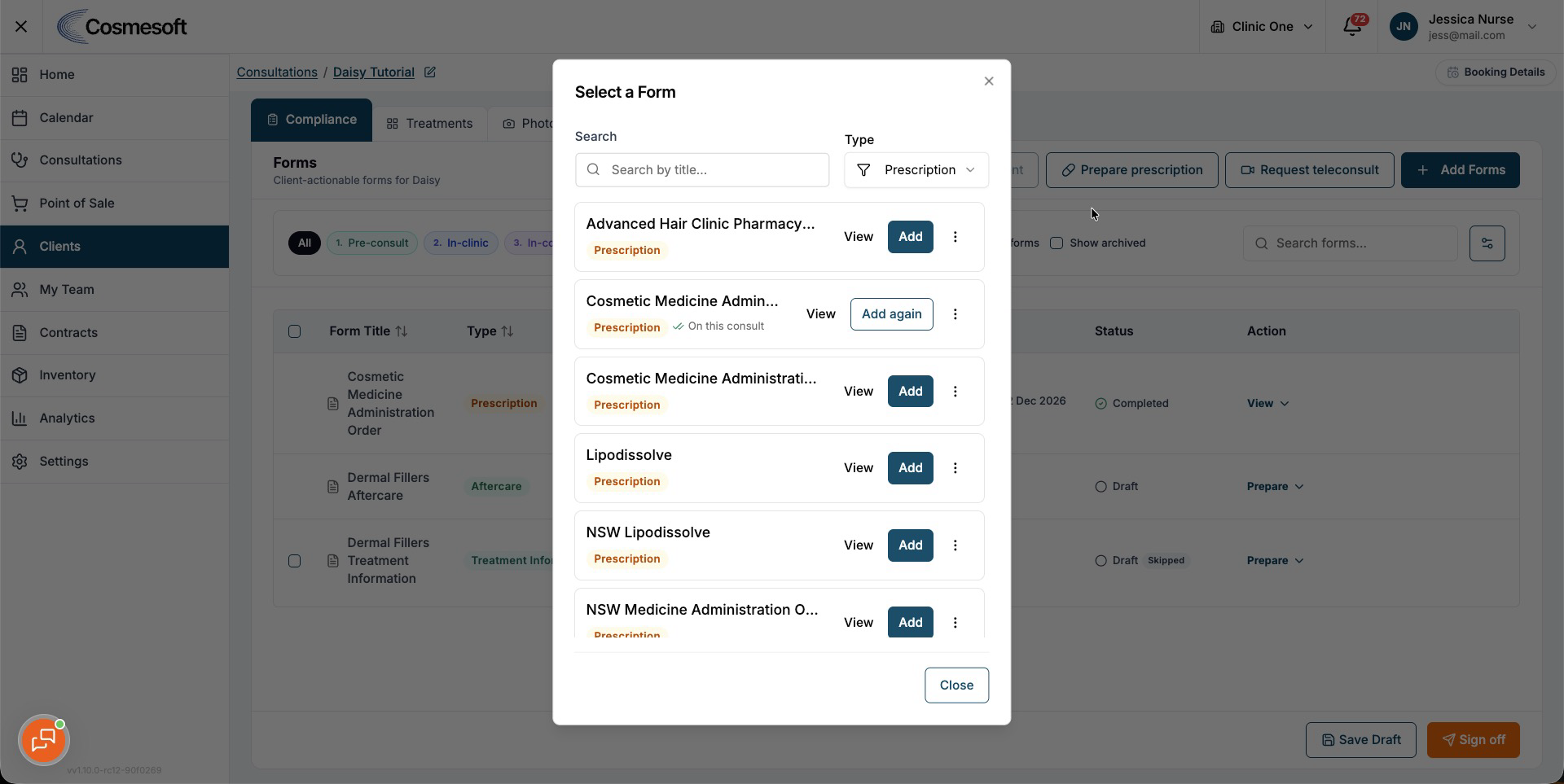
Step 2 – Send the request
Select Prepare prescription, choose the required prescription form, then select Request signature from its row.
Choose the prescriber and send the request. Cosmesoft sends a secure sign-in link and places the request in the prescriber’s queue.
The prescriber receives temporary access to the client information required for this request. This access is released when the request is cancelled, declined, or signed.
Step 3 – Open Scripts to Sign
As the prescriber, open Scripts to Sign and select the request you want to review.
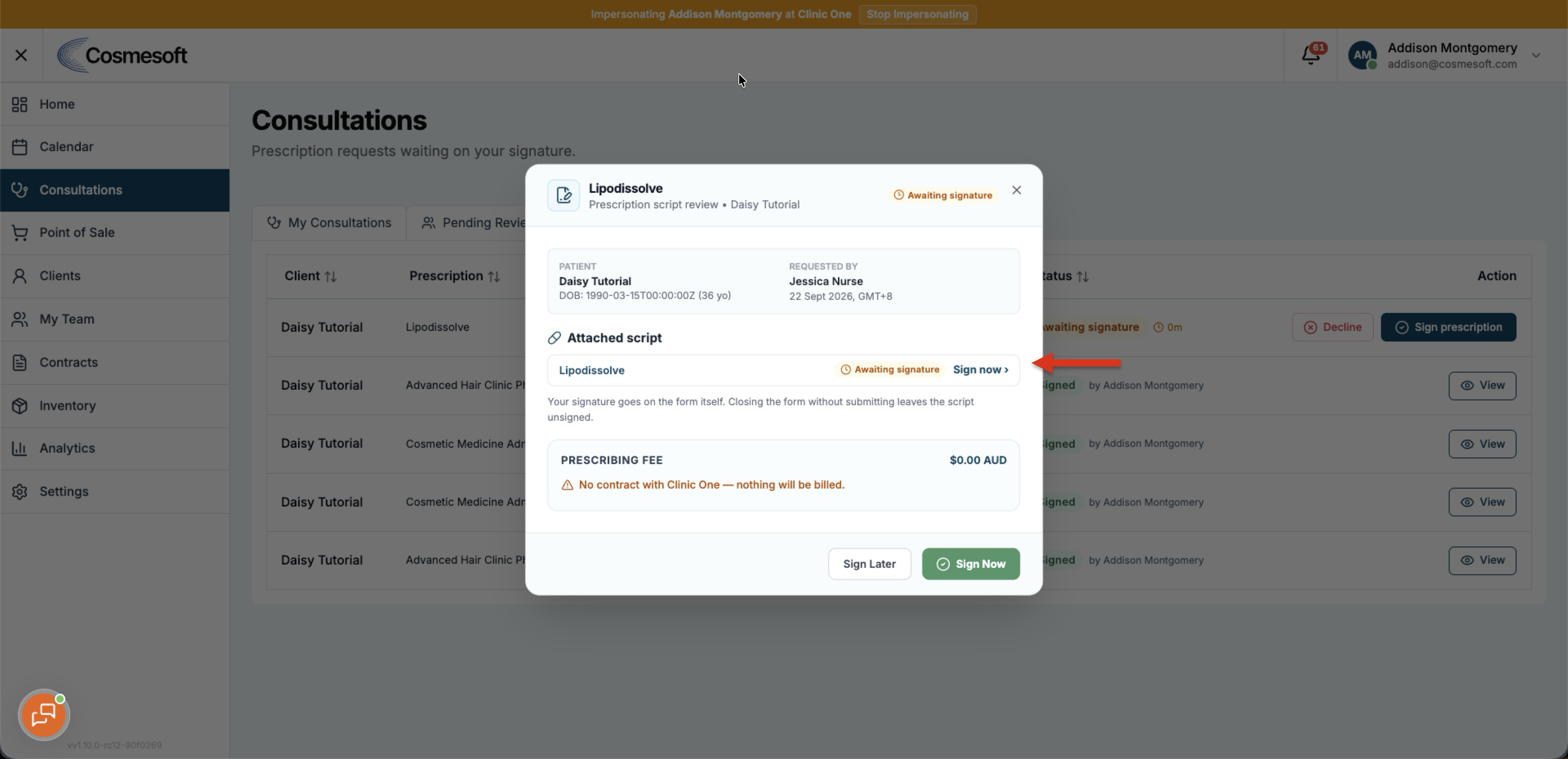
Step 4 – Review the request
Check the client and prescription information. Add or correct information only when your role allows it.
Choose the appropriate action:
- Select Sign Now to complete and sign the prescription.
- Select Decline when the prescription should not proceed.
- Choose whether the prescribing fee should be charged or waived when this option is shown.
If the request is still unanswered, the requester can select Nudge prescriber to send a fresh secure link.
Select Cancel request when the wrong prescriber was selected or the request should no longer proceed. You can then send a new request to another prescriber.
If a request is declined, the decline reason is shown so the requester can review it before sending a new request when appropriate.
If a MediApp prescription is not showing
If the client is linked to MediApp but an expected current prescription does not appear in Cosmesoft, select Sync from MediApp from the prescription banner.
Cosmesoft first checks for recent completed prescription information. If a full refresh is required, the remaining sync continues in the background.
You do not need to create a new prescription request just because an existing MediApp prescription has not appeared yet.
Step 5 – Check the final status
Return to the consultation and confirm that the prescription shows the expected status. A signed prescription is attached to the consultation automatically.
If the request was declined, review the reason and send a new request when appropriate.
What to do next
Continue the consultation and open Sign-off. You can select Finish my part while the prescription is awaiting the prescriber. The consultation stays editable until it is finalised.