
How to manage treatment packages
Learn how to create Treatment Series (TS) templates, sell series to clients at POS, redeem session items, and track purchased packages.
Before you begin
Make sure:
- You have Admin or Manager access to create Treatment Series templates.
- The services and products you want to include in the series have been set up.
- Treatment Series must be sold to a named client, not a Walk-In client, so session balances can be tracked.
Step 1 — Create a Treatment Series in Settings
- Navigate to User Profile → Settings → Promotions.
- Open the Treatment Series tab.
- Select + Create Treatment Series.
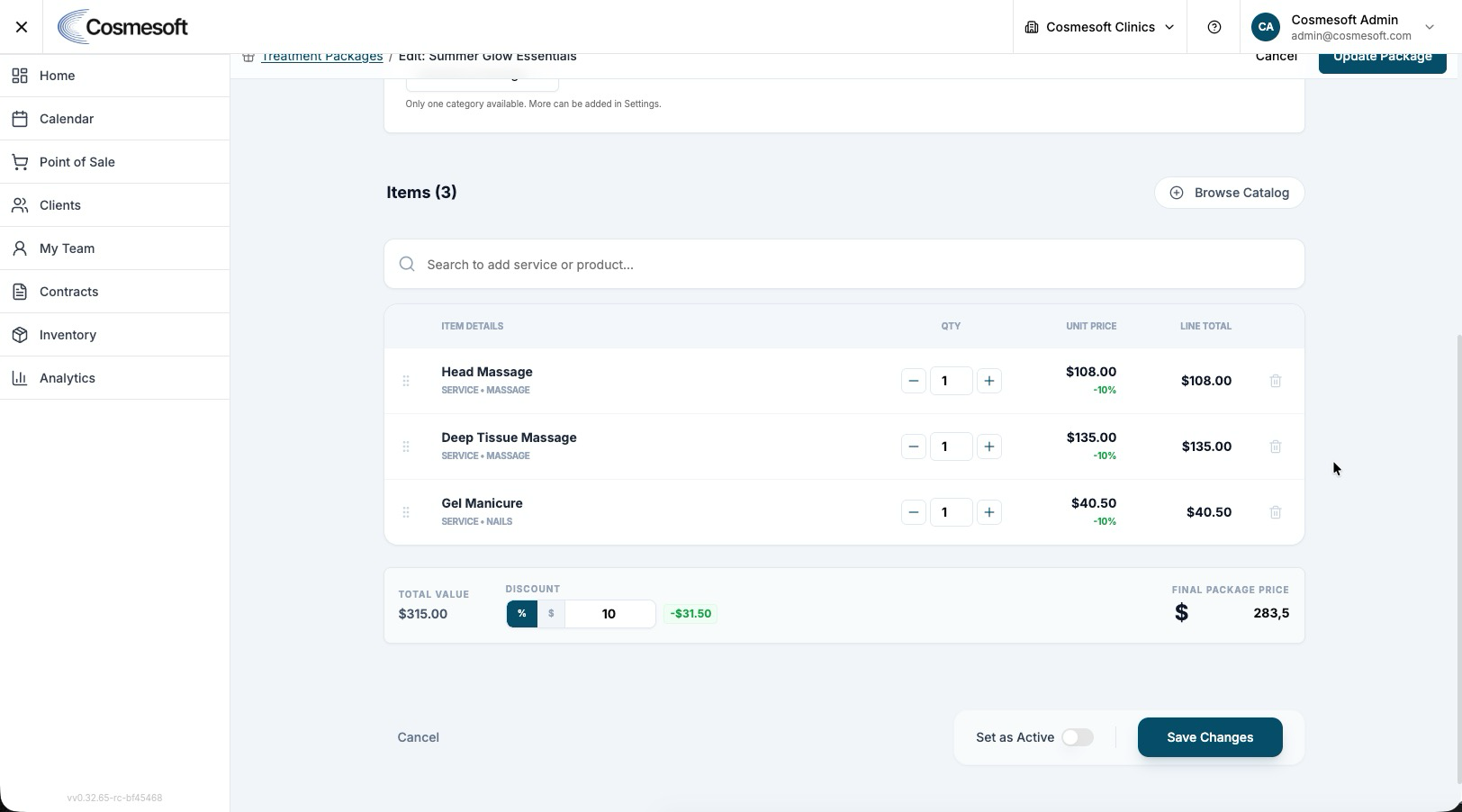
- Enter the Series Name, for example, “3 x Laser Hair Removal Series”, and add a clear description.
- Add Items: Select the included services or products and set the quantity for each item.
- Set Pricing: Enter the total series price, inclusive of GST.
- Set the Treatment Series status to Active when it is ready to sell. Active series must be deactivated before editing.
- Select Save Treatment Series.
Step 2 — Sell a Treatment Series in POS
- In Point of Sale (POS), search for and select the named client. A Treatment Series cannot be sold to a Walk-In client because it must be linked to a client profile for tracking.
- Search for the Treatment Series by name, or filter the item search to Treatment Series.
- Add the Treatment Series to the sale.
- Complete payment to link the series to the client profile.
For the full checkout workflow, see How to process a sale and About the Point of Sale (POS).
Step 3 — Redeem a Session Item
- In POS, add the eligible service or product included in the Treatment Series to the client’s cart. If the item is not included in the Treatment Series, redemption will not apply.
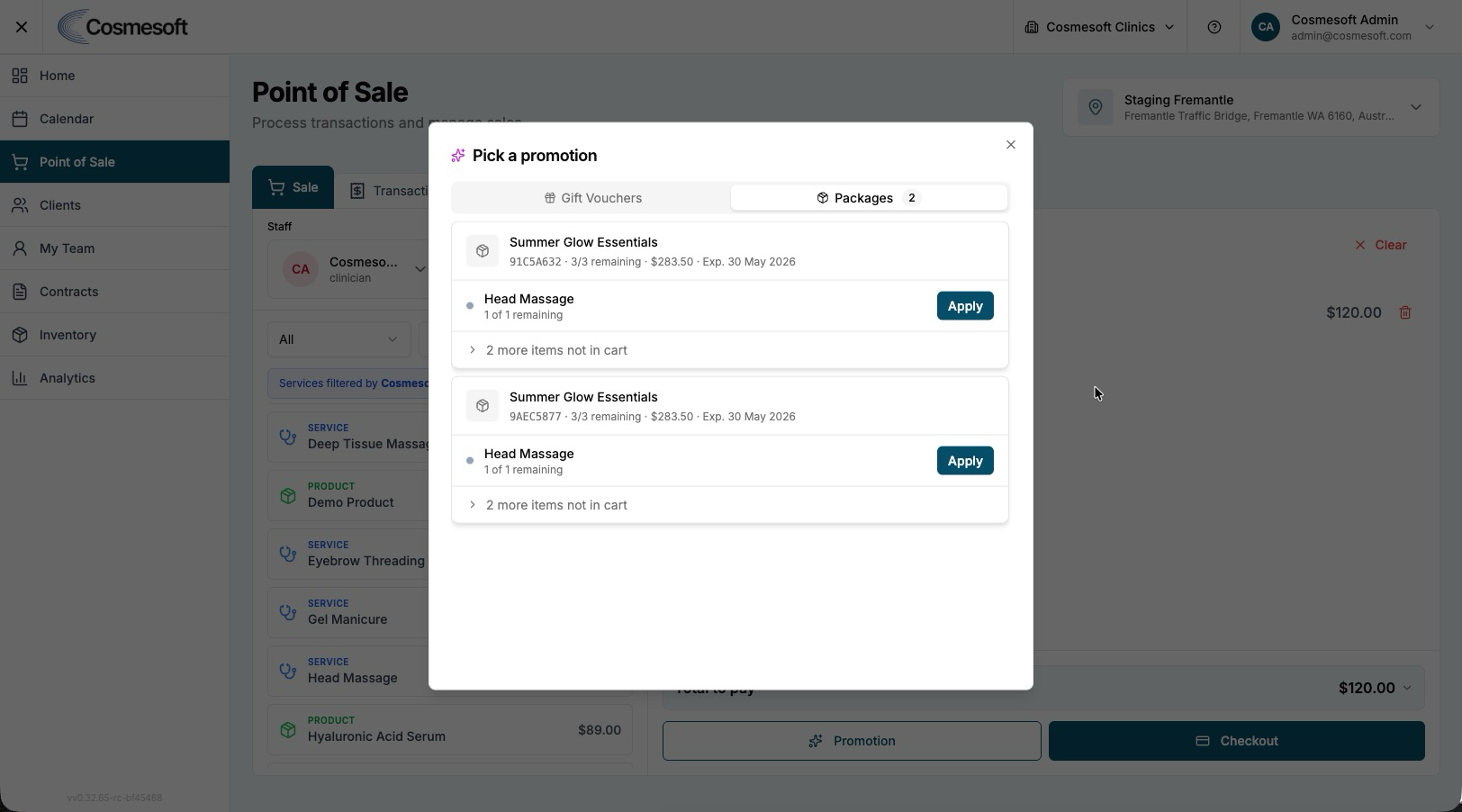
- Select Promo Code or the promotions icon.
- Select the client’s active Treatment Series from the available promotions list.
- Select Apply.
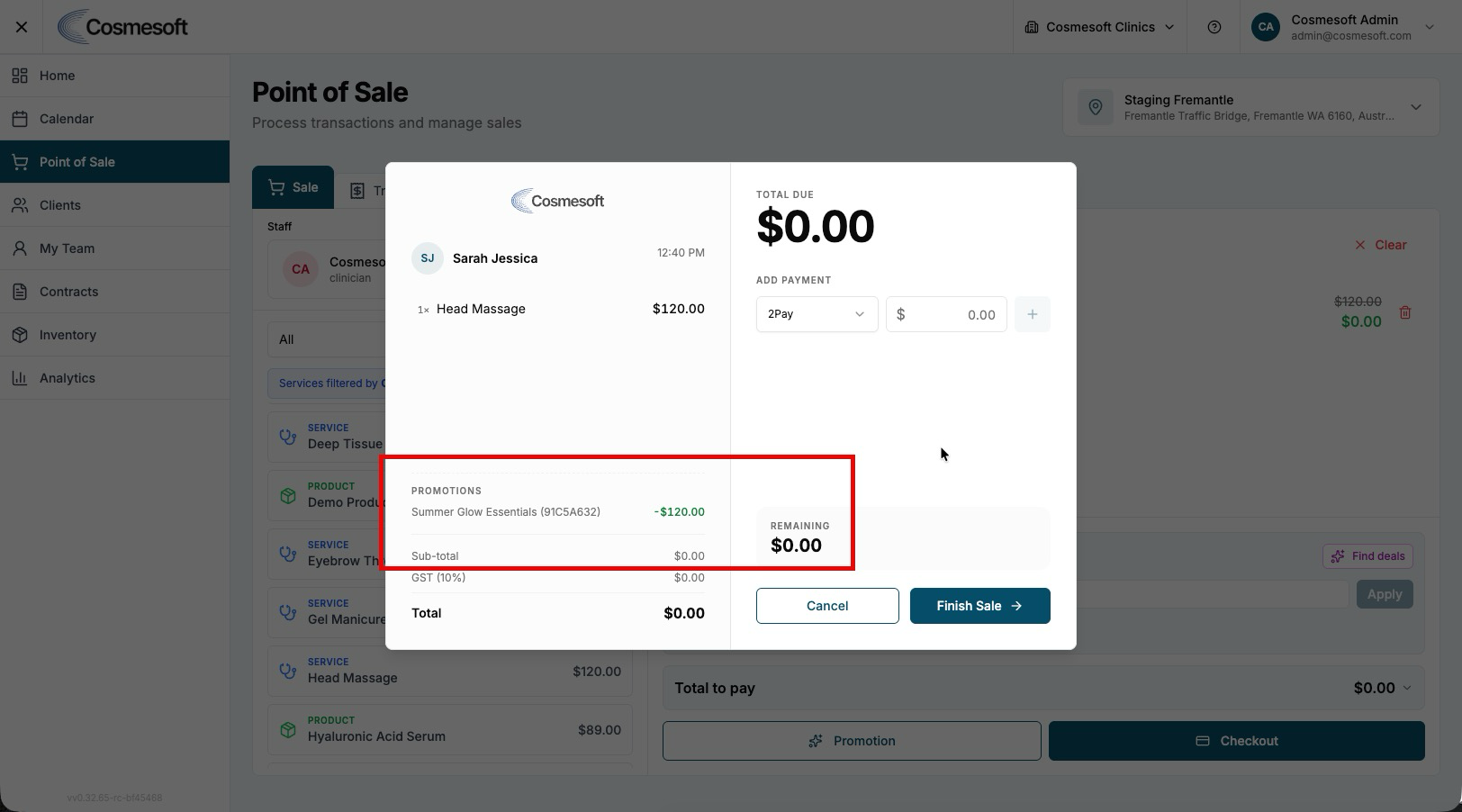
- Confirm the eligible item changes to $0.00 and one session or item quantity is deducted from the Treatment Series balance.
- Complete the sale.
Step 4 — Track Purchased Treatment Series
Global Tracking (Settings)
- Go to Settings → Promotions → Purchased Treatment Series tab (
purchased-treatment-packages). - Review all sold packages across clients, including remaining balances and redemption progress.
- Use available actions to review details such as usage history, client ownership, and remaining session or item quantities.
Client Profile Tracking
- Open the Client Profile.
- Select the Promotions tab.
- Review the client’s active Treatment Series, remaining item counts, expiry dates where shown, and usage history.
- Use this information to help the client book their next appointment or complete their remaining sessions.
Important notes
- Treatment Series must be sold to a named client, not to a Walk-In client.
- Only services or products included in the Treatment Series can be redeemed against that series.
- If a client has multiple active promotions, confirm the correct Treatment Series is selected before applying the redemption.
- Refunds and transaction adjustments should be managed through the POS transaction workflow. See How to view transactions and process refunds.
Last updated: 9/13/26, 3:14 AM