
How to manage POS sessions
How to manage POS sessions and cash
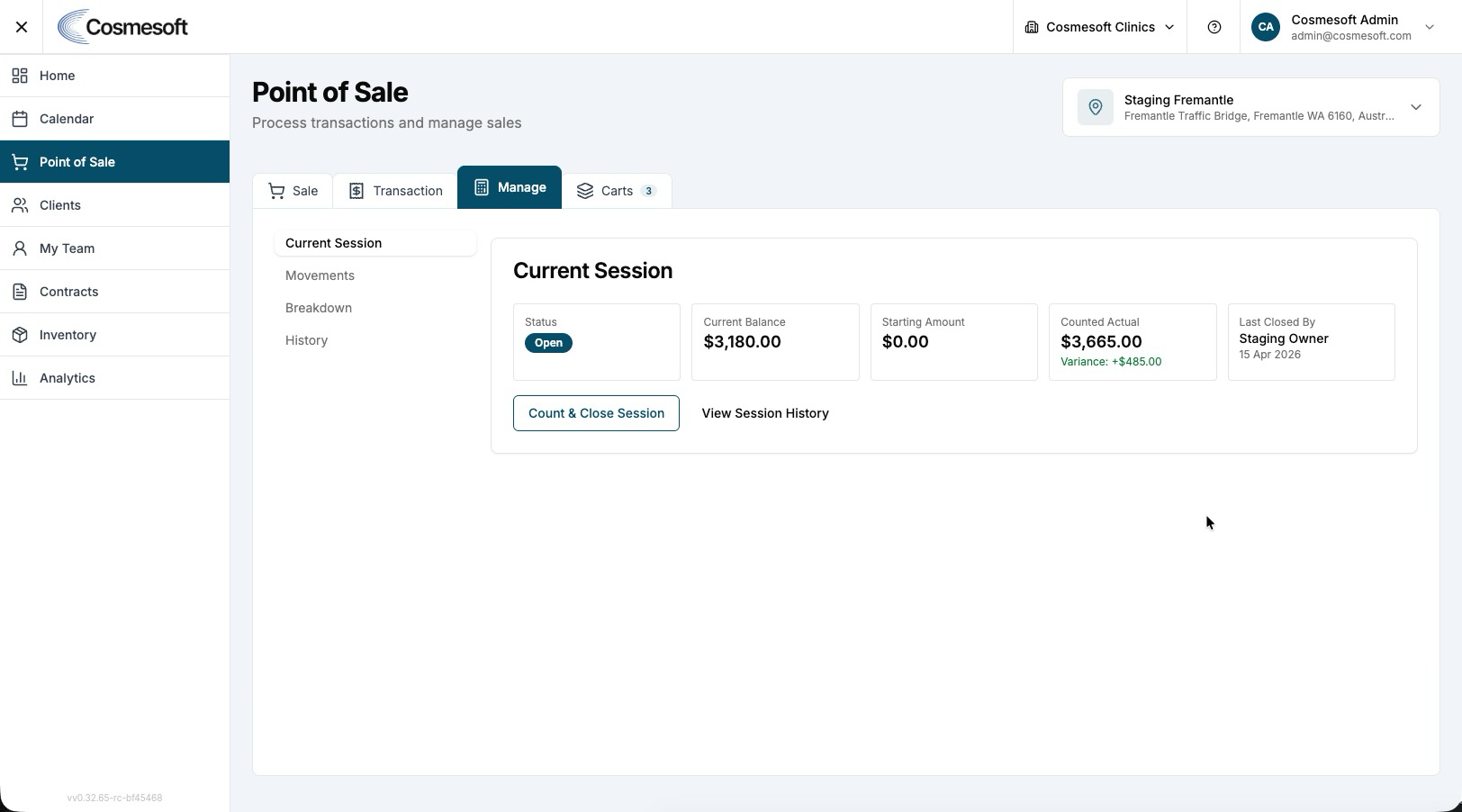
The Cash Register Balance workflow in POS guides you through each part of balancing and closing a register session. You will review payments received, check refunds, review liability transfers, balance payment totals, finalise the cash drawer, and close the session.
Before you begin
Make sure:
- You have Manager or Admin access, including permission to balance the cash register.
- You have selected the correct Current Location in POS.
- All sales, refunds, and cash movements for the session have been entered before you close the register.
Step 1 — Review payments received
- Open POS.
- Select the correct Current Location.
- Select the Manage tab.
- Open Cash Register Balance.
- In Payment Received, review all payment allocations for the session.
- Use the From and To filters if you need to narrow the list.
- Check each completed sale, including the Date & Time, Client, Operator, Sale Type, Total, Payment, and Status.
- If needed, select View to open the transaction details.
- Select Next: Refund.
Step 2 — Review refunds
Use Refunds to review refunds issued during the current session before you balance the register.
- Review the Refunds step.
- Use the From and To filters if you need to narrow the list.
- Check each refund, including the Date & Time, Client, Operator, Sale Type, Total, Payment, and Status.
- If needed, select View to open the refund details.
- Select Next: Liability Summary.
Step 3 — Review liability transfers
Use Liability Summary to review gift vouchers, loyalty points, and treatment packages redeemed during the session.
- Review the Liability Transfers Summary.
- Check the Type, Count, and Value columns for any redeemed gift vouchers, loyalty points, or treatment packages.
- If there are no redemptions, POS shows that there are no liability transfers this session.
- Select Next: Balance Register.
Step 4 — Balance the register
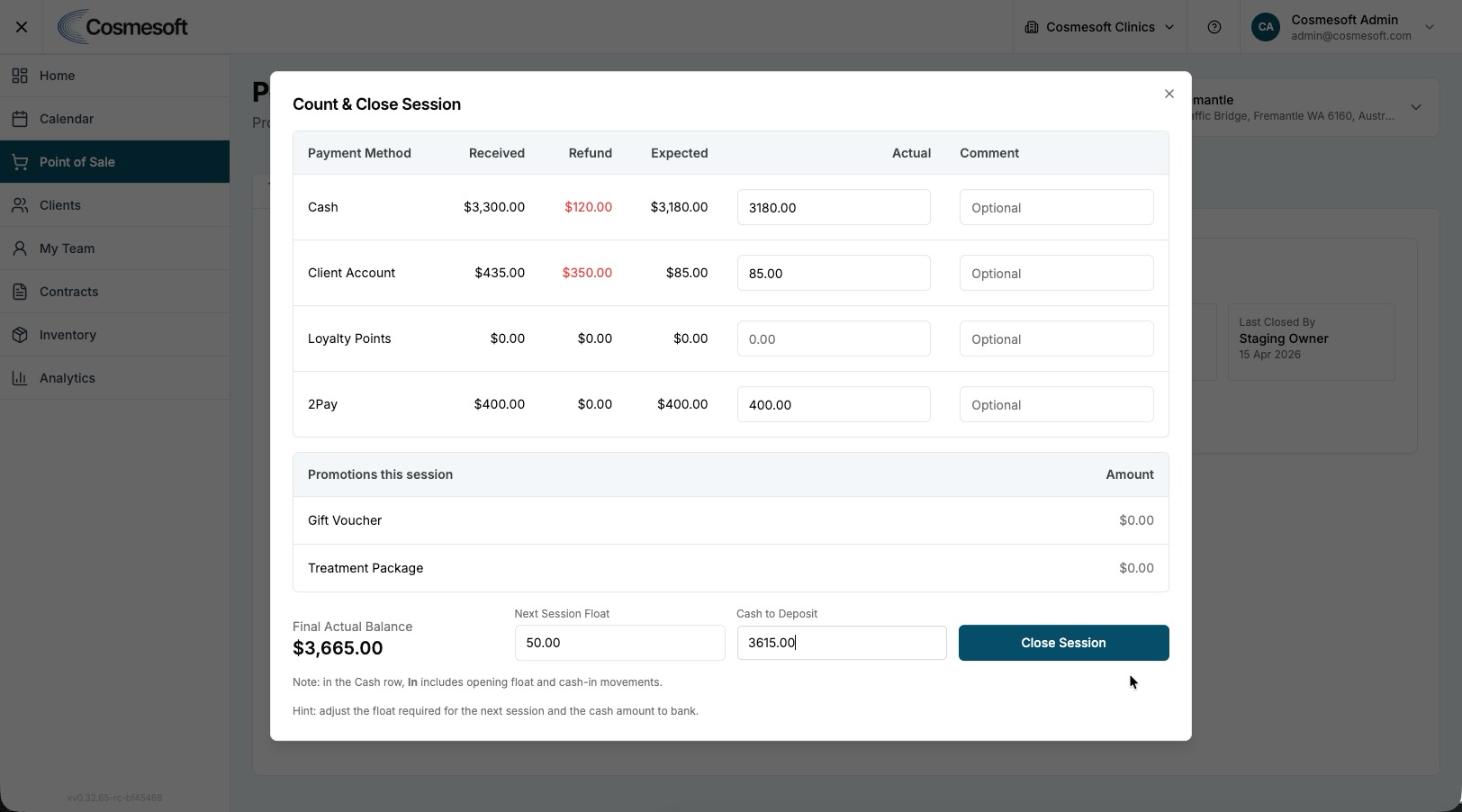
Use Balance Register to verify the amount received for each payment method.
- In Balance Register, review the Payment Method tab.
- For each payment method, compare Received, Refund, and Expected.
- For cash, select Count cash and enter the counted cash amount.
- For non-cash payment methods, enter the actual amount in the Actual field if required.
- Add a Comment for any payment method that is unbalanced. POS requires a comment when there is a variance.
- Select the Promotions tab if you need to review promotion totals.
- Select Next: Finalise Cash Drawer.
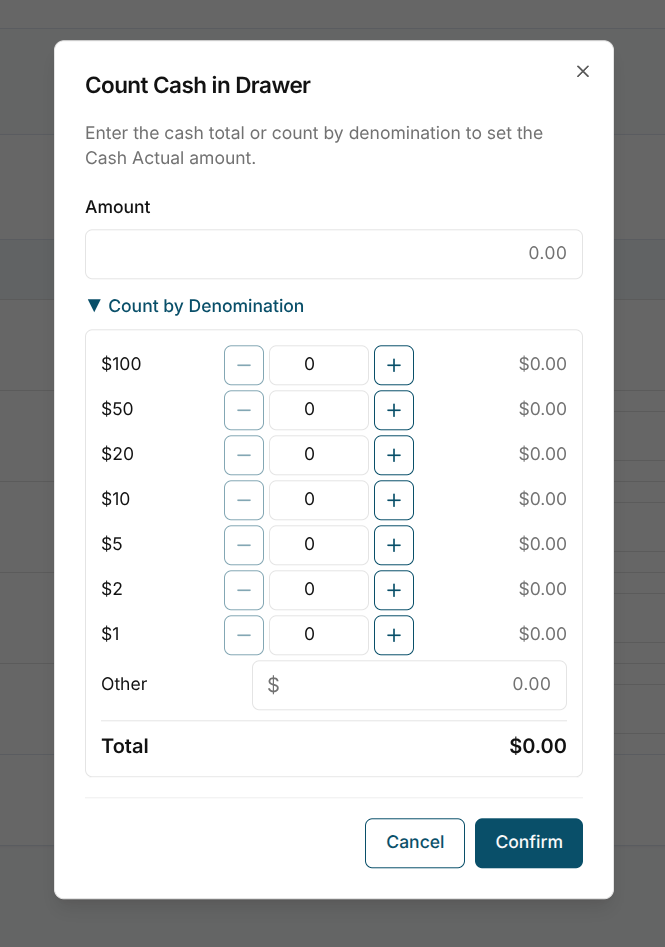
Note : Use the currency calculator to keep track of your count.
What to do next
- Review your Daily Sales Report.
- Learn how to process a refund for past sessions.
Last updated: 9/9/26, 12:16 PM