
How to set up clinical supervision
Invite supervisors and link them to operators to ensure clinical compliance and oversight for your practice.
Before you begin
Make sure:
- You have Admin or Manager access to edit staff settings.
- You have the contact details for your internal or external supervisors who provide prescriptions (e.g., Doctors or Nurse Practitioners).
Step 1 — Invite a clinical supervisor
- Navigate to My Team and click Invite +.
- Enter the supervisor's email and select Check Email.
- Enter the first name, last name, and phone number.
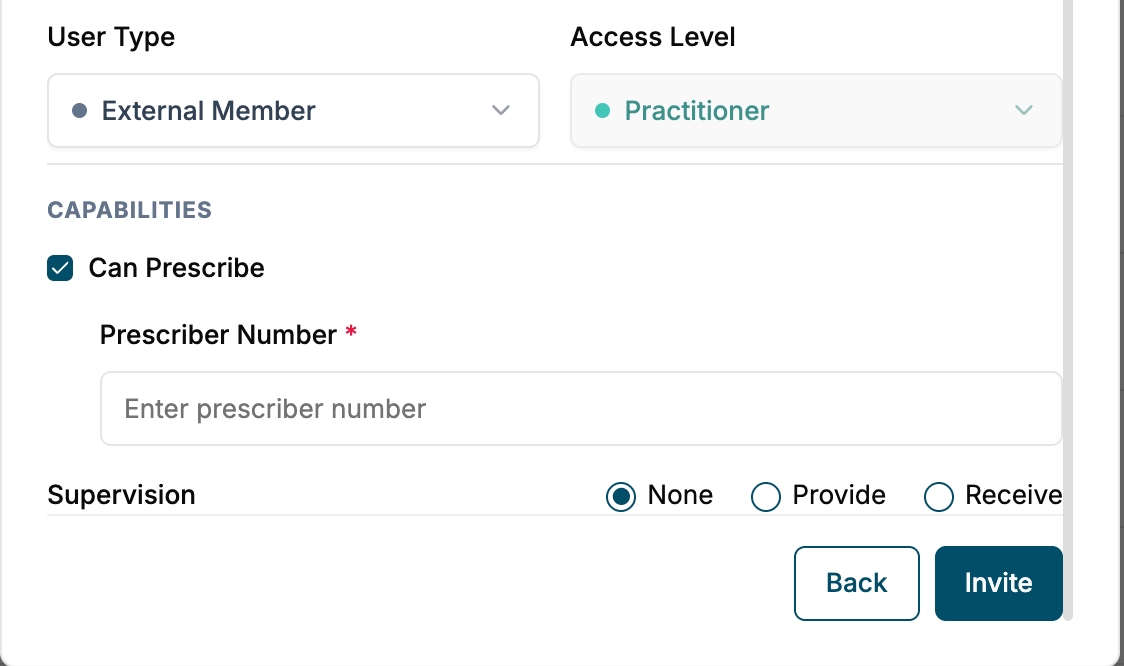
- Select Access Level as Practitioner.
- If external to the business (prescribing only, not seeing clients at a physical location), select External from the User Type and extra permissions will appear.
- Select Can Prescribe. Enter their prescriber number for prescriptions.
- Select Provide in Supervision options. (The Receive options is for when you wish to invite an external nurse who uses a supervisor from your business to receive prescriptions).
- Click Invite.
Step 2 — Link a supervisor to a consult
Once they accept the invitation and become Active, supervisors will be selectable by practitioners needing supervision for their consults.
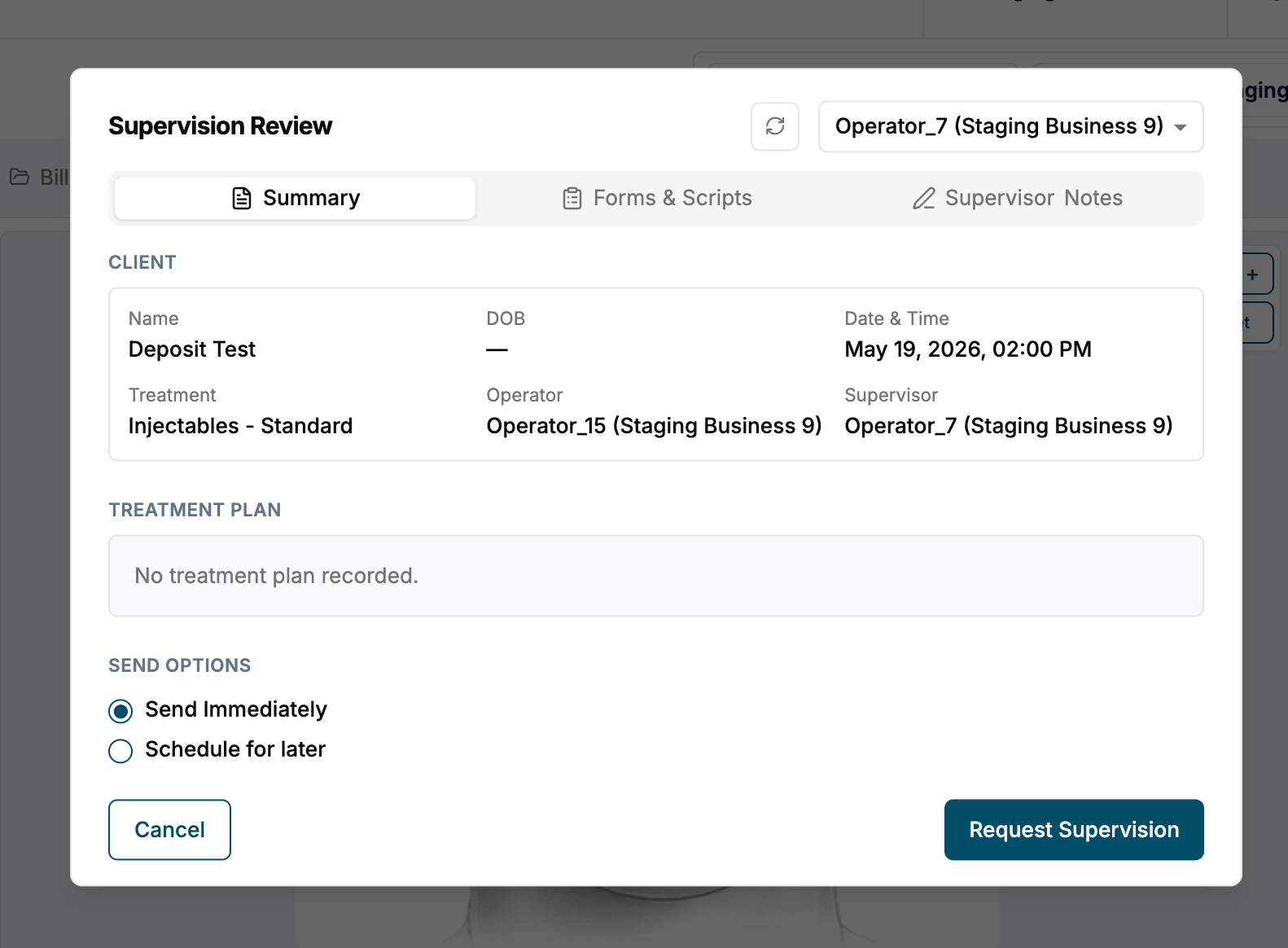
- During consultation, practitioners can select the supervisor (prescriber) from the dropdown at the top right.
- The client’s Summary (including any Treatment Plan prepared by the nurse), Forms, Scripts, and any Supervisor Notes will be accessible from this pop-out.
- Coming soon: Video calls within the Cosmesoft platform!
Currently, this Supervision Review is sent as a request and recorded in the activity log, but the call must still occur on a secure video platform like WhatsApp.
What to do next
- Configure your Clinical Templates.
Last updated: 9/24/26, 7:57 AM