
How to start a POS sale from Today’s Clients
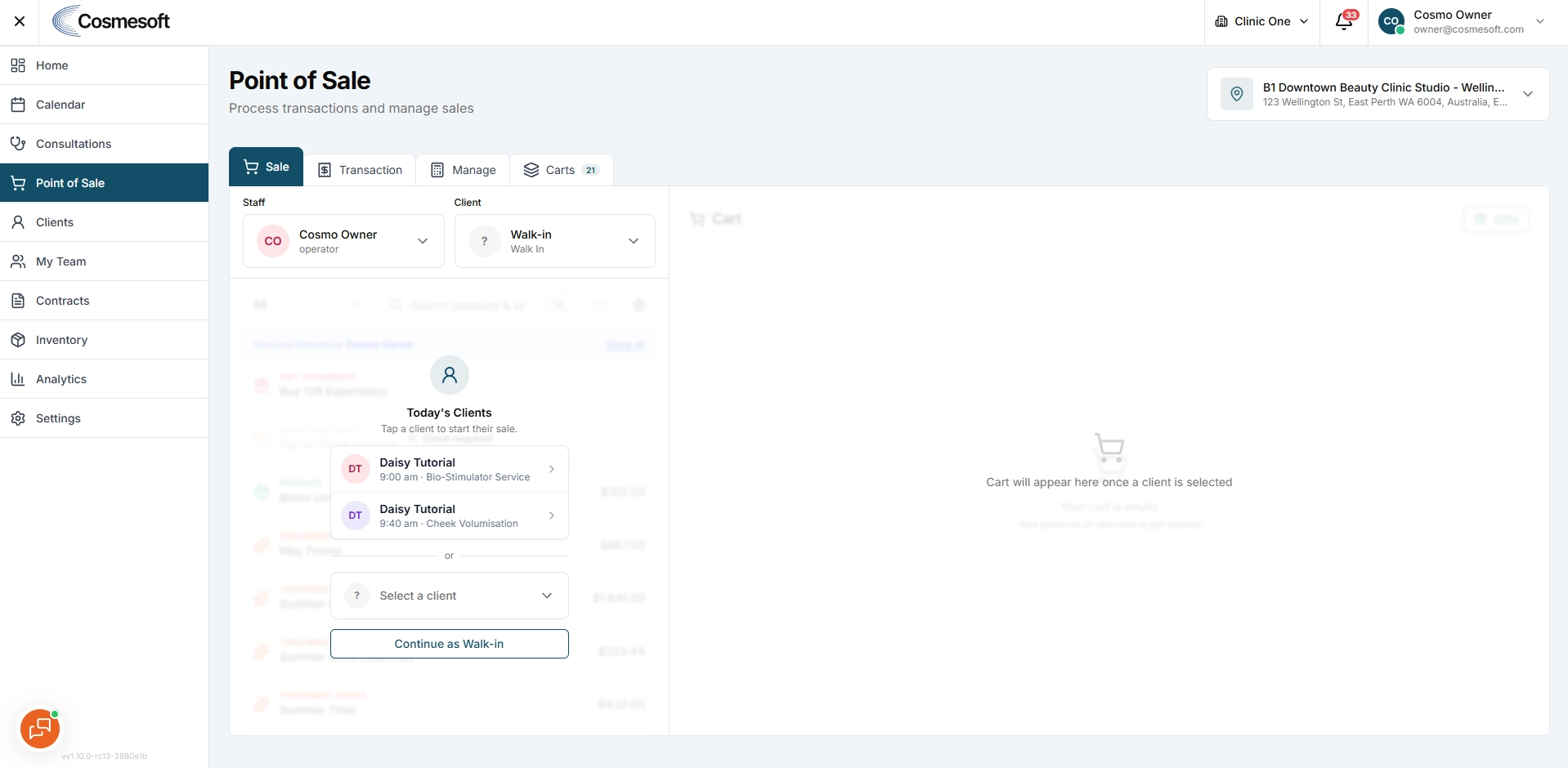
Use Today’s Clients to start a sale for a client who has an appointment at the selected location today.
Where to find Today’s Clients
Open POS and select the location.
The client selection area shows Today’s Clients before the cart opens.
Before you begin
- Confirm the POS location.
- Check that the client’s appointment is scheduled for today.
- Confirm the correct operator before checkout.
Step 1 – Select the client
Find the client under Today’s Clients and select their row
Step 2 – Check for an existing cart
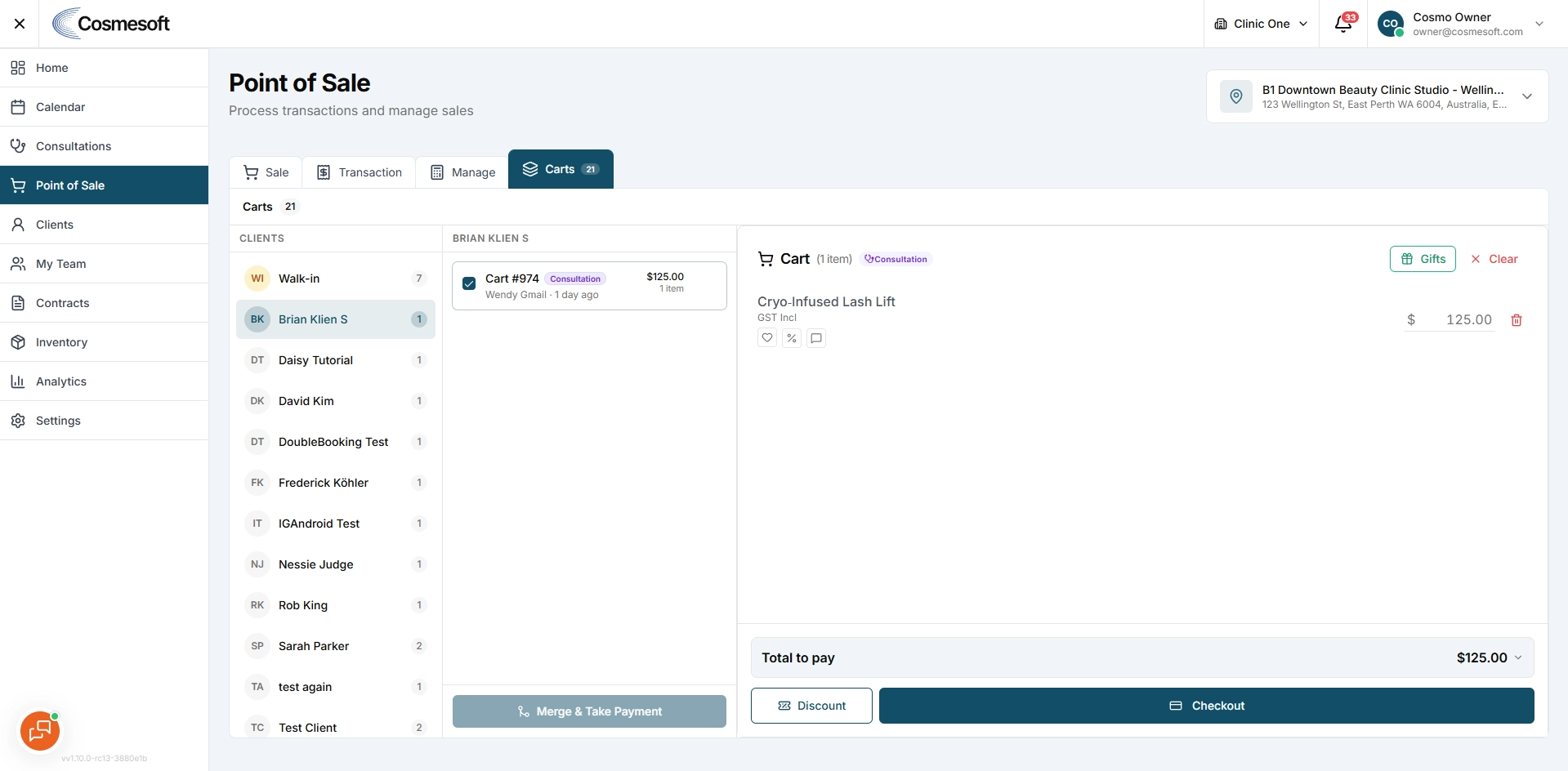
If Cosmesoft finds an existing open cart, choose:
- Use Cart to continue with it.
- Park & New to park it and start another cart.
Step 3 – Confirm the operator
- Check the selected Staff member.
- Change the operator when another practitioner should receive credit for the treatment or sale.
- Do this before finalising payment.
Step 4 – Add items and complete checkout
- Add the required services, products or other items to the cart.
- Review the cart, then continue to checkout and take payment.
What to do next
Check the completed transaction and confirm that the correct client and operator were recorded.
Related articles
Last updated: 9/24/26, 8:09 AM