
About Rosters
Rosters control when and where practitioners are working.
They help Calendar and Online Booking understand when a practitioner is available at each location.
When to use Rosters
Use Rosters to:
- plan who is working at each location
- manage one-off and repeating shifts
- support Calendar availability
- control Online Booking availability
- manage different shift patterns across your team
What you can do with Rosters
See who is rostered on
View roster coverage by practitioner and location.
Use the filters to identify gaps, overlaps or incorrect location assignments.
Create roster entries
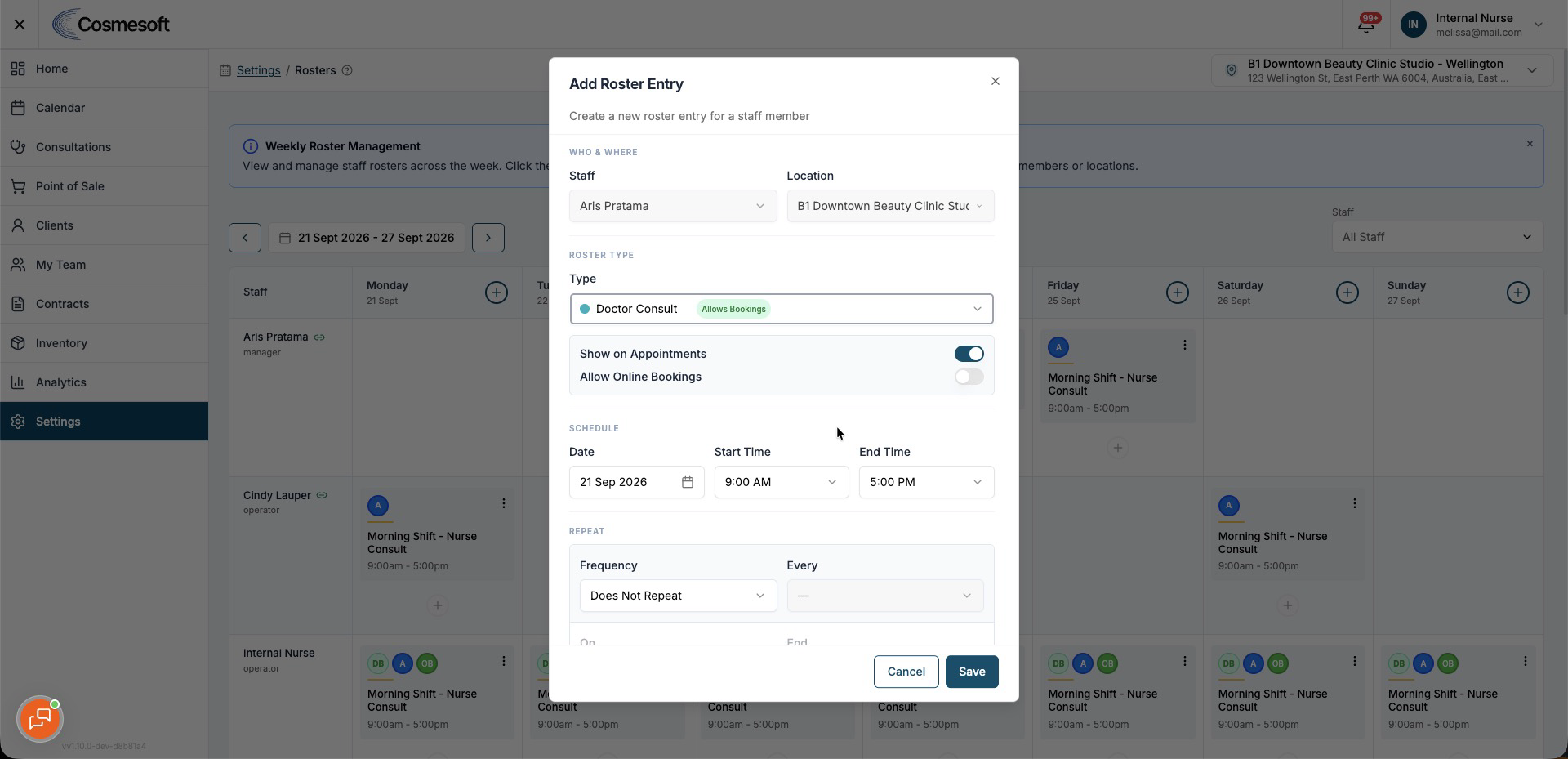
Create one-off roster entries with the required location, date, roster type and working hours.
Start and end times can be selected in 10-minute increments.
Repeat roster patterns
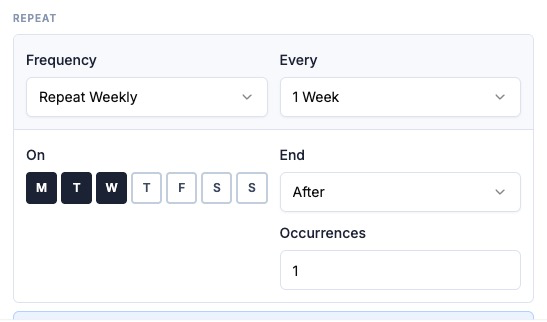
Create recurring schedules such as weekly, fortnightly or monthly patterns.
Repeat end dates follow the selected location's local timezone so the roster finishes on the intended local date.
Adjust existing rosters
Edit or replace roster entries when working hours change.
Cosmesoft can warn you about conflicts with existing roster entries or appointments.
Location-specific roster access
Roster permissions apply to the relevant location.
A linked group member can manage rosters at a location when they have been granted the required roster access there.
Access at one location does not automatically provide roster access at another.
How Rosters work with Calendar
Calendar uses Rosters to understand practitioner availability.
Changing a roster can change which appointment times are available for that practitioner.
How Rosters work with Online Booking
Online Booking checks roster availability before offering practitioner times to clients.
If a practitioner is not rostered at the location and time required by the booking rules, that slot should not be offered online.
How Rosters work with My Team
Rosters use the practitioners and location relationships managed through My Team.
Changes to a team member's location or access can affect where they can be rostered.
Related articles
- How to Create and Repeat Staff Rosters
- How to Adjust or Cancel Existing Rosters
- Fix common roster and availability issues