
How to set up and link 2Pay
Use this guide to configure your payment accounts, link mobile devices, and process integrated payments using 2Pay.
For a high-level explanation of 2Pay features, see About 2Pay.
Before you begin
Make sure:
- You have Owner or Admin access to set up financial accounts.
- You have a compatible iOS or Android device for the 2Hippo 2Pay app.
- You have your clinic’s bank account and business registration details ready.
Step 1 — Set up your payment account
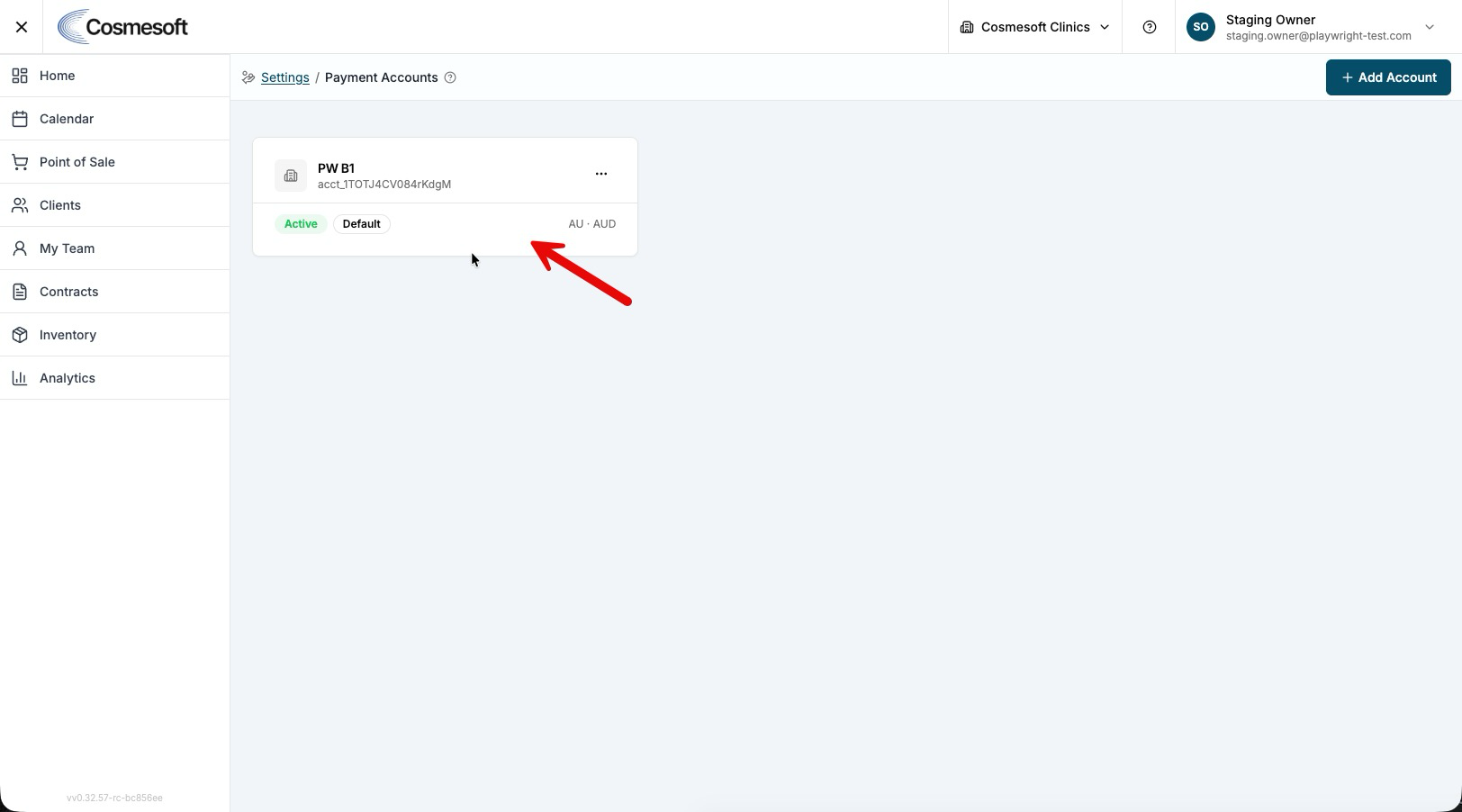
- Navigate to Navbar → User Profile → Settings → Payment Accounts.
- Click Add Account.
- Follow the on-screen prompts to complete the Stripe verification process. This includes entering your business details and linking a bank account for payouts.
- Once verified, the account status will update to Ready, and you can begin accepting payments.
Step 2 — Install and link a device
To take "Tap to Pay" or "Scan to Pay" payments at the counter, you must link a mobile device to your location.
- Download the 2Hippo 2Pay app from the App Store (iOS).
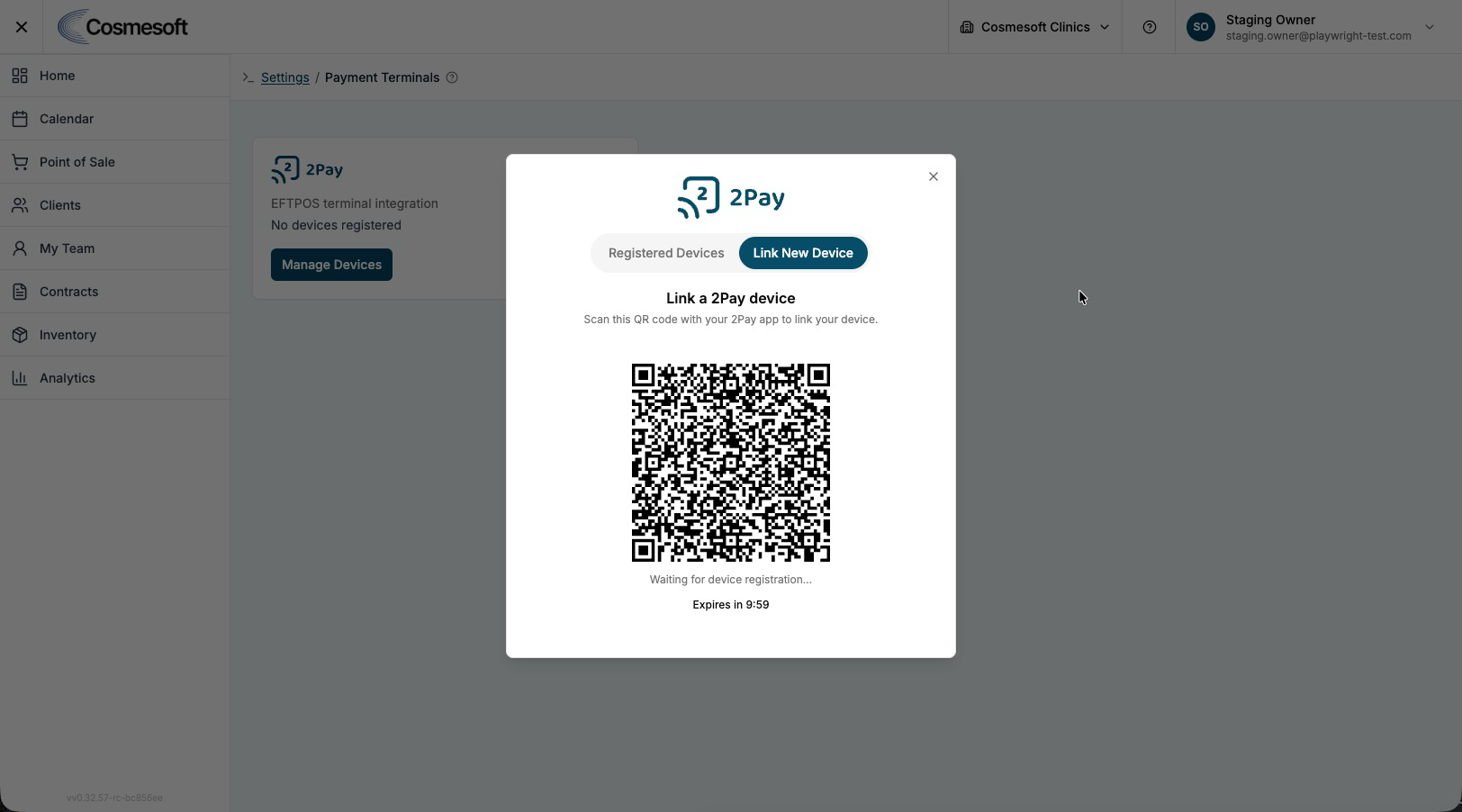
- In Cosmesoft, navigate to Settings → Payment Terminals.
- Find 2Pay in the list and click Manage Devices.
- Open the 2Pay app on your device and select Link Device.
- Use the device to scan the QR code displayed on your Cosmesoft screen.
- The device is now connected and assigned to your current location.
Step 3 — Enable Tap to Pay (iPhone only)
If you are using an iPhone, you can accept contactless payments directly on the handset.
- In the linked 2Pay app, ensure you are logged in.
- Select Enable Tap to Pay.
- Follow the prompts to connect your Apple Business account and accept the terms and conditions.
- Once completed, a contactless symbol will appear, indicating your iPhone is ready to accept taps.
Step 4 — View payouts and history
- Navigate to Navbar → User Profile → Settings → Payment Accounts.
- Click View Payouts (or the $ icon) next to your active account.
- Review the history of deposits into your bank account, including transaction breakdowns and processing fees.
What to do next
- Learn how to use 2Pay at checkout.
Last updated: 9/9/26, 12:31 PM