
How to process a partial-quantity refund
Use a partial-quantity refund when the client is returning only some units from a multi-unit transaction line.
Where to find refunds
Open POS, find the completed transaction, then open its refund action.
Before you begin
- Confirm that you selected the correct transaction.
- Check the maximum quantity originally purchased.
- Decide which items and quantities must be refunded.
- Confirm whether returned products should go back into stock.
Process every required item and quantity together. After the refund is completed, the transaction is treated as refunded and the remaining value cannot be refunded later through the normal workflow.
Step 1 – Select the items
- In Refund Transaction, select each item that should be included.
- Non-refundable lines are shown but cannot be selected.
Step 2 – Set the refund quantity
- For an eligible multi-unit line, use the quantity control in the Qty column.
- Enter a quantity from 1 up to the original purchased quantity.
- Cosmesoft recalculates the line total and overall refund amount.
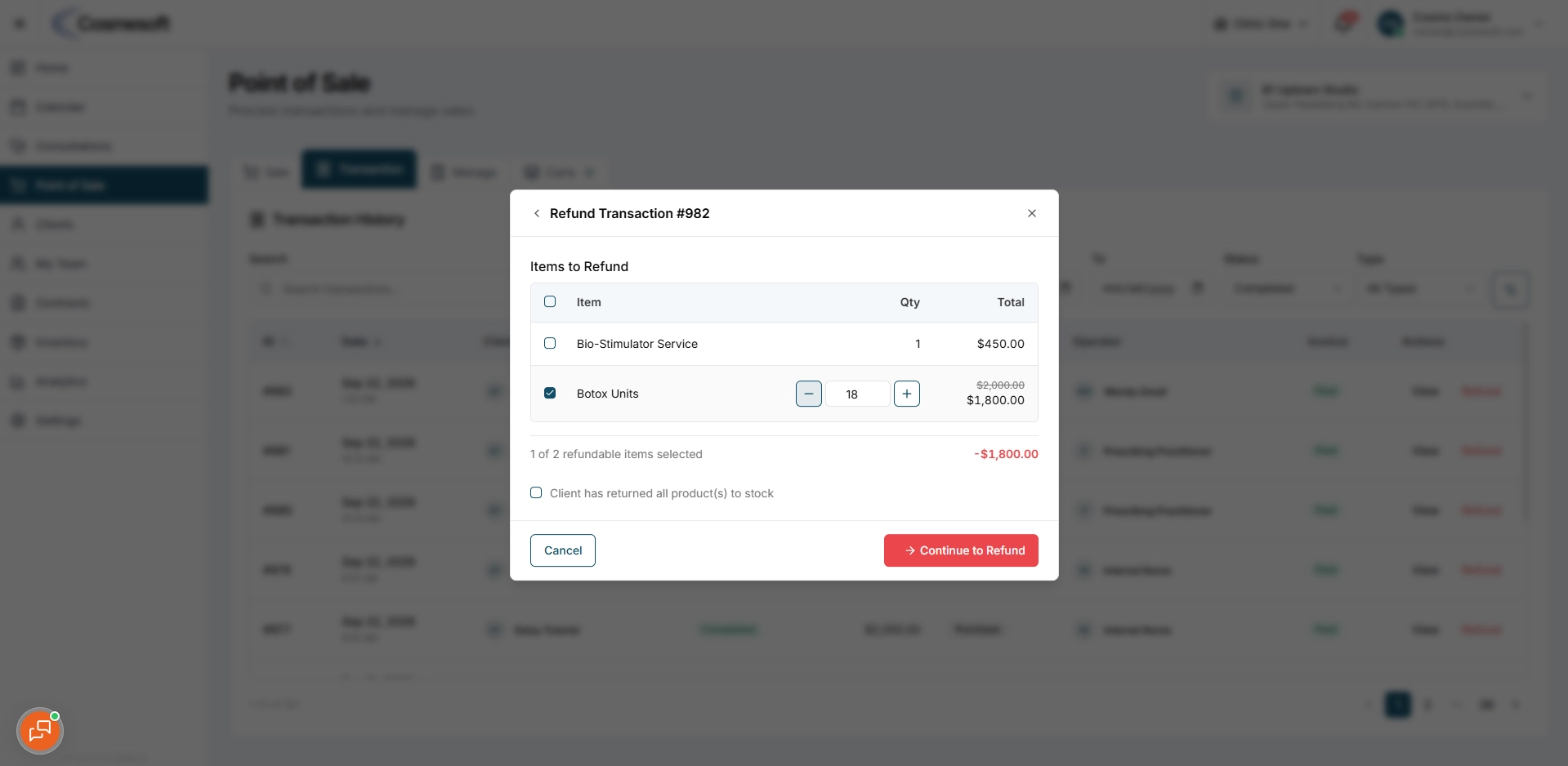
Step 3 – Confirm stock handling
When products are included, choose whether the returned products should be added back into stock.
Only select this option when the physical stock has been returned and can be counted again.
Step 4 – Continue to the refund payment
- Continue to the checkout step.
- Review the calculated refund and allocate the refund payment method or methods.
- Complete any required reason field.
Step 5 – Process the refund
- Review the final amount and select the action to process the refund.
- Wait for the Refund processed successfully confirmation.
What to do next
Open the transaction again and confirm the refunded items, quantities and payment allocation.
Related articles
Last updated: 9/24/26, 10:29 PM