
How to Adjust Appointments in the Calendar
se this guide to update, move, duplicate, cancel and manage existing bookings from Calendar.
Before you start
Make sure you are viewing the correct date, location and practitioner.
Open the booking from Calendar to see the available actions.
Update a booking
Open the booking and update the available booking details.
Changes that affect the appointment time, practitioner or client communication may require a separate confirmation.
Move or reschedule a booking
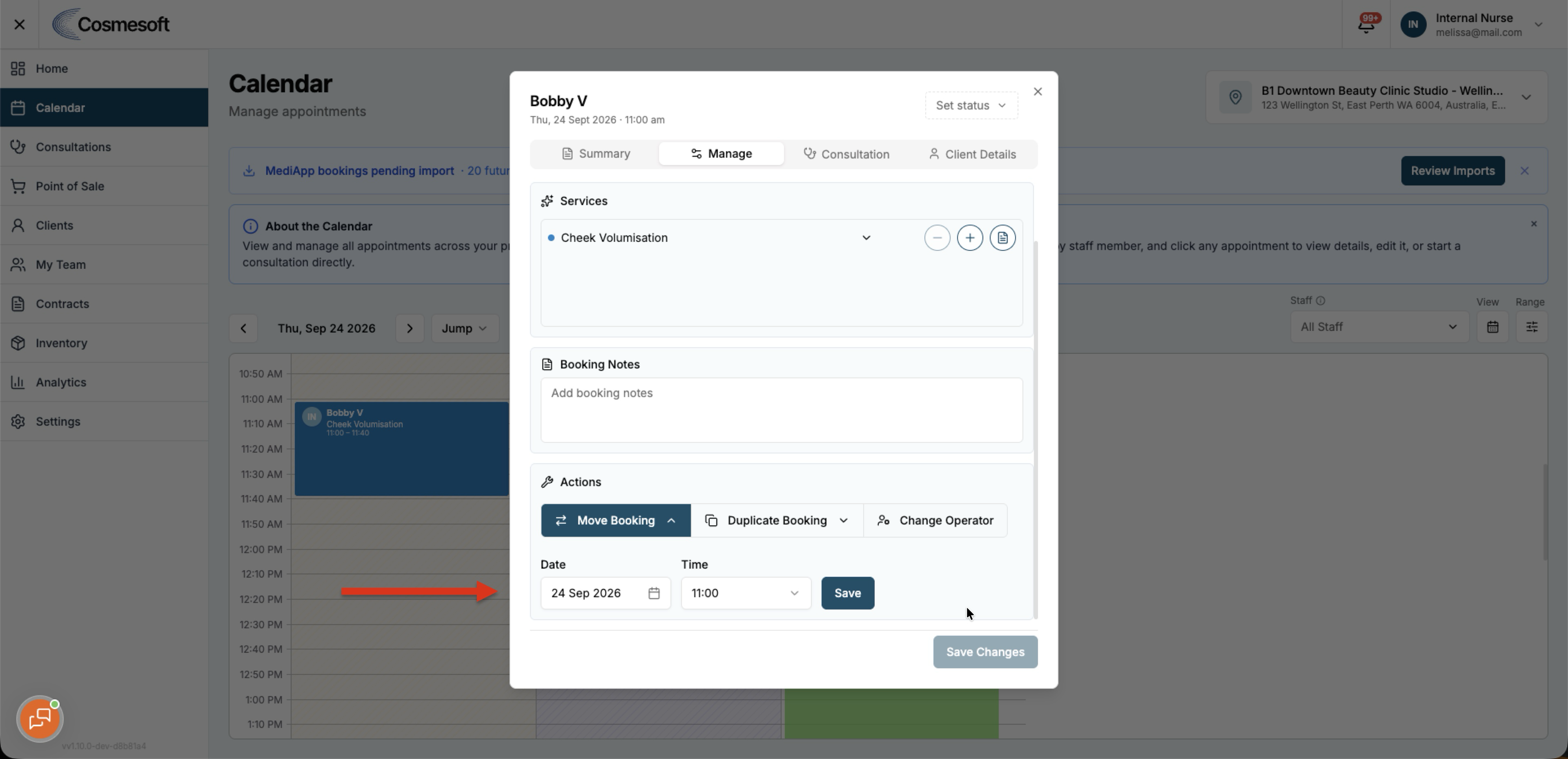
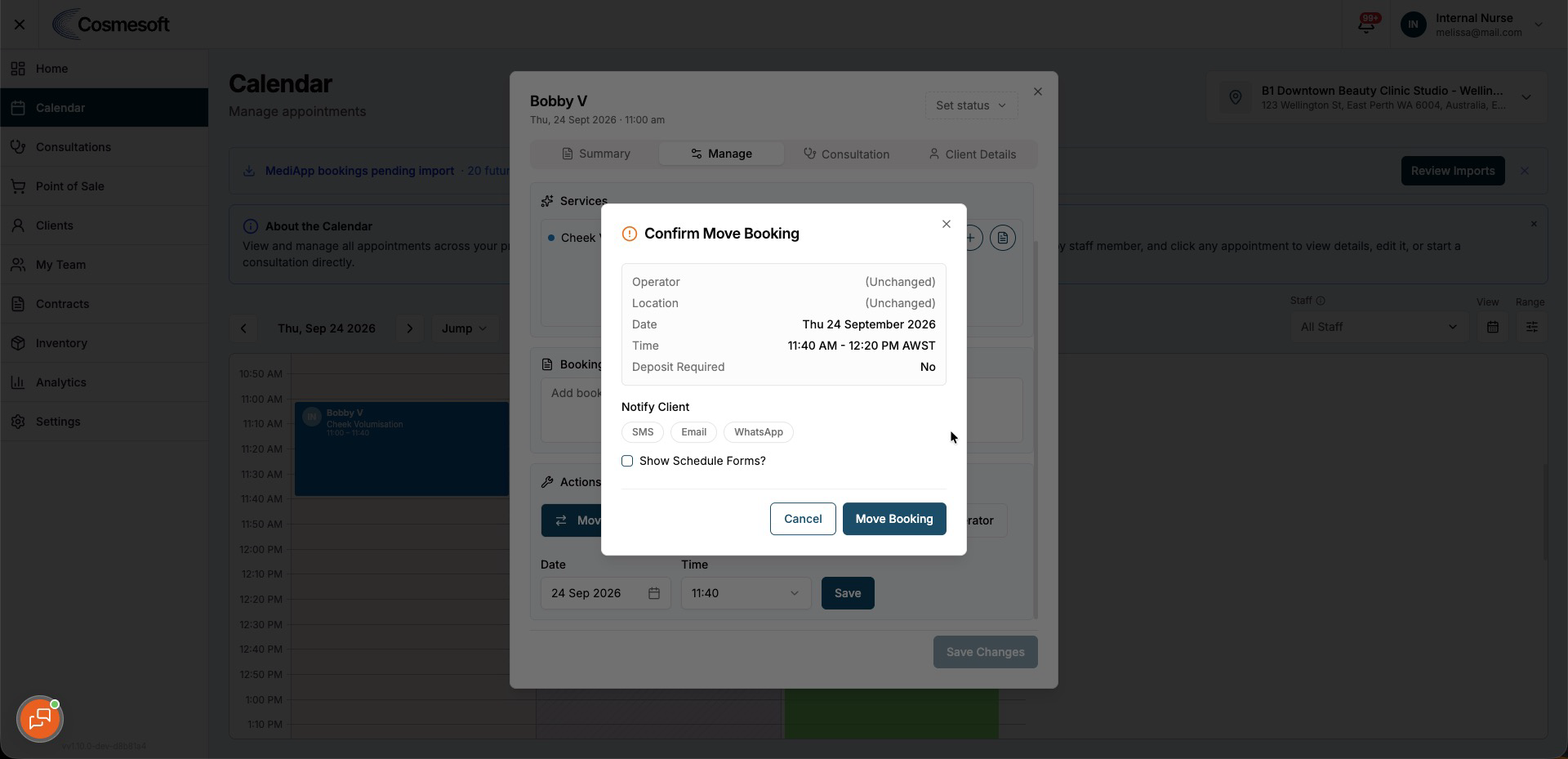
Use Move Booking when the appointment needs a different time or practitioner.
For unpaid bookings, Cosmesoft allows the booking to be moved until the end of the clinic's local day.
A paid booking becomes locked once its appointment has started.
When moving a booking:
- Choose the new date, time or practitioner.
- Review the new slot.
- Check the Notify Client options.
- Turn on SMS, Email or WhatsApp only when you want Cosmesoft to notify the client.
- Confirm the move.
The notification options start switched off for each move.
Duplicate a booking
Use the duplicate action when you want to create another booking based on the existing appointment.
Review the new date, time, practitioner and services before saving.
The Notify Client options also start switched off when duplicating a booking. Turn on the channel you want only when a notification should be sent.
Cancel a booking
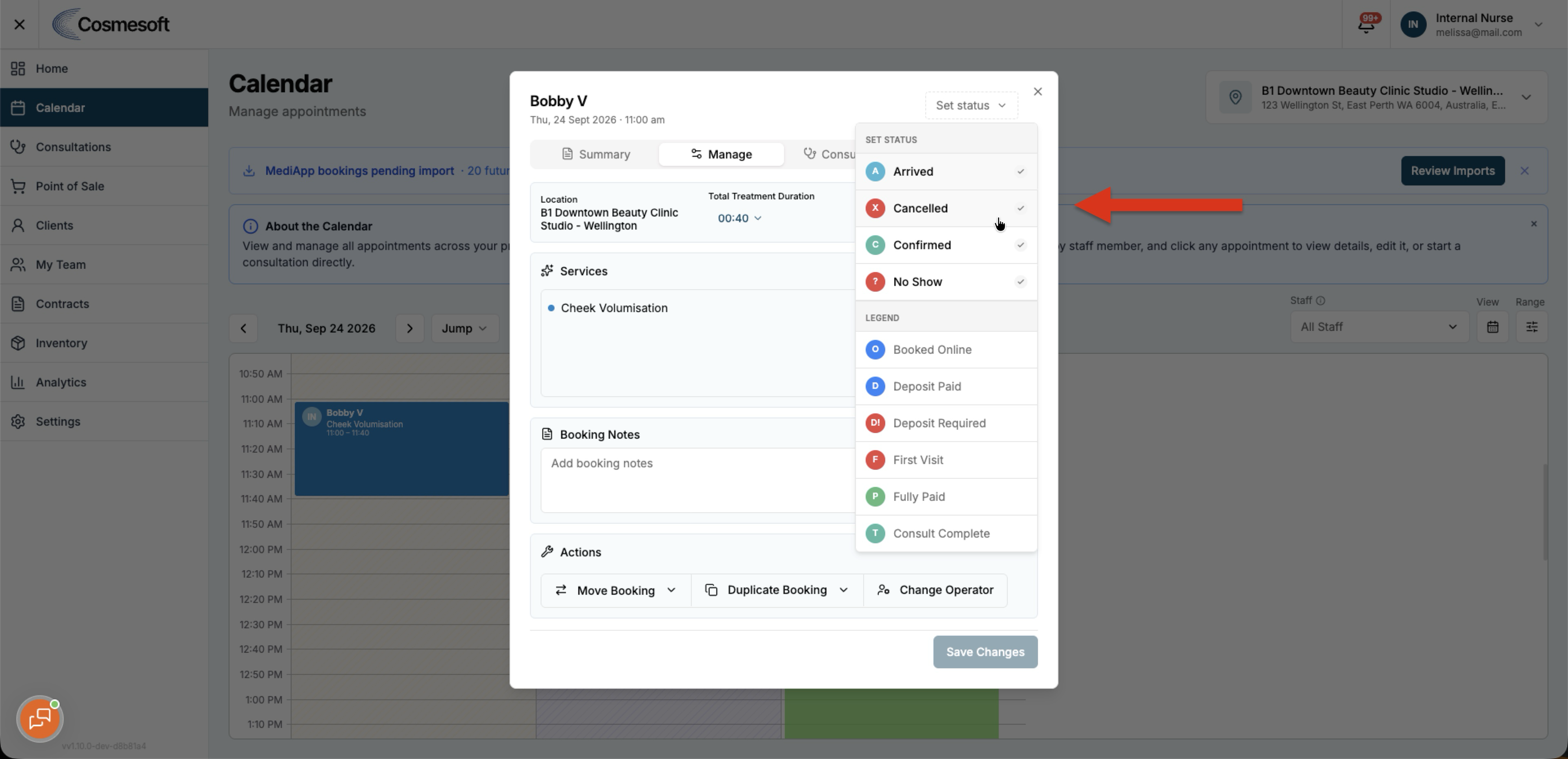
Open the booking and use the cancellation action.
Choose the correct cancellation status so reporting remains accurate.
Use Cancelled when the appointment was cancelled.
Use No Show when the client did not attend.
Remove a cancelled booking from the calendar grid
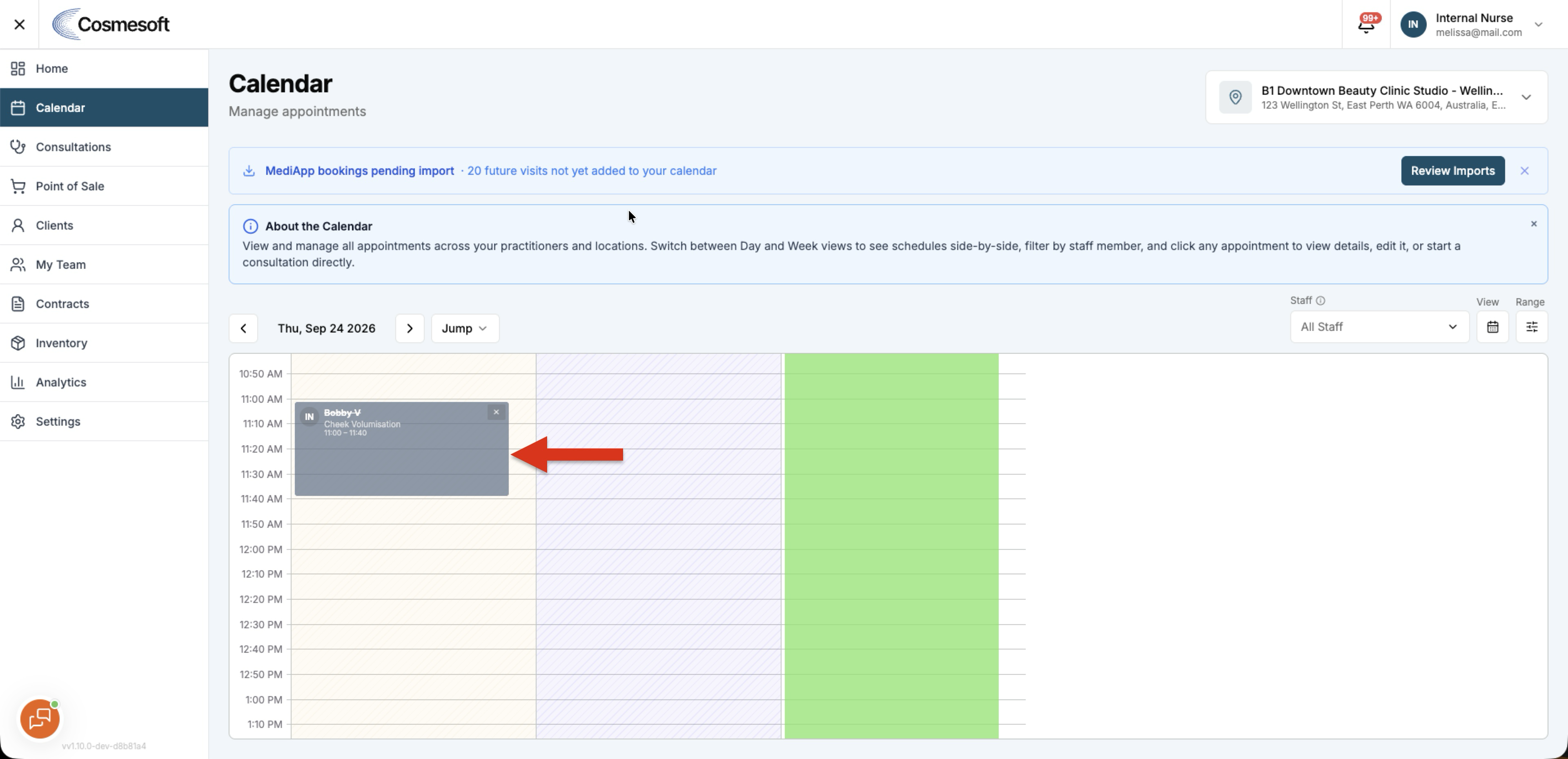
After a booking has been cancelled, you can dismiss it from the Calendar grid using the close control on the booking card.
This removes the cancelled booking from the calendar view only.
The booking remains in the booking list and the client's history.
No-show bookings
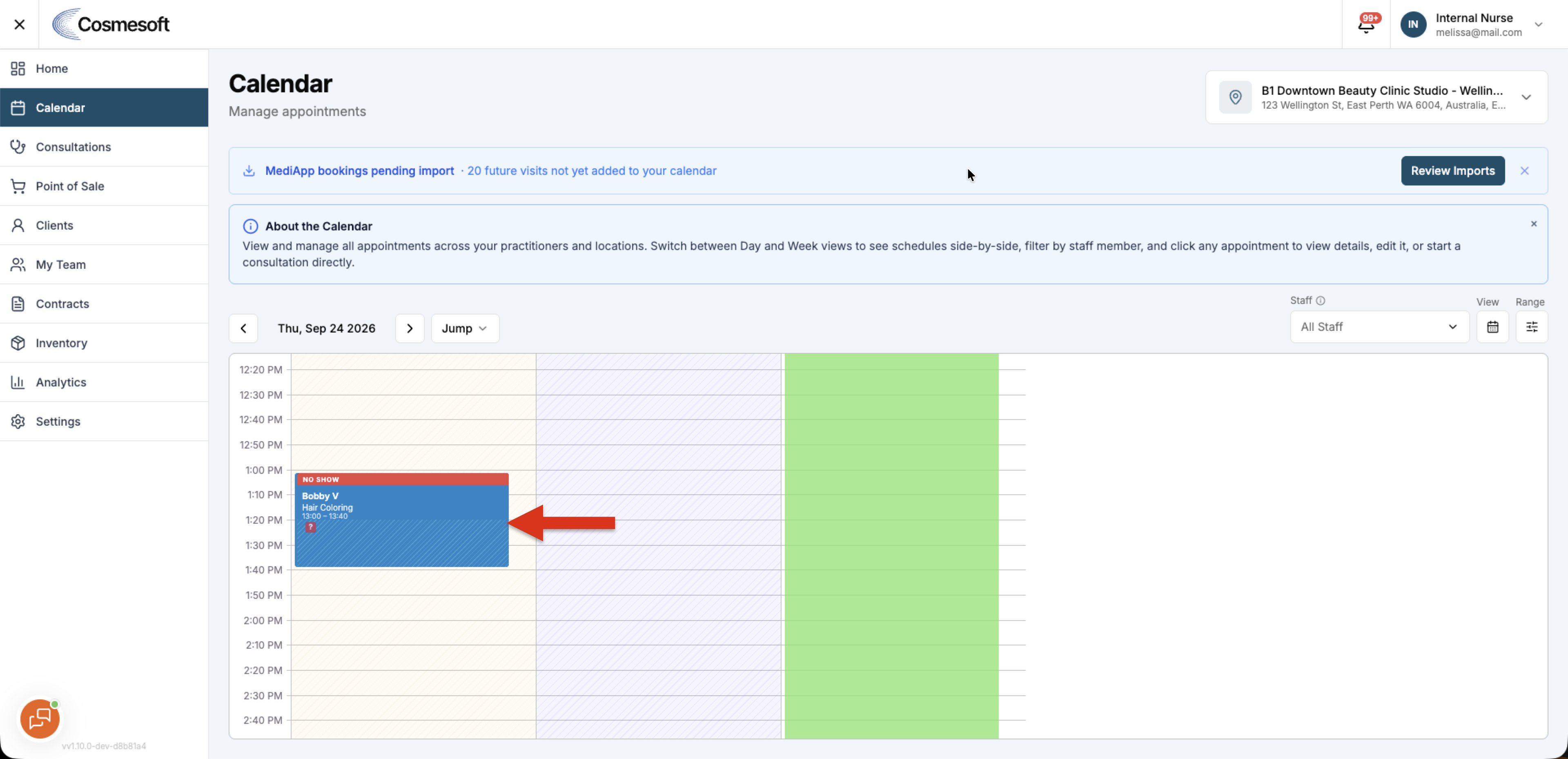
No-show bookings display a clear No Show status on the Calendar card.
You can identify the status without opening the booking.
Check the result
After making a change, confirm that:
- the booking appears at the expected date and time
- the correct practitioner is shown
- the status is correct
- the client was notified only when you selected a notification channel
If the booking cannot be moved, check whether it has already been paid or whether the clinic day has ended.