
About the Consultation Process
The Consultation Process is the clinical workspace where practitioners record treatment, manage compliance, coordinate clinical review and prepare the consultation for completion.
What the consultation workspace covers
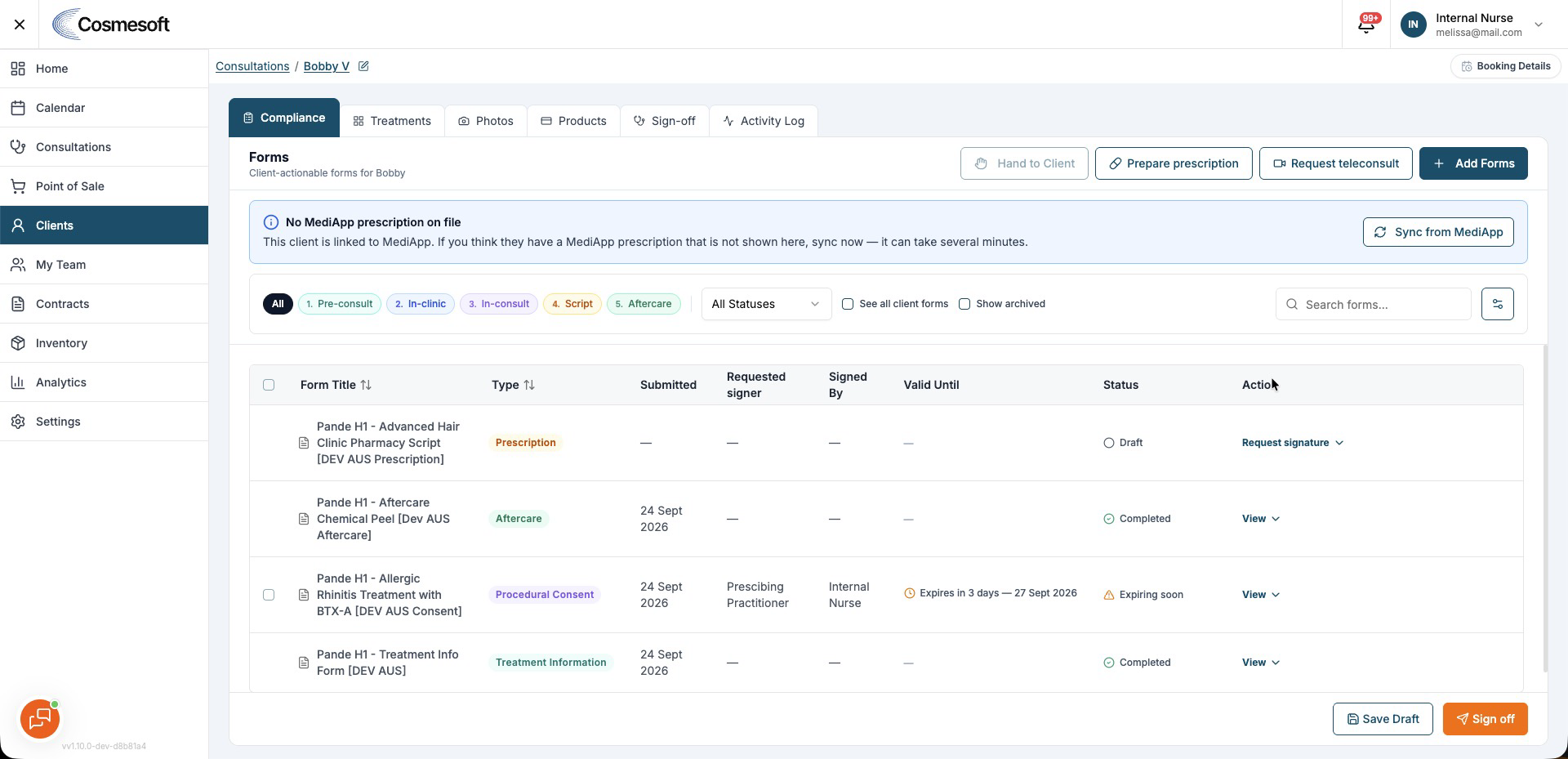
The consultation is organised around the work that needs to be completed:
- Treatments — Record treatment notes, products and dosage maps.
- Compliance — Review forms and prescriptions linked to the consultation.
- Sign-off — See what is still outstanding before the consultation can be finalised.
- Photos — Keep treatment images linked to the client and consultation.
Completed and archived forms remain available for reference.
Treatments and clinical charting
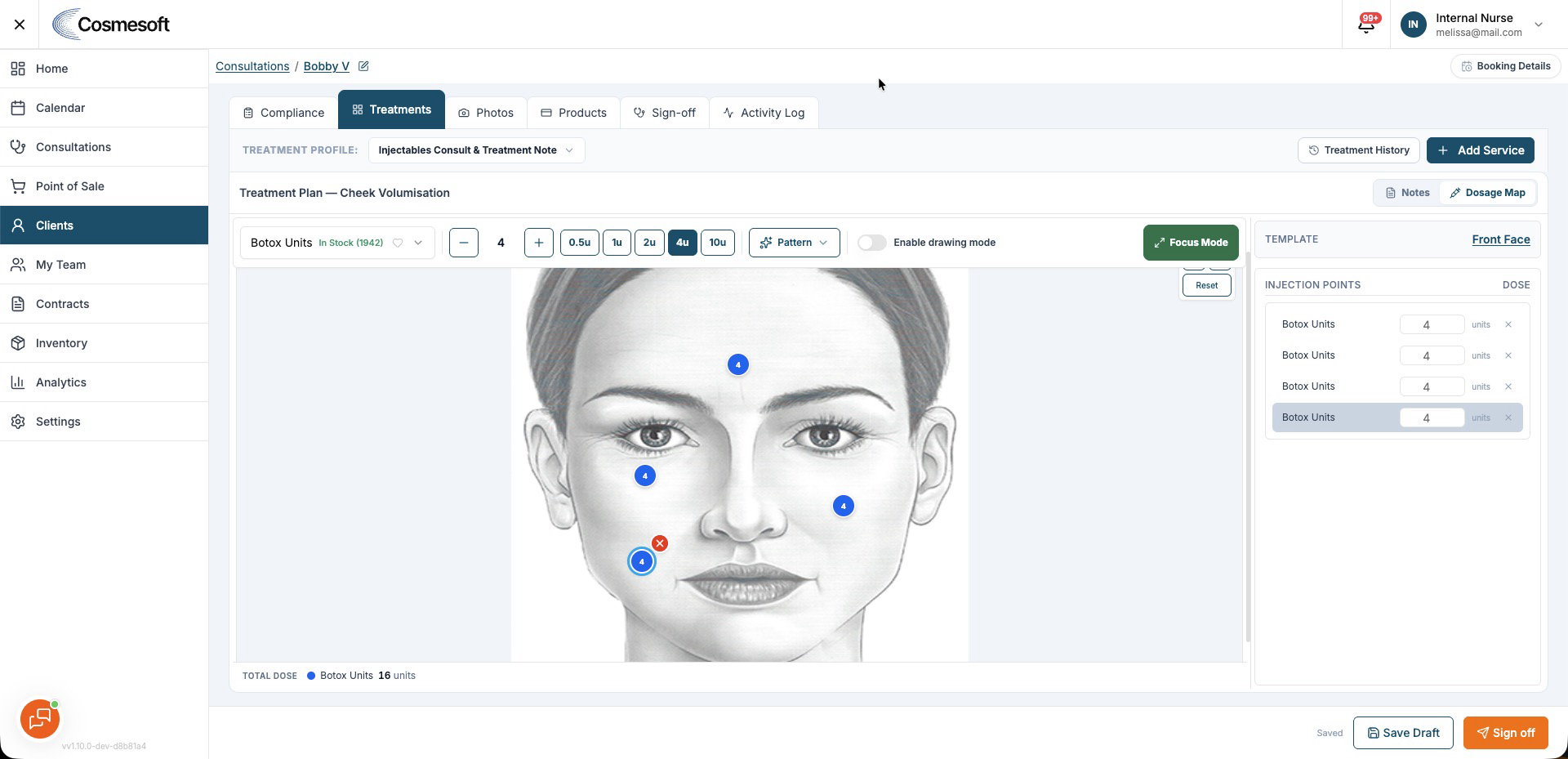
Treatment profiles provide the clinical structure for each service.
For injectable treatments, the dosage map supports:
- Dose points with a running Total dose for each product.
- Freehand drawing with pen, eraser, colours and undo.
- Focus Mode for a larger charting workspace.
- Product stock status showing In stock, Out of stock or Not stocked.
Drawing mode and dose-point placement are separate modes. Turn drawing mode off before placing dose points.
Products can still be recorded clinically when they are not stocked at the selected location.
Compliance
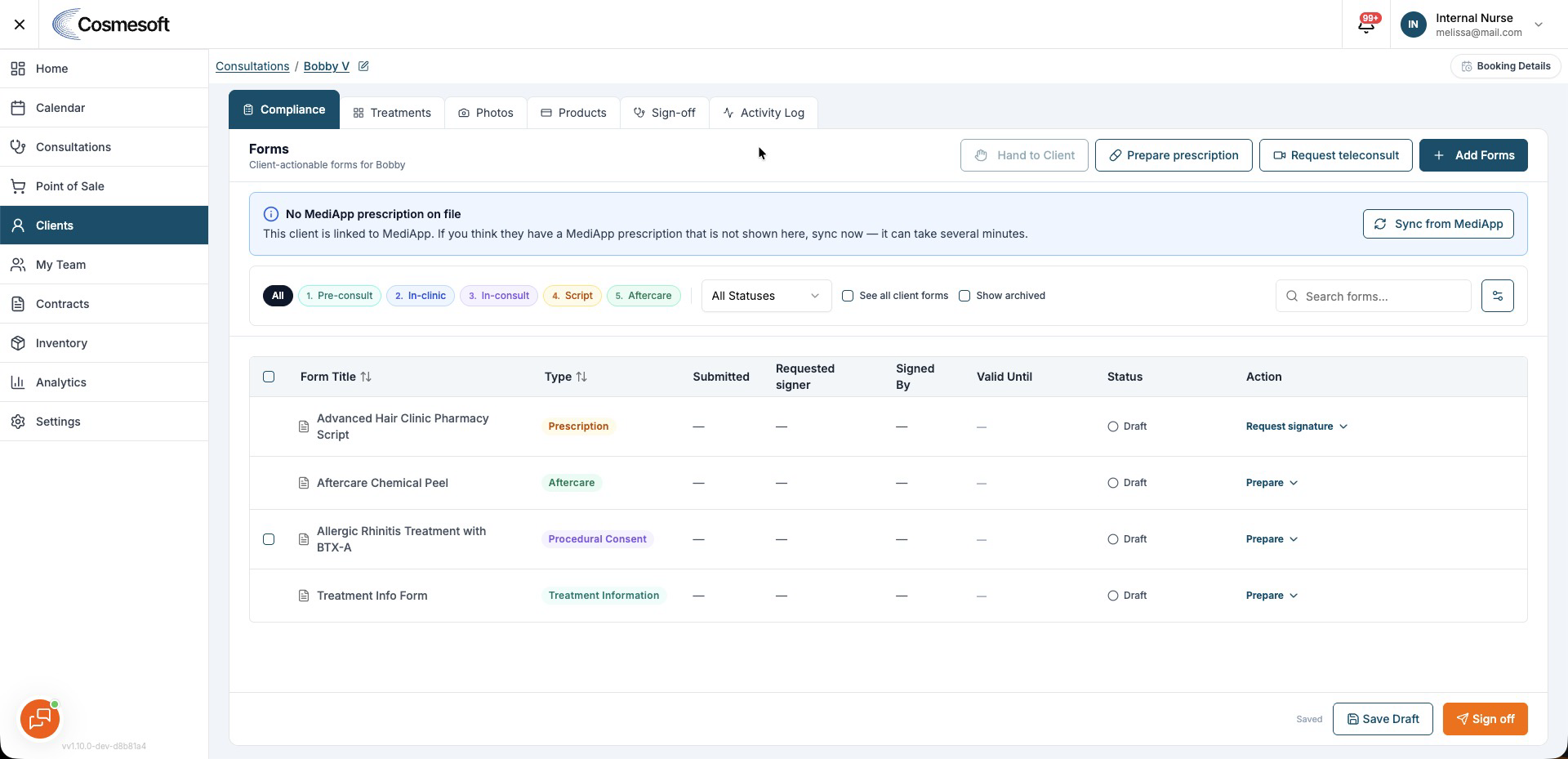
Use Compliance to review the client forms and prescriptions required for the consultation.
From here you can:
- Review completed and outstanding forms.
- Add another form when required.
- View archived paperwork.
- Prepare or request a prescription.
- Check the status of prescription work that has been sent to a prescriber.
Sign-off
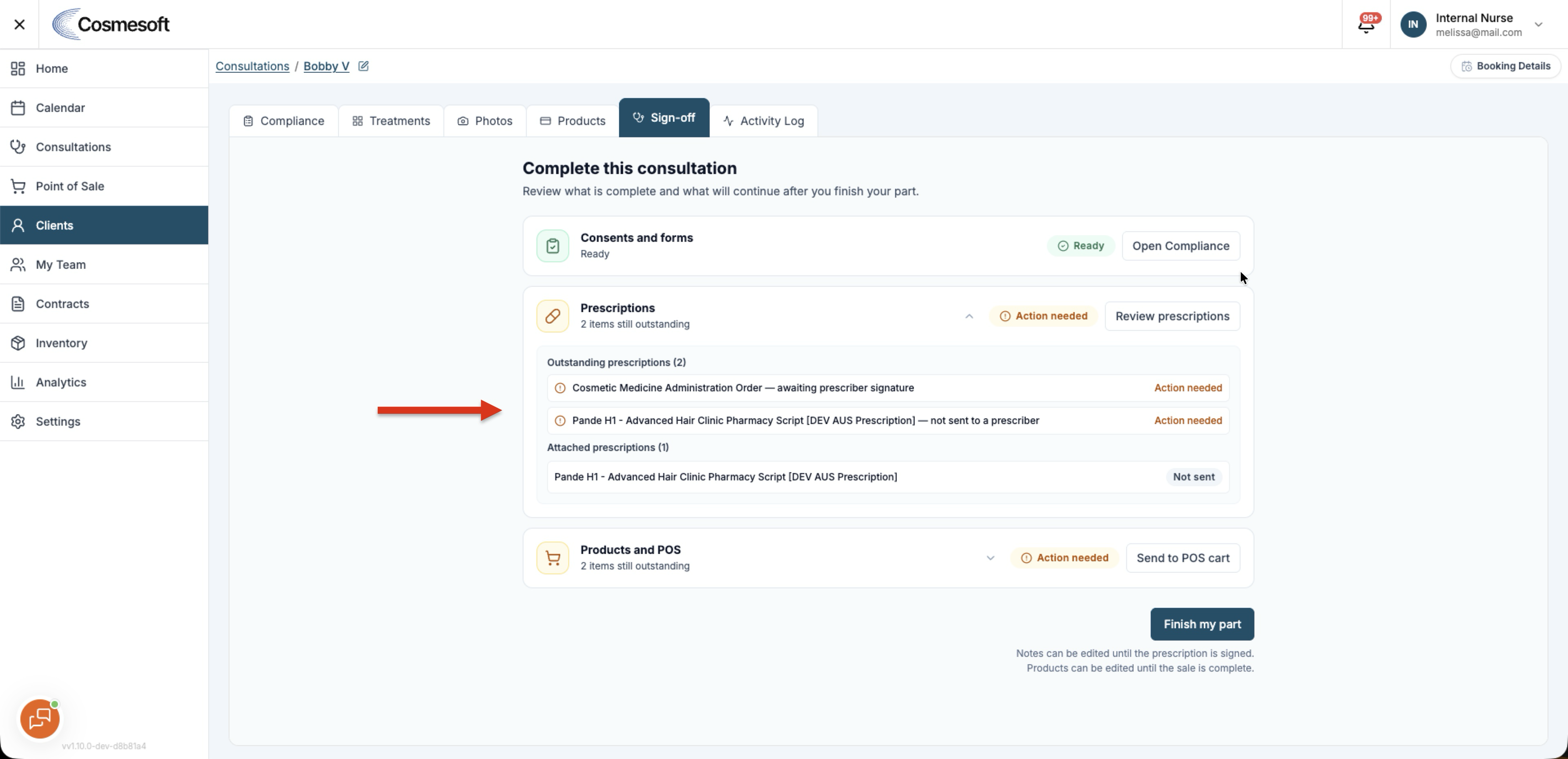
Use Sign-off to see whether anything still needs attention before the consultation can be completed.
Depending on the treatment, this can include clinical review, forms or prescription work.
A practitioner can finish their part while some external work is still pending. The consultation remains editable until it is finalised.
Clinical supervision and prescribing
When clinical review or prescribing is required, select the appropriate supervisor or prescriber and send the request through Cosmesoft.
Prescribers with Can prescribe enabled can review prescription requests from Scripts to Sign.
See How to request and review a prescription.
After a consultation is completed
A finalised consultation can be reopened for amendment when a correction is required.
Cosmesoft warns you when the related cart has already reached POS or the sale has been paid, and records the amendment in the Activity Log.
See How to reopen a finalised consultation for amendment.
How consultations fit into the rest of Cosmesoft
- Calendar — Start a scheduled consultation from the client's appointment.
- Client record — Completed consultations remain part of the client's clinical history.
- POS — Treatment and billing information can flow into the sale.
- Forms and prescriptions — Compliance records stay linked to the relevant client and consultation.
- Photos — Clinical images remain available from the client's Photos area.
Access and permissions
What you can see and change depends on your role, business relationship and permissions.
- Practitioners can record the clinical work available to them.
- Prescribers can review prescription requests when Can prescribe is enabled.
- Supervisors can review consultations where they have the required access.
- Admins and managers can configure supporting clinical settings where their permissions allow it.
Related articles
- How to request and review a prescription
- How to reopen a finalised consultation for amendment
- How to configure an Injection Notes Template