
Treatment Packages
Using Treatment Packages in Cosmesoft
Treatment packages are a great way to offer clients discounts for purchasing multiple treatments or products upfront, ideal for services like hair removal or facials. By bundling services or products, you create incentives for clients to commit to future treatments, boosting revenue and customer loyalty. Follow this guide on setting up, selling, and managing these packages using Cosmesoft.
Setting Up Treatment Packages
Before setting up your treatment packages, take some time to strategise whether you want to bundle services, products, or a combination of both. Services and products must be set up first—so if you haven’t already done so, be sure to check the articles on Product Setup and Service Setup or consult with your business administrator/manager.
- Treatment Packages can only be redeemed in a Location managed by the Business they are created in.
- Group members can purchase for a client on behalf of another business (select the business location in POS).
Steps to Set Up Treatment Packages:
Navigate to Treatment Packages:
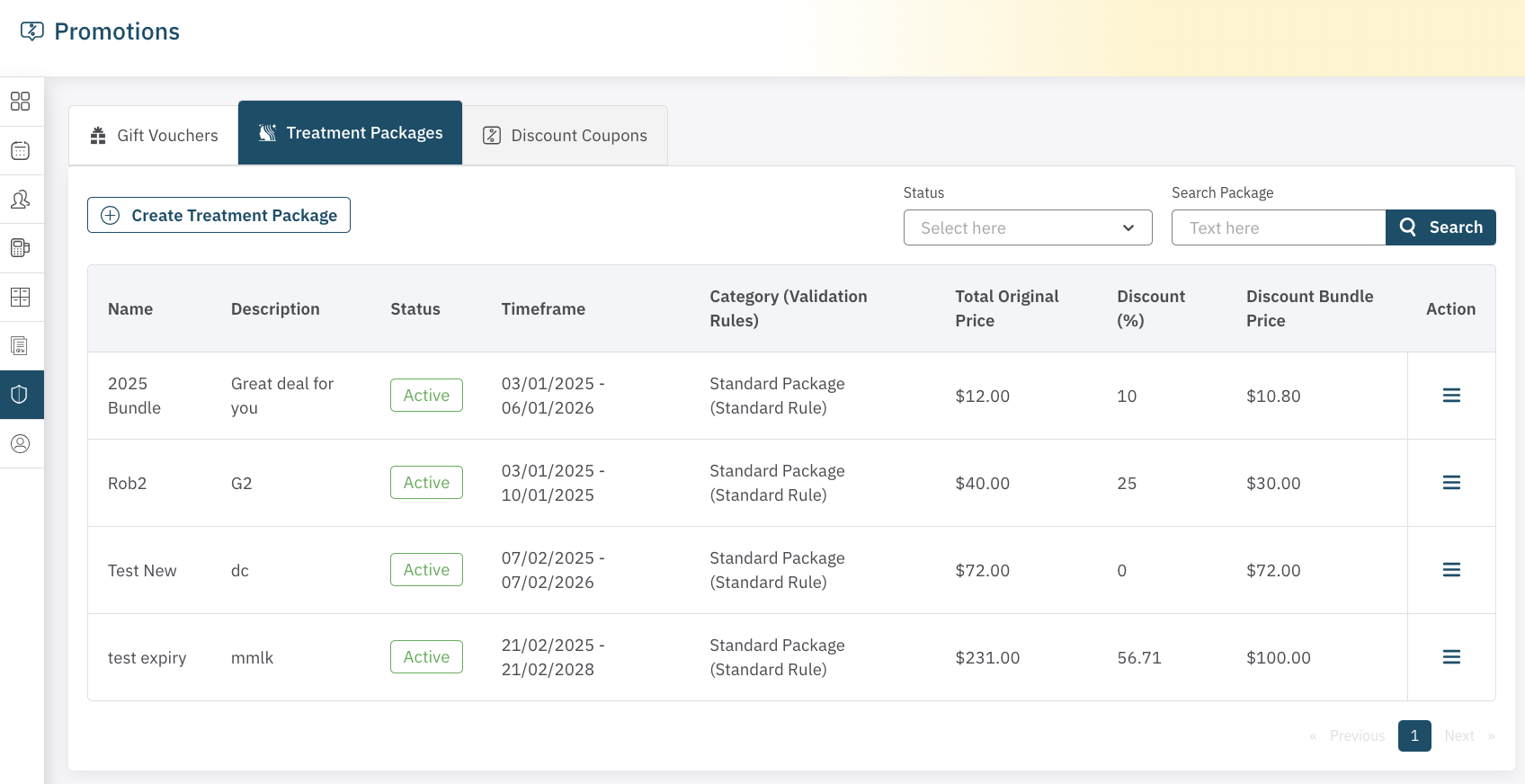
On the left-hand menu, select Admin > Promotions. Then, click on the Treatment Packages tab. This will display a list of packages that have already been set up.
Filter and Search Existing Packages:
You can filter the list by status (Active or Inactive) and use keywords to search for specific packages if needed.
Create a New Treatment Package:
To set up a new package, click on the Create Treatment Package button to open the Treatment Package Builder.
Fill in Package Details:
- Name: Enter a name for the package, for example, "Venus Hair Removal Lip x 6."
- Description: Add a short description of the package for clarity.
- Package Type: Select whether this package is for products, services, or a combination of both.
Add Products/Services to the Package:
- Search for the services or products you want to include in the package using the search box.
- Select the desired items, set the quantity for each, and click Add.
- If you want to create a combination of products and services, you can continue adding them until your package is complete. For example, you may bundle a 3 pack of facials with a bonus cleanser.
Please Note:
- Business or Group products can be added
- Only Services managed by the Business can be added.
Configure Package Details:
- Once all items are added, click Next.
- Double-check the details, including the inclusions, start and end dates, and set the price or percentage discount for purchasing the package.
Save the Package:
- After reviewing all the information, select Save Package.
- The new package will now appear in your list of Treatment Packages.
You cannot edit a package once it has been created. To stop selling the package mark it as Inactive from the Action meu. You can change the status at any time.
Client Purchases a Treatment Package
Selling a treatment package to clients is just as easy. Here’s how you can sell a treatment package at the POS:
Access the POS:
Go to the Sale section of the POS.
Search for the Treatment Package:
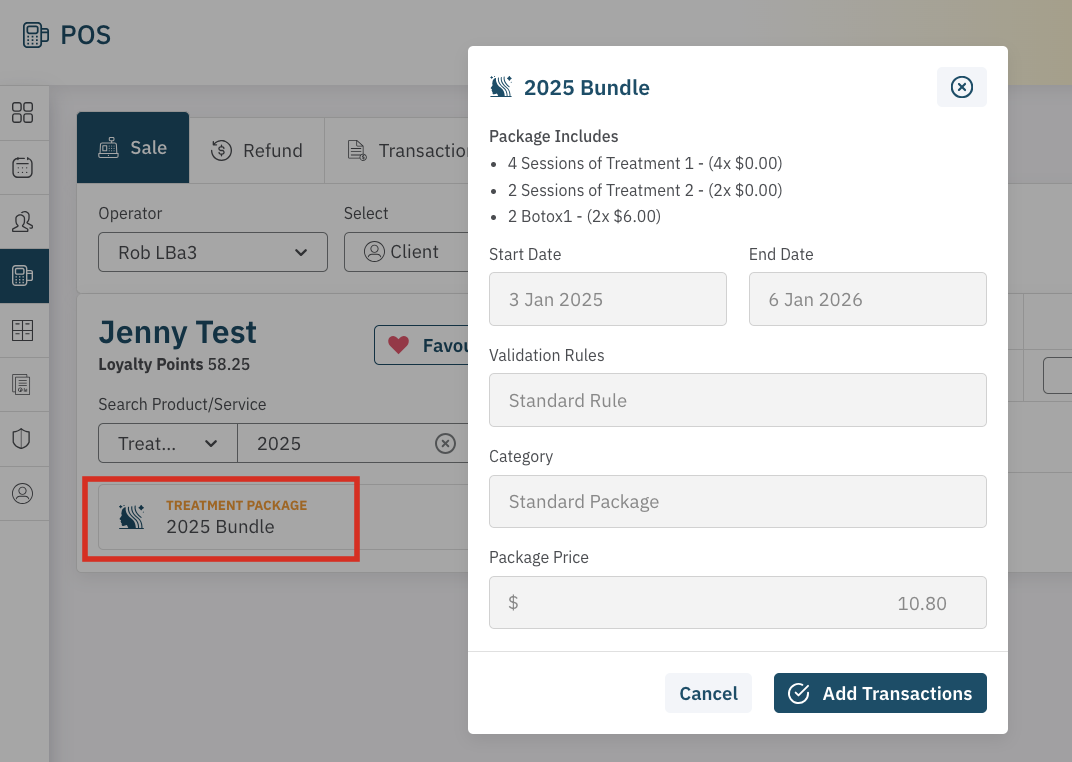
In the product/service search bar, filter the search by Treatment Package. Find the package you want to sell and select it.
Confirm the Package Details:
Once you select the package, its details will appear on the screen. Review everything with your client and confirm.
Proceed to Payment:
Once confirmed, continue to payment as you would for a regular sale.
Redeeming a Treatment Package
If a client has purchased a treatment package and wants to redeem it, follow these steps:
Add Relevant Services/Products to the POS:
Add the services or products that are included in the pre-purchased treatment package to the POS as you normally would.
Select Promo Code:
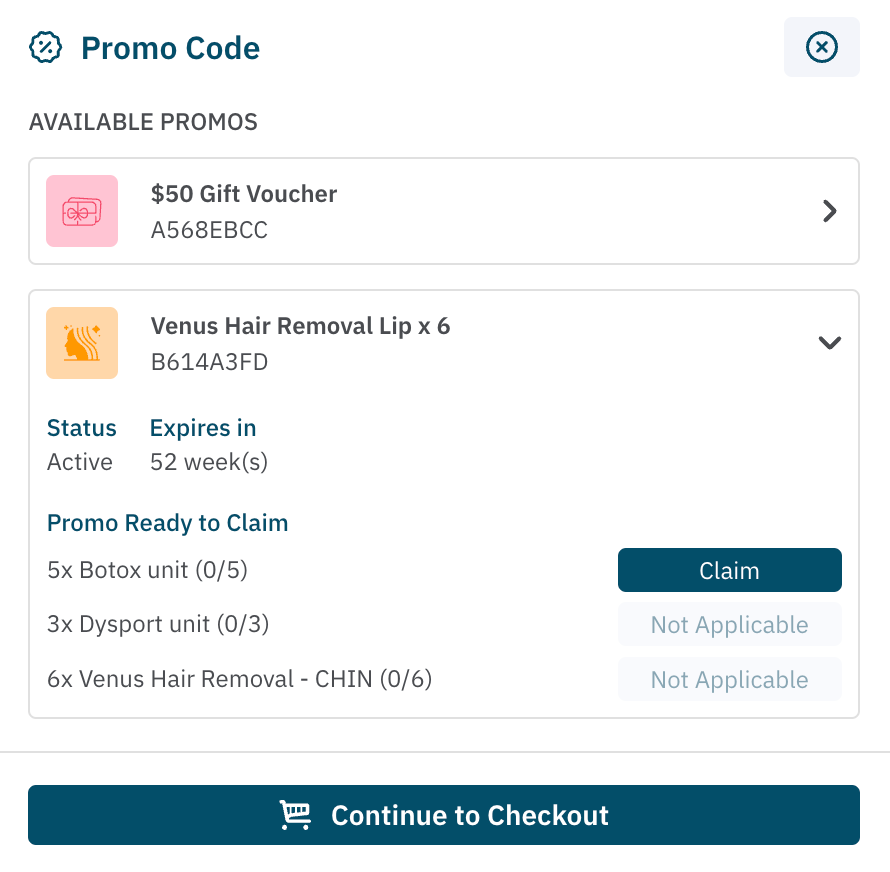
Beside the Checkout button, select the Promo Code button to apply the treatment package.
Apply the Package:
A list of available treatment packages will appear. Select the relevant package.
- If the item is eligible for redemption, you’ll see an option to Claim it.
- If the item is not redeemable with the package, it will say Not Applicable.
Complete the Sale:
Continue through to finish the sale. The treatment package will be applied as part of the payment, either fully or partially, depending on the client’s remaining balance.
Managing and Viewing Treatment Packages
After a treatment package is purchased, both you and the client can easily track its status and remaining balance. Here’s how you can manage and view treatment packages:
Go to Promotions:
From the left-hand menu, select Promotions then click on the Treatment Packages tab to see a list of all active packages.
Filter Treatment Packages:
Use the following filters to narrow down the list:
- Status: Filter by All, Active, Partly Redeemed, Fully Redeemed, or Suspended.
- Customer: Search by customer name to see packages tied to a particular client.
- Dates: Filter by purchase or redemption dates to track usage.
View Package Details:
In the Treatment Packages list, you can see important details such as:
- Name of the package
- Code for reference
- Status (Active, Redeemed, etc.)
- Customer who purchased the package
- Value of the package
- Remaining Balance (if applicable)
- Expiration Date
- Location where the package can be redeemed
- Redemption Date (if redeemed)
Additional Options:
- View Details: Click to see full details and the usage log for each treatment package.
- Deactivate Package: You can mark a package as Inactive if you wish to make it unanvailble to purchase.
View Treatment Packages in the Client File
Treatment package details are also available in the individual client file, under the Promotions tab. This section provides the same details as found in the Treatment Packages Tab, making it easy to track which packages your clients have purchased and used.
COMING SOON: Clients can buy and view promotions from the online booking client portal.
By following these steps, you can easily create, manage, and redeem treatment packages, providing your clients with attractive discounts and encouraging repeat visits. With Cosmesoft, you can ensure a smooth and efficient process for both you and your clients.