
Process a Refund
How to Refund A Client
Refunds are made to clients against paid invoices using the same payment method.
Accessing the POS System
The POS system is accessed via the Main/POS menu (calculator icon) located in the left-hand menu of your dashboard. Clicking this icon will open up the POS interface. Select Refunds.
Processing a Refund
The Refund tab allows you to issue refunds for any paid invoices using the same payment method that was used to pay the oringal invoice.
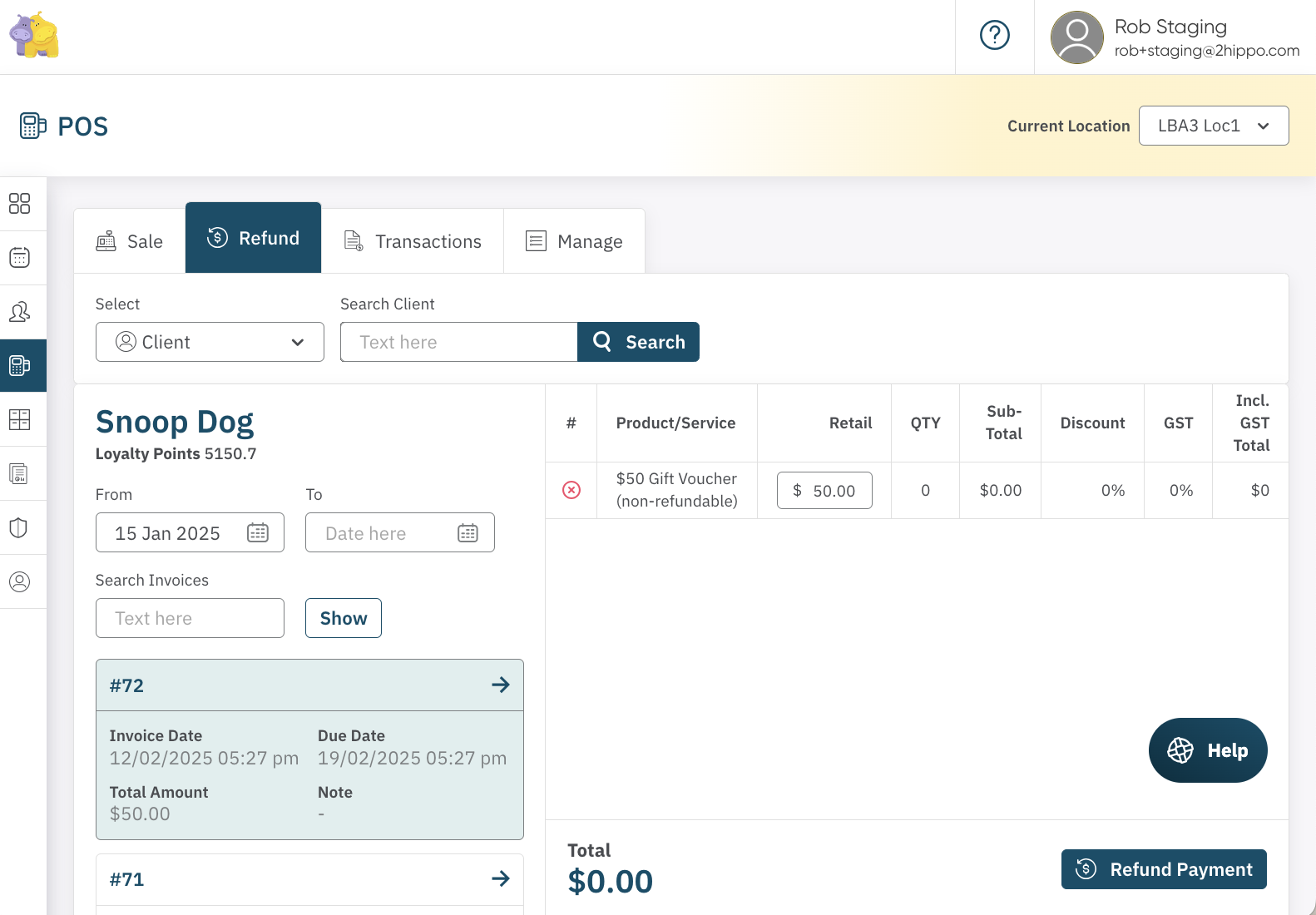
How to process a refund:
1. Locate the Client or Transaction
To start, you need to locate the client or transaction you wish to refund:
- Search for Client: You can search for a client by their name, email, phone number, or invoice number.
- Walk-In/Clinic Use: If the transaction was processed as a walk-in or clinic use, select the corresponding option to search for the transaction.
2. Find the Correct Invoice
Once you’ve searched for the client or transaction, a list of invoices will appear. You can use the Date Filter or search by Invoice Number to find the correct invoice.
Click on the appropriate invoice to open the details.
3. Adjust the Refund
If you’re refunding a specific item (e.g., the client was overcharged for Botox), you can adjust the quantity of the product being refunded.
For example, if the client purchased 10 units of Botox but was only charged for 5, you can refund the 5 excess units.
4. Confirm Refund and Payment Method
Click on Refund, and a pop-up will appear asking if you want to add the refunded product back to stock. This is useful if you're returning inventory that was previously sold.
Next, select the payment method that will be used to refund the client (e.g., Cash, Credit Card, etc.). The system will prompt you to enter the amount being refunded.
Finally, click Finish Refund to complete the process.
<— PREVIOUS ARTICLE | NEXT ARTICLE—>