
Gift Vouchers
How to Purchase and Manage Gift Vouchers in Cosmesoft
Gift Vouchers are a convenient way for clients to gift services or products at your clinic. They can also be used for future treatments. In Cosmesoft, purchasing and managing gift vouchers is easy with tracking and monitoring options available. This guide helps with purchasing, customising, and tracking gift vouchers.
Purchasing a Gift Voucher
- Navigate to the Main / POS menu (the calculator icon).
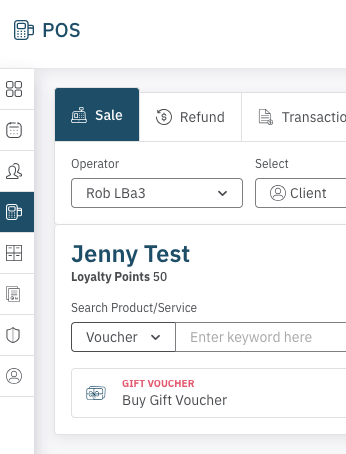
- Under the search function, click on the Buy Gift Voucher to begin creating the gift voucher.
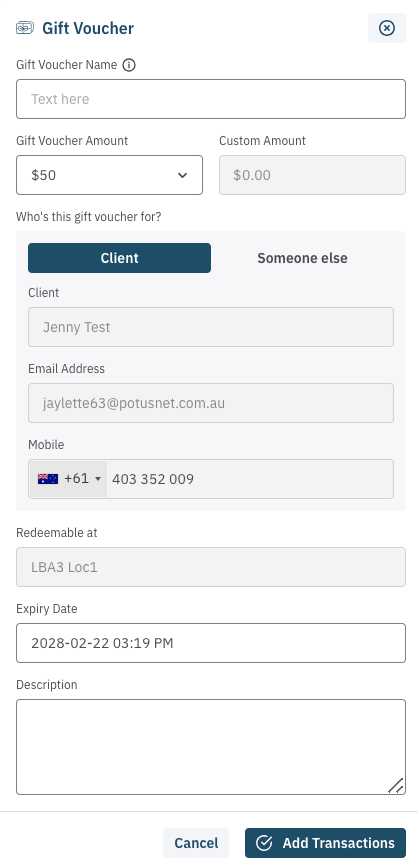
The gift voucher creation window will pop up, allowing you to select if the gift voucher is for the Client, or for Someone Else. A Walk-in can only purchase for Someone Else.
To purchase for a client:
Enter the value of the gift voucher.
- Location: The location of the POS will be automatically displayed.
- Expiry Date: You can adjust the expiry date, keeping in mind that consumer law in Australia requires gift vouchers to be redeemable for at least 3 years.Click Add Transaction to add the gift voucher to the cart.
* Adding a name or description is optional and not required.
To purchase for Someone Else
In addition to the client gift voucher details, ending to Someone Else requres the following:
- Enter the recipent's contact details
- Add a Personal Note to be shown on gift voucher.
- Select Email and / or SMS delivery options
- Click Add Transaction to add the gift voucher to the cart.
The Gift Voucher will be sent once purchsaed.
COMING SOON: Gift Card templates and scheduled delivery.

Checkout
Once all fields are completed, select Checkout to finalise the transaction.
How to Redeem a Gift Voucher
If your client has a gift card to redeem, it’s easy to apply it at the point of sale:
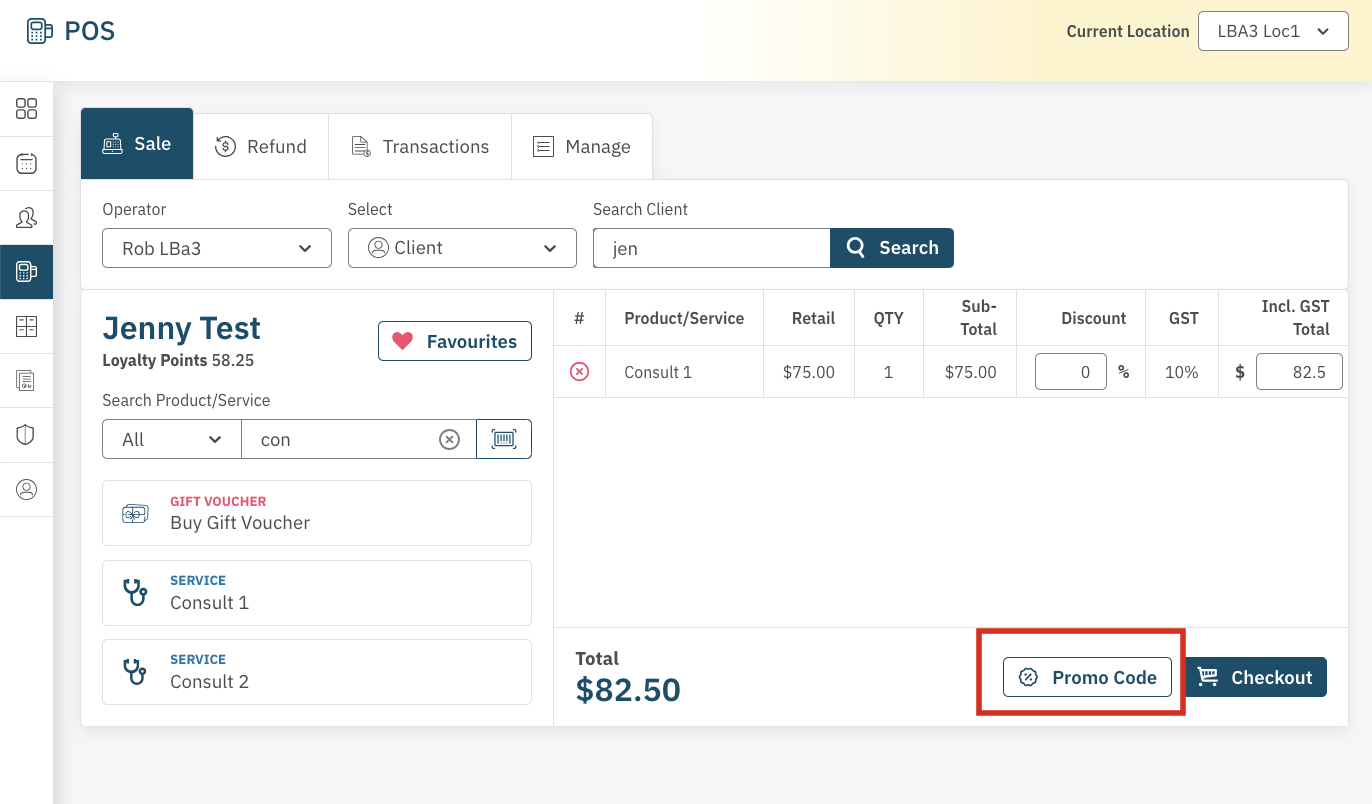
Locate the Promo Code Button:
At the POS, next to the Checkout button, you’ll see a Promo Code button. Click on this to open a list of available vouchers and gift vouchers.
Search or Select the Gift Voucher:
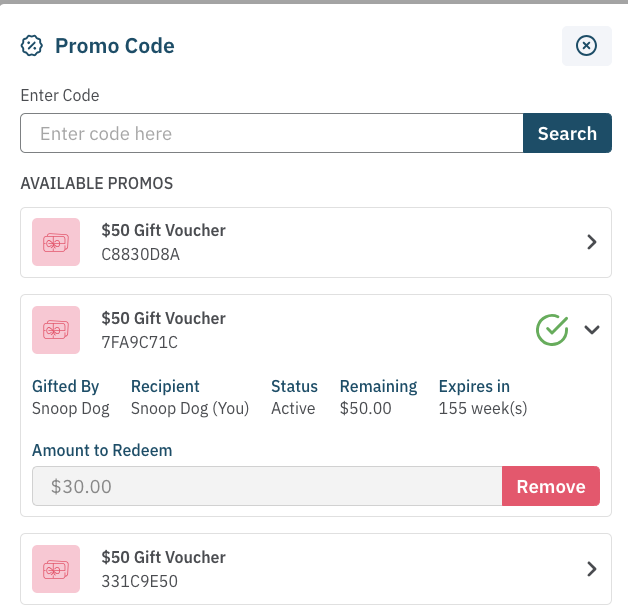
The gift vouchers the client has purchased or has been gifted will be displayed, along with the amount on each. You can either apply the full amount or adjust it to redeem only a partial payment. Simply type in the amount you wish to apply.
You can Seaf
Apply the Gift Voucher:
Once you've selected the amount to redeem, click Apply.
Continue to Checkout:
After applying the gift voucher, select Continue to Checkout. The gift voucher amount will automatically be applied to the invoice.
Complete the Sale:
Continue with the sale as usual, completing the transaction for the remaining balance or total.
With this easy process, clients can redeem their gift vouchers quickly and seamlessly during checkout.
Managing Gift Vouchers
You can easily check the remaining value on a Gift Voucher, or check its usage.
Purchased Gift Vouchers will appear in:
- Admin / Promoptions tab.
- Client / Promotons tab.
Click on the Gift Vouchers to view all active gift vouchers.
Use the filters to narrow down the list:
- Status: Filter by All, Unpaid, Active, Partly Redeemed, Fully Redeemed, or Suspended.
- Customer: Filter by customer name.
- Dates: Filter by purchase or redemption dates.
Voucher Options
- View Details: Click to view the full details and usage log for each voucher.
- Suspend Voucher: If necessary, you can suspend a gift card. Be careful, as suspending a voucher cannot be reversed.
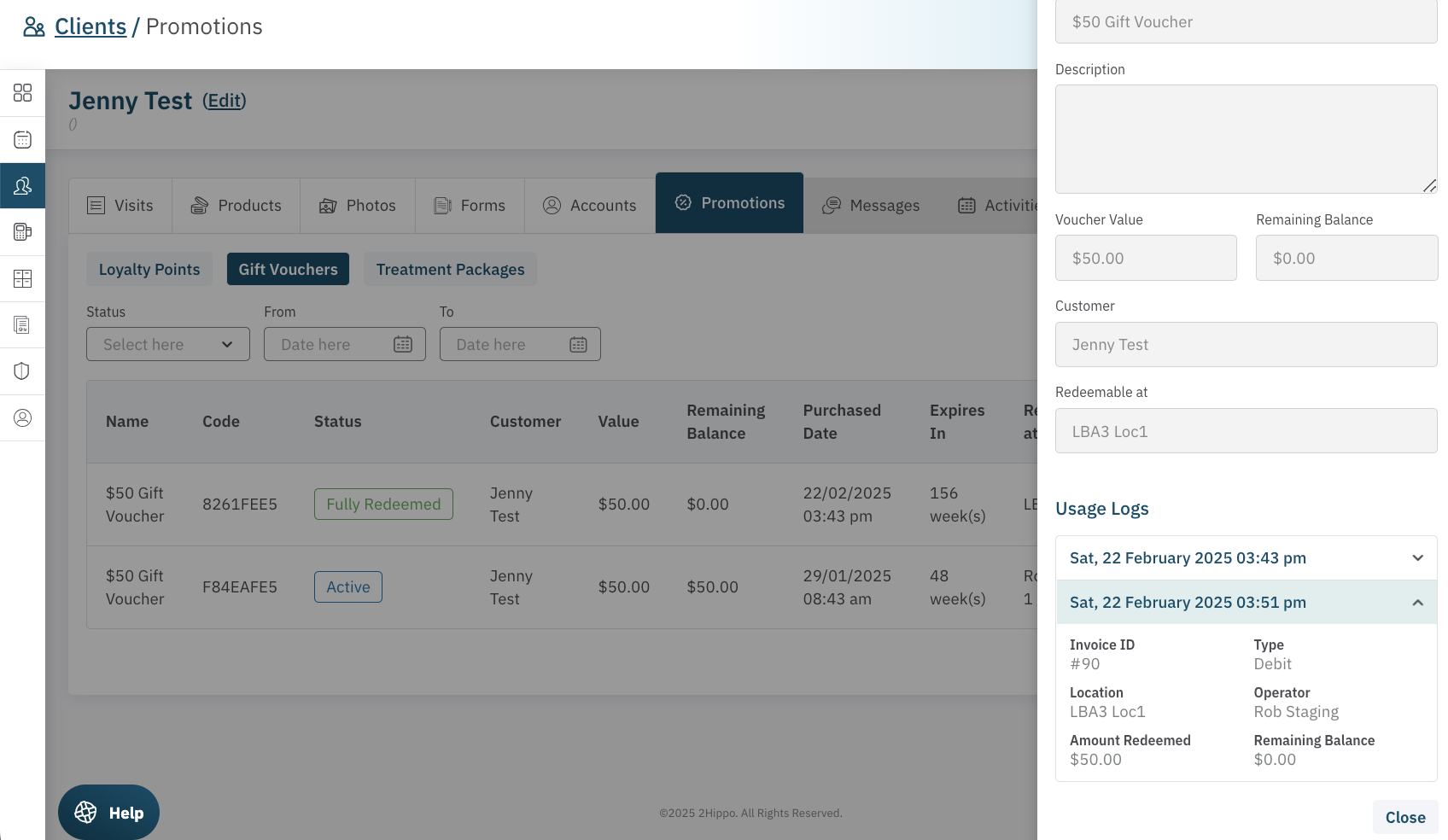
Tracking Gift Voucher Use
The usage logs shows when the gift voucher was purchased (shown as a crecit), and when the gift voucher was used (shown as a debit).
Re-Gifting a Gift Voucher
If the client or recipient wants to gift the voucher to someone else, they can do so by purchasing another gift voucher using the current one to pay for it. To redeem a gift voucher, follow these steps:
- Open POS, select or add the client receiving the gift voucher
- Purchase a gift voucher for the same value
- Select Promo, locate the gift voucher to be gifted
- Complete the sale.
The recipient will receive an email/sms notification once the process is completed. Following this process ensures a complete audit trail, recording the sale and purchase, and eliminates the risk of fraud.
Key Points to Remember
- Gift Vouchers as Gifts: Gift Vouchers can be purchased as gifts for others, with the option to notify the recipient by email or SMS.
- Gift Vouchers purchased by the client, or received as a gift can be re-gifted by using the gift voucher to purchase another gift voucher.
- Mandatory Details: Email and phone number are required to minimise the risk of fraud.
- 3-Year Expiry: Australian consumer law mandates that gift cards be redeemable for a minimum of 3 years.
- Tracking: Gift Vouchers can be easily tracked and managed in the Promotions > Gift Vouchers section, where you can view the card’s status, value, and usage history.
By following these steps, you can efficiently manage the purchase and tracking of gift vouchers.