
Navigating the Calendar Views
Calendars visualise your team roster, and scheduled bookings and unavailabiliy periods.
Calendar Overview in Cosmesoft
A well-structured calendar is vital for managing a busy clinic. Cosmesoft Calendar offers an overview of locations and seamless toggling between staff members and locations in day and week views.
Permissions
- Receptionists, Managers, and Admins: Have default access to all calendars across all locations under a business umbrella.
- Operators (Clinical Staff): Can access calendars only for their assigned location.
Setup Requirements for Booking Appointments
Before scheduling appointments, there are two essential configurations that need to be set up:
- Location Hours: Ensure the location hours are correctly set. Navigate to Admin > Locations > Edit (under Actions menu) and verify the Opening Hours are accurate.
- Staff Rosters: Confirm that rosters are set up for staff. Please refer to our guide on Rosters for more information.
Navigating the Calendar Views
- Default View: The calendar will always open to today's date and time. If you're accessing it later in the day, you may need to scroll up to view morning appointments.
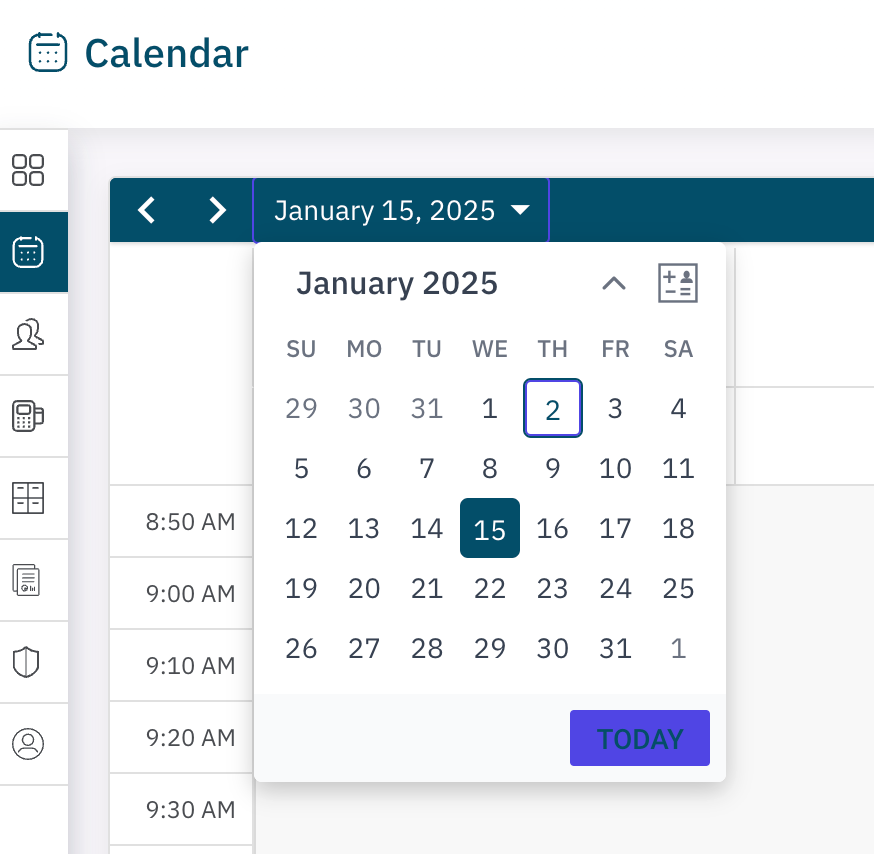
- Date Navigation: Easily toggle to a different date using the date picker in the top-left corner of the calendar.
Custom Calendar Views
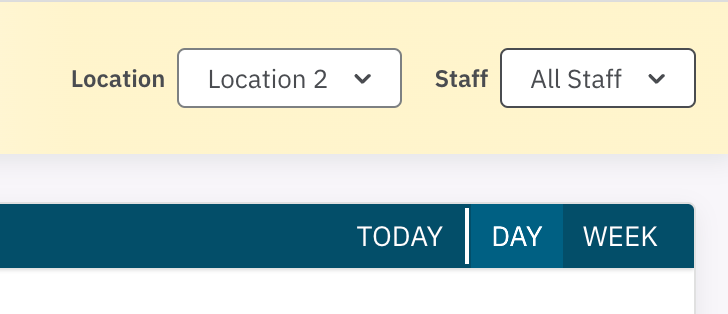
On the top-right corner of the calendar, you'll find filters to toggle between different custom views:
- Location: Select the desired location (only applicable if your business operates across multiple locations). Note that you cannot view multiple locations simultaneously.
- TODAY: Click this option to quickly return the calendar to the current date.
- DAY: Choose this to view the calendar for a single day. You can toggle between viewing an Individual Staff Member or All Staff using the Staff filter.
- WEEK: Select this option to view the calendar for the entire week. This view is only available for individual staff calendars; All Staff cannot be viewed in the weekly layout.
Learn More
For more information on managing appointments, refer to the article on Managing Appointments on the Calendar
Related Topics:
<— PREVIOUS ARTICLE | NEXT ARTICLE—>