
Managing Your Business Network
Business Group Management
Cosmesoft is designed to keep up to date with the evolving business models of cosmetic clinics and beauty salons. Businesses can operate individually or connect with other businesses within a group/franchise for easier management of staff, bookings, consultations, prescriptions, stock, and more. This article outlines how businesses can interact in different ways, and how a Business Group operates in the system.
Types of Business Interactions
There are three main ways businesses can connect using Cosmesoft:
- Business to Business
- Business to Nurse
- Business to Supervisor (Doctor/Nurse Practitioner)
1. Business to Business
In this case, all businesses use Cosmesoft, allowing for shared resources and streamlined processes:
- Creating a Business Group requires purchasing a Group Subscription. Once purchased, Members can be invited to join your group.
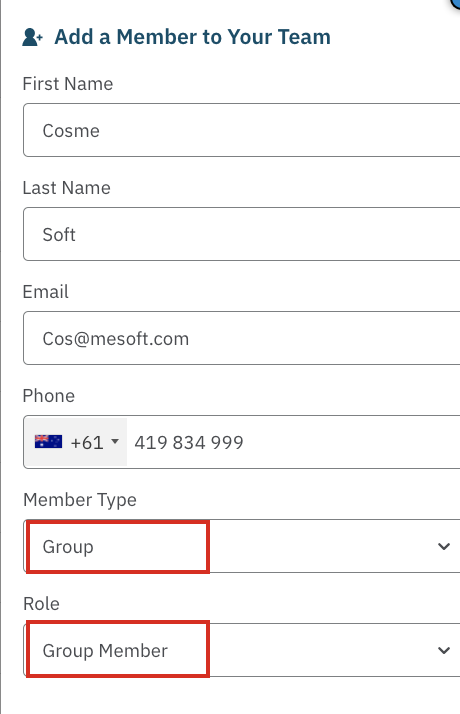
- Linking Businesses: A Group Member is invited as an Group /Member in My Team.
- Business Network: Clients, Nursers and Supervisors (Prescribers) are connected across the Group seamlessly.
Please refer to both the Business to Nurse and Business to Supervisor scenarios below, as the process is identical for both.
2. Business to Nurse
In this scenario, the business uses Cosmesoft Consult, and the Nurse uses a different client management system.
- Consultations & Prescriptions: The nurse requires consultations and prescriptions from a prescriber, managed via Cosmesoft.
- Inviting the Nurse: The nurse is invited as an External / Nurse in My Team to access their own portal.
- Consultation & Supervisor: The nurse adds a client **, starts a consultation, and selects a supervisor.
- Supervisor Access: The supervisor can view the client and any unsigned prescriptions.
- Client Details: Since the nurse is not using Cosmesoft, client details must be entered manually, and the client will appear in both the nurse's and supervisor’s lists.
Cosmesoft App Connect makes it easy for Cosmesoft to connect client data without the need for manual entry. Reach out to our support team to see if your system is compatible for connection.
3. Business to Supervisor
In this case, the business uses Cosmesoft, while the supervisor operates a different system:
- Requesting a Supervisor: Staff request the supervisor to consult and prescribe for clients.
- Inviting the Supervisor: The supervisor is invited as an External / Supervisor in My Team.
- Setting Availability: The supervisor's availability is set (default is "always available").
- Supervisor Selection: When starting a consultation, the nurse selects the supervisor.
- Supervisor Access: The supervisor can view the client’s records and any unsigned prescriptions in the Consultations List.
How to Setup and Manage Your Business Empire
The following wil guide setting up a Business Group. Note that most features work the same across all business types, so if you are already familiar with how to manage your Cosmesoft powered business you are almost there.
Subscribe to a Group Plan
Creating a Group requires crreating a Group Admin (GA) by purchasing a Group Subscription Plan
- Go to My Profile/Billing to choose a plan that suits your needs.
Invite Member Businesses
For Businesses to join the Group, the Group Admin invites a new team member.
- Go to My Team/Invite and select External / Member when adding the new team member. Make sure you invite the correct email address as this is where the invitation will be sent.
- If a Business Admin account matches the email address, the business admin will be invited to link their Business to the Group.
- If a Business Admin account does not exist, it will first need to be created, and the new business can then be invited to join the Group.
Once businesses are linked to the Group, the following features become available:
Locations, Staff and Rosters can be shared across the group.
- Staff can connect with any Group Location
- Services are assigned per Location
- Rosters are managed across all Group Locations.
- Refer to the the guides for managing My Team
Online Bookings: The Group booking site lists all group member busineses, allowing clients to book directly with any member. Each business also has it's own booking site that lists it's Locations.
- Refer to the guiides for managing Online Bookings.
Stock Management: Group stock control simplifies inventory management across multiple business locations, while allowing businesses to manage their own inventories.
- All Cosmesoft Businesses have their own suppliers and manage their stock across their trading locations.
- Lead Groups manage their own products and also manage stock levels in a Group Warehouse by Ordering or Transfering Products to the Group Warehouse.
- Members select the Group's Warehouse as a Supplier to order products from.
- Stock can also be transferred from the Group Warehouse to members by Group staff members .
- Refer to the guide for Stock Management
Loyalty Points Program: The Lead Group establishes a Loyalty Program. Members can choose to participate, create their own program, or disable the program.
- Refer to the guide on Loyalty Programs
Nurse and Supervisor Access Across the Group: Supervisors and nurses across the group can access relevant consultations, prescriptions, and patient data.
- Refer to the guide on Nurse Supervision
Conclusion
Business Group management in the Cosmesoft allows for streamlined collaboration, consultation, and stock management across multiple locations. Whether you're working with external nurses, supervisors, or managing multiple businesses within a group, the system provides all the tools necessary to ensure smooth operations and compliance.
If you need further assistance, don’t hesitate to reach out to our support team via the Help LifeRing