
Reports
Cosmesoft Reports Guide
Cosmesoft’s Reports feature is designed to be simple and intuitive, giving you easy access to important insights across your clinic. Rather than wading through multiple report types and templates, with just a few clicks, you can generate reports to track sales, stock movement, business performance, and staff activity.
Currently, Cosmesoft offers four types of reports:
- Sales Report
- Stock Movement Report
- Business KPI Report
- Staff Summary Report
Each report type can be customised based on your preferred location, operator, and time period. If you need a custom report created, please contact the Cosmesoft Support team for assistance.
Permissions Overview
- Admins: Default access to Create/Delete/View Reports for all Locations
- Managers: Default access to Create/Delete/View Reports for Locations they are shared with only.
- Receptionists: Require additional permissions to Create/Delete/View Reports.
- Clinical Operators: View Only. Require additional permissions to Create/Delete.
1. How to Generate a Report
Follow these steps to generate any of the available reports:
Select the Report Type
- Choose the report you want to generate from the Report Type dropdown (e.g., Sales Report, Stock Movement Report, Business KPI Report, or Staff Summary Report).
Add a Description
- Enter a Description for the report (e.g., "January Sales 2025"). This helps you identify the report later.
Select a Location
- Choose a Location from the dropdown list. If you want the report to cover all locations, leave the field as ALL.
Select an Operator
- Select an Operator from the dropdown list if you want to filter the report by a specific staff member. If you want the report to cover all operators, leave the field as ALL.
Choose a Time Period
- Select a Time Period for the report from the following options:
- This week
- Last week
- This month
- Last month
- Last three months
- Last 6 months
- This year
- Custom Date (If you choose Custom Date, enter the specific Start Date and End Date for the report period.)
Confirm Report Generation
- After you have selected the necessary options, a pop-up window will appear asking if you're sure you want to generate the report.
- Click Yes to confirm.
2. Viewing the Report
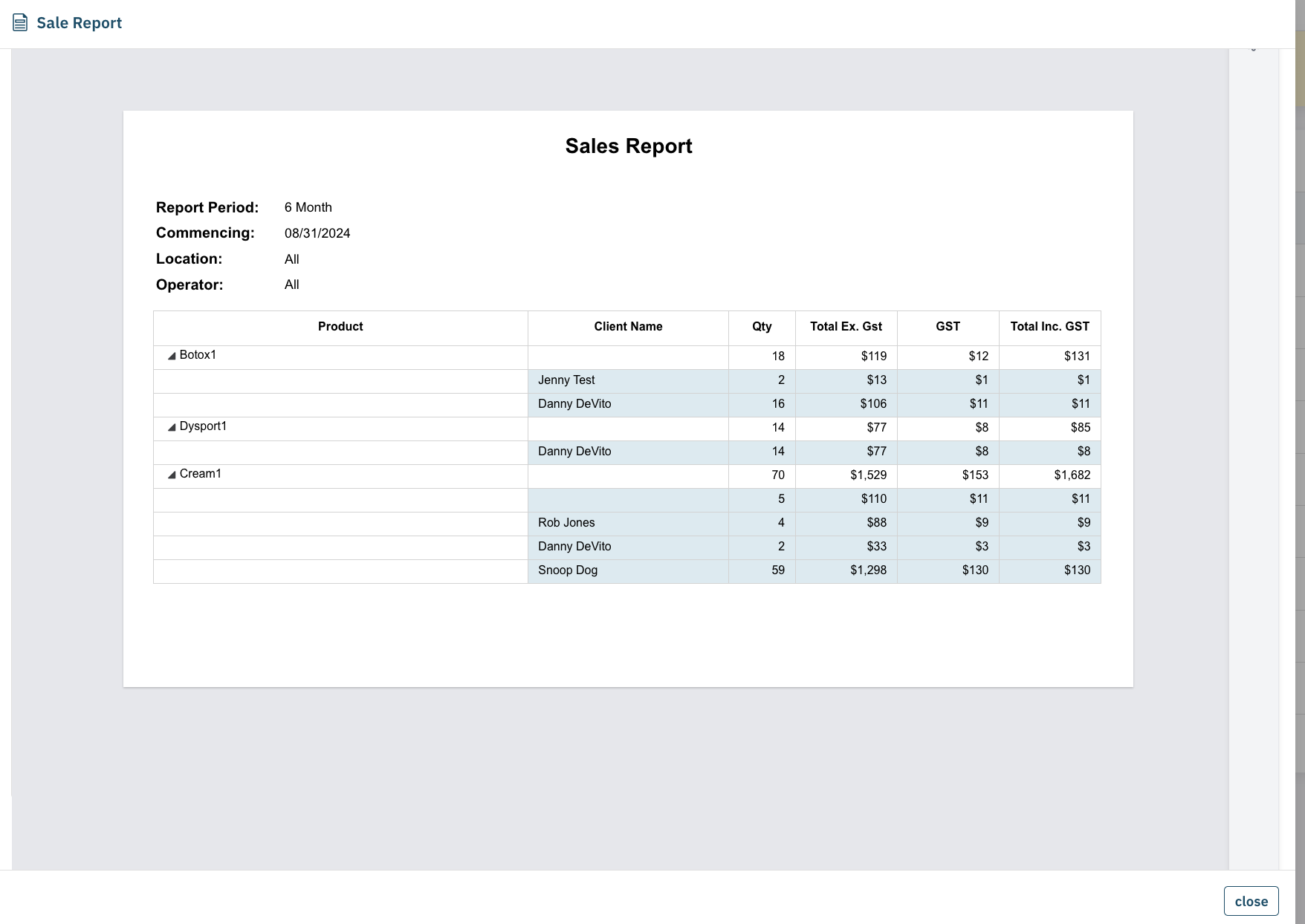
Once the report is generated, it will be stored in the Report List for easy access.
- To view the report, simply click on the Report Name from the list.
- The report will open, allowing you to review the details.
3. Exporting the Report
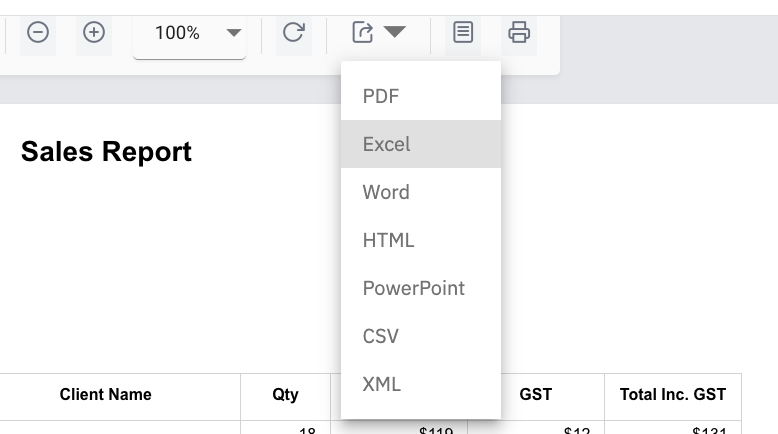
After generating the report, you can export it in 7 different file formats for further analysis, sharing, or record-keeping.
View and Print:
- The report can be viewed on the screen for immediate reference.
- You can print the report directly from the view page if needed.
Export:
- To export the report, click the Export button.
- Choose from the following 7 available file formats:
- Excel
- CSV
- Word
- HTML
- XML
- RTF
4. Custom Reports
If you need a custom report tailored to your clinic’s specific needs or would like a report that isn’t available in the current options, you can request a Custom Report from the Cosmesoft Support team.
How to Request a Custom Report:
- Contact the Cosmesoft Support Team via email or the Help icon.
- Provide the details of the Custom Report you need, including the data you’d like to track, the format required, and any other specifics.
- The Cosmesoft Support team will assist you in creating the custom report and guide you on how to access it.
Summary
Cosmesoft’s Reports feature is easy to use and gives you powerful insights into your clinic’s performance. With the ability to filter by location, operator, and time period, you can generate reports that suit your needs. Additionally, reports can be exported in multiple formats for your convenience.
If you ever require a custom report, or have any questions, don’t hesitate to reach out to the Cosmesoft Support Team for assistance.