
Setting Up Services for Team Members
Clients Book Services with Team Member relevant to each Location.
Assigning Services to a Team Member at Each Location
Services for each team member are allocated per location, giving you full control over the services offered at each site. This customisation is especially important for Online Bookings, where the available services are displayed to the public when making a booking with your business.
Permissions Required
To set up and manage Team Member Services, the following permissions are required:
- View/Add/Remove Staff Locations
- View/Add/Remove Staff Services
(Default settings for Managers and Admins)
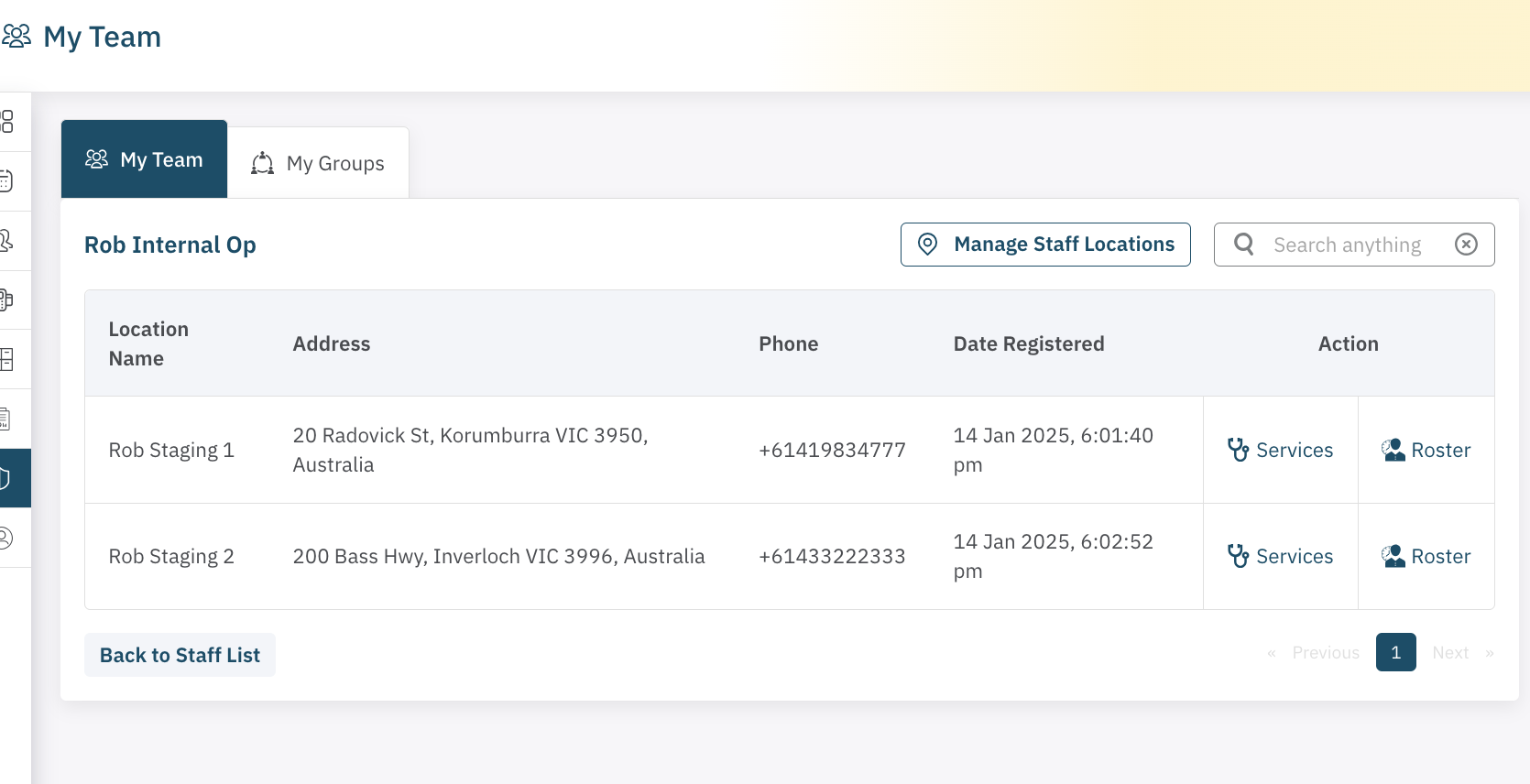
To assign services to a team member, follow these steps:
- Navigate to Admin > My Team.
- Locate the relevant team member and click the three horizontal lines menu under Actions.
- Select Location.
(If the team member has accepted the invitation, their assigned location(s) will be displayed.) - Under Actions, you’ll see two options: Services and Rosters. Click Services next to the desired location.
- On the next page, you’ll see a list of all services assigned to that location.
(If services are missing, return to the clinic setup to allocate services to the location.) - Check the box next to each service you want to assign to the team member. For easier navigation, you can filter services by category using the dropdown list at the top.
- Click ADD to move the selected services to the right-hand column.
- To remove any services, check the box next to the services you wish to remove from the right-hand column, then click Remove.
- Click Save Changes to apply the updates.
The team member will now have the selected services listed for the chosen location.
Repeat the steps at the relevant locations if the Team Member is available at multiple sites.
Related Articles
<— PREVIOUS ARTICLE | NEXT ARTICLE—>