
View Transactions
Locate financial transcation and related invoices.
Transaction History
Access any transaction (refunds or payments), view a summary, preview the invoice, and if money is owed collect a payment.
Accessing the POS System
The POS system is accessed via the Main/POS menu (calculator icon) located in the left-hand menu of your dashboard. Clicking this icon will open up the POS interface. Select Transactions.
- NOTE: Client transactions can also be view from the client profile.
View Transactions
The Transactions tab allows you to locate any transaction and view the related invoice.
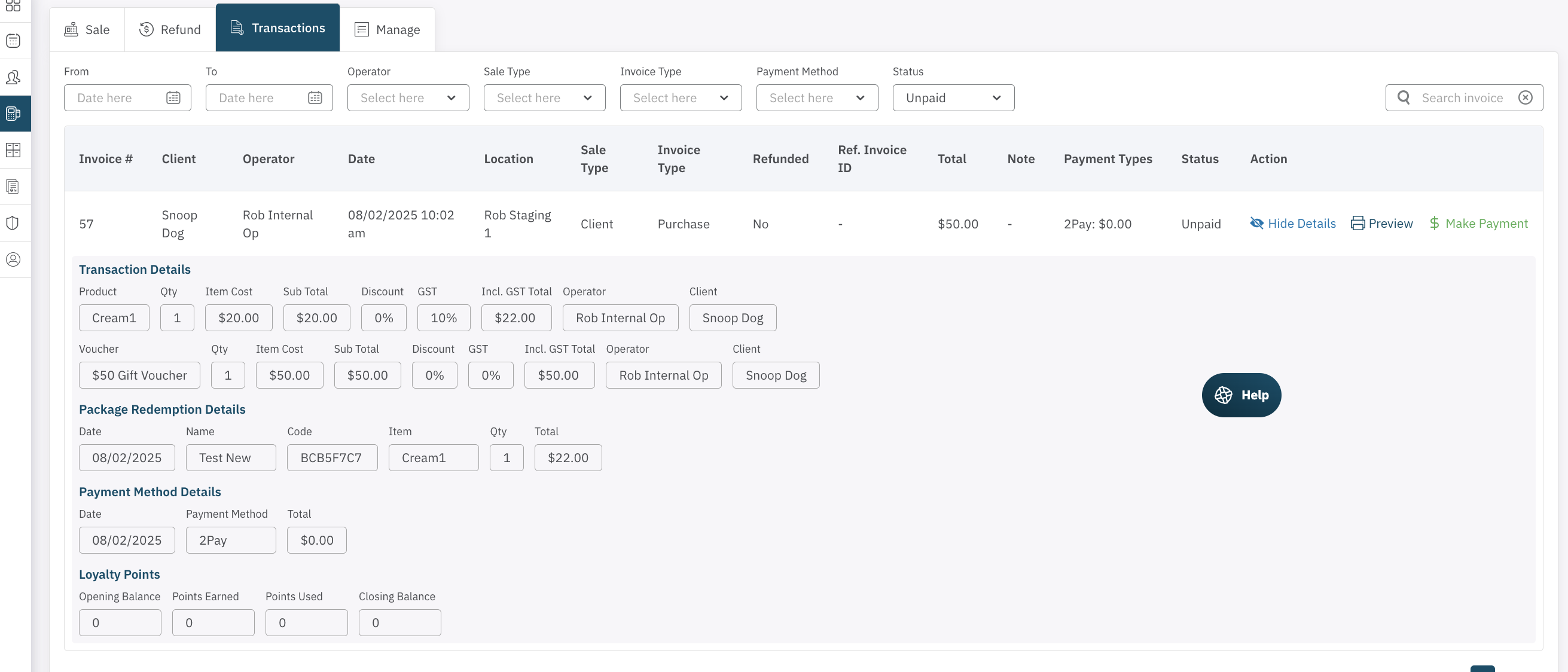
To locate a transaction:
- Filters can be selected as required as listed.
- Search Invoice: for an invoice #, client or amount.
Once the required Transaction has beem found you can:
- View/Hide Details will show all purhcase and payment details.
- Preview will open the invoice, which can be saved or printed.
- Make Payment will be available if money is owing on the invoice (all or part).
<— PREVIOUS ARTICLE | NEXT ARTICLE—>