
How to Use 2Hipp 2Pay to Collect Card Payments
Before using Tap to Pay, ensure the following:
- You have completed the payment account setup on the Cosmesoft™ Consult App.
- The 2Hippo 2Pay app is installed on your Device, and linked to your Cosmesoft account.
Once everything is ready, you’re all set to proceed!
Quick Start: Requesting Payment via 2Pay
- Checkout via POS
- Finish Sale (2Pay will be the default payment method)
- Select Device and selct Pay via 2Hipp 2Pay App
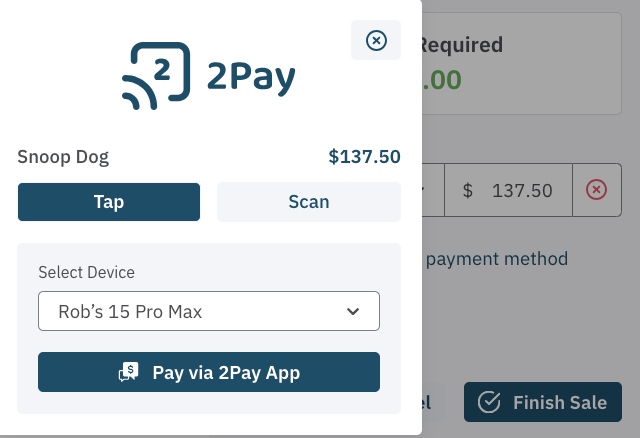
Step by Step Procedure
Step 1: Initiate the Payment
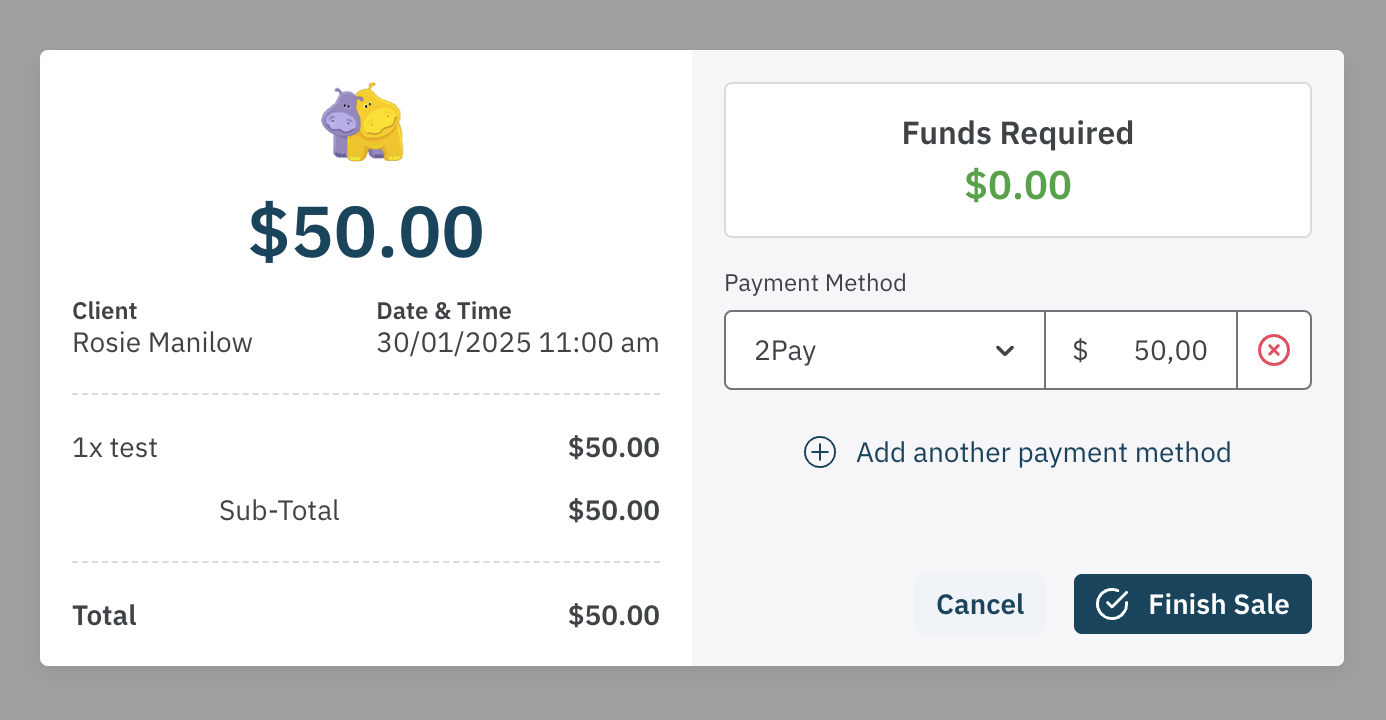
From the Point of Sale screen, select 2Pay as the payment method.
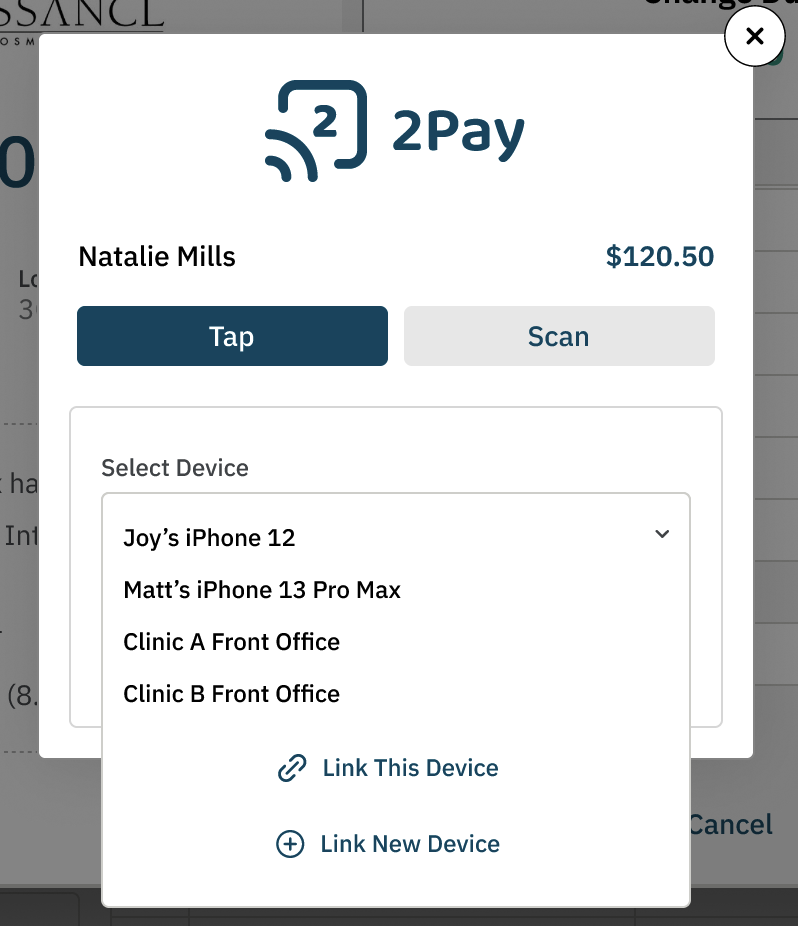
Choose the Linked Device you want to use to collect card payments, or Link a new Device.
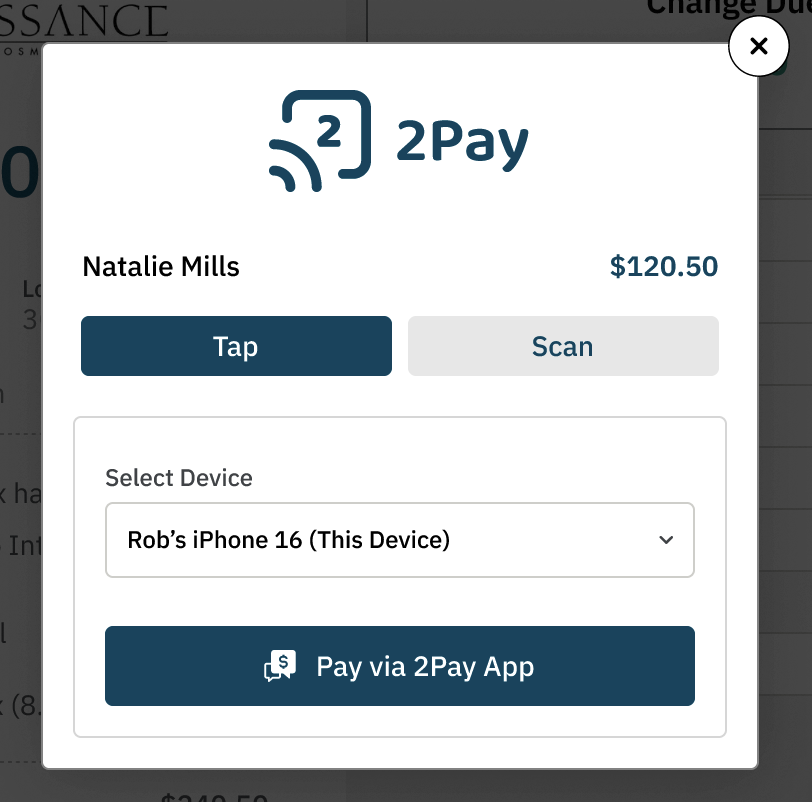
Click on Pay via 2Pay App.
Step 2: Tap the Client’s Card
In a few seconds the payment request will be presented on the selected device. If your device is asleep or locked, you will eceive a notification. Open your device and the payment request will appear.
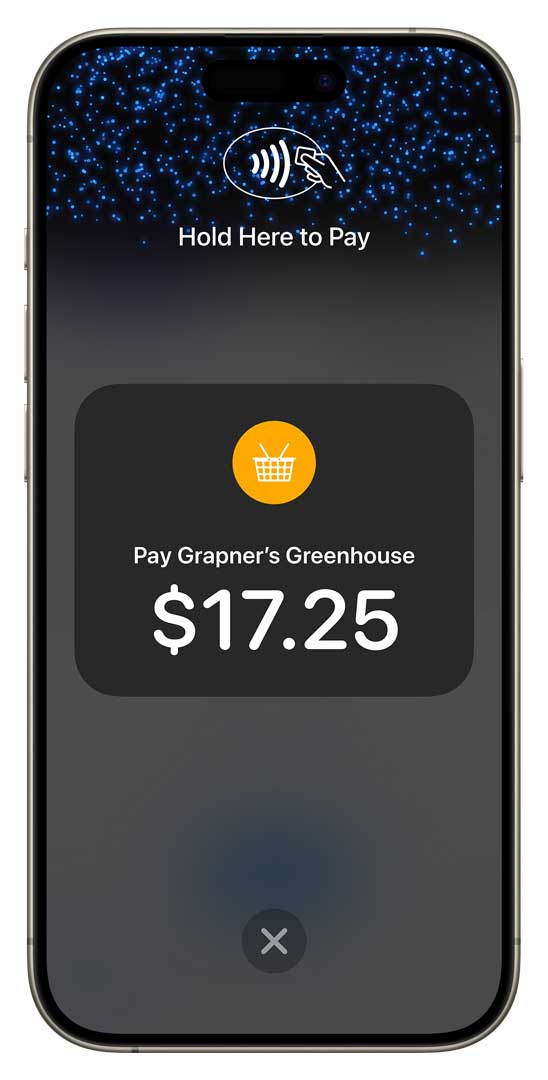
On the selected device, a Request for Payment screen will appear.

Ask the client to hold their contactless card near the device.
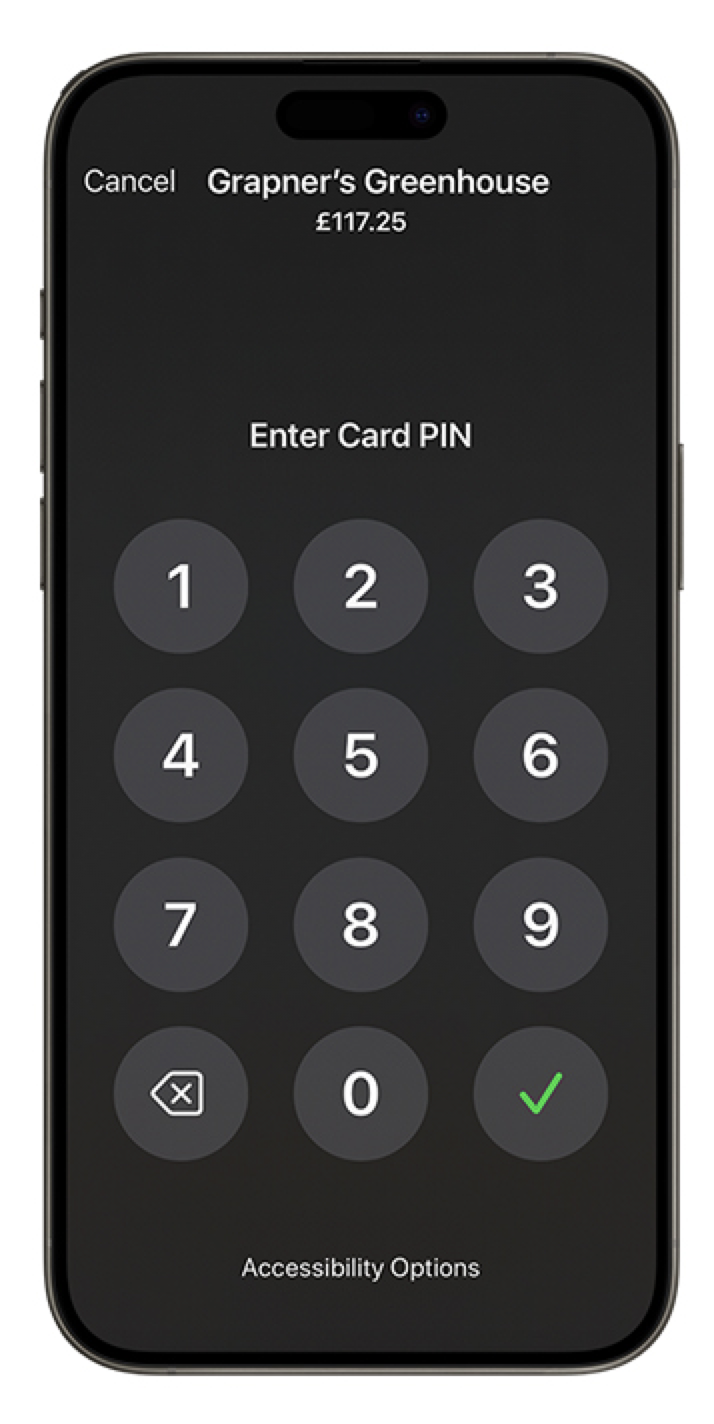
Some transactions may require the client to enter their PIN to complete the payment.
Step 3: Payment Confirmation
If the payment is successful, a DONE screen will appear and your tranaction is complete.
If the payment fails, a Failed screen will appear. An error message will be shown that should guide you on how to respond.
If Tap fails to get a response, you can choose to Retry or Cancel.
- If the Tap to Pay process fails Ensure the card is placed correctly and try again.
- If Tap to Pay continues to fail, cancel and request payment using Scan to Pay.
Scan to Pay
Using your device camera or QR scan app, scan the QR code presented.
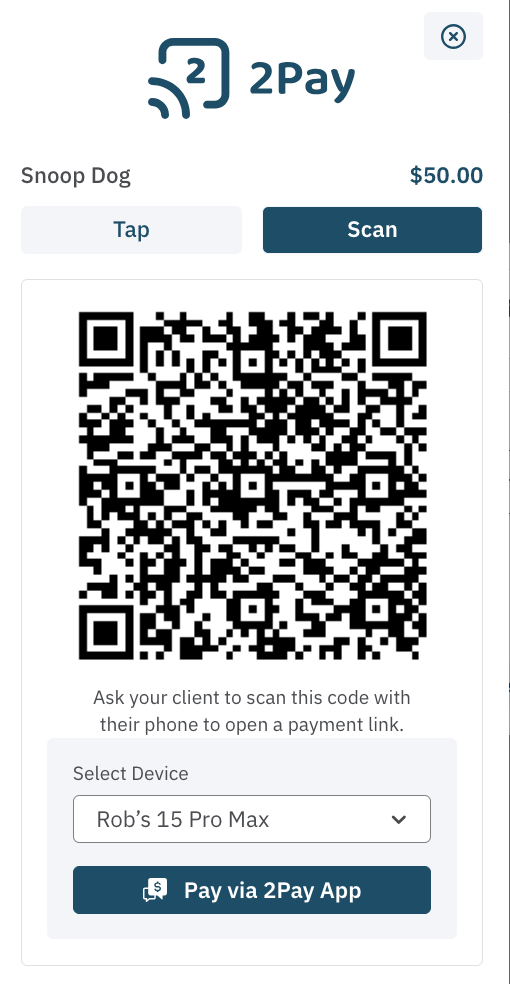
Click on 'Scan' tab on the 2Pay popup screen, then ask the client to scan the code using their phone.
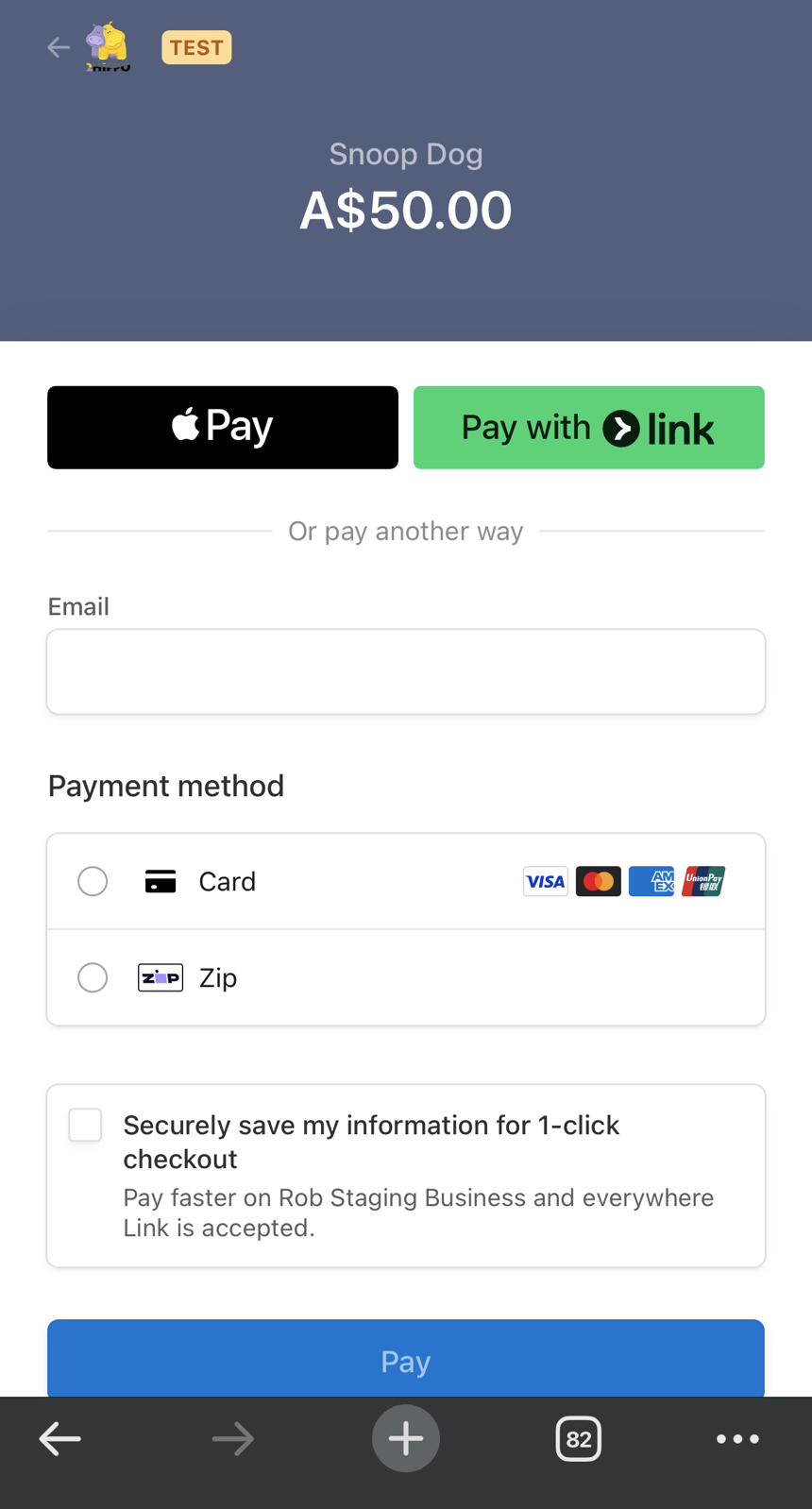
Payment can be made using the any of the options presented.
Tip: If you need to manually enter a card over the phone, scan the QR code on your device and enter the client's card details
If You Cannot Collect Payment
If all 2Pay options fail you can;
- Select Client Account and charge the fees to the client. The invoice sent will contain a payment link and QR code so the payment can be made online.
- Pay using cash or another payment method.
Tips for a Smooth Experience
- Ensure the clinic device has a stable internet connection.
- Verify that the client’s card supports contactless payments.
- If issues persist, contact support.