
Booking Deposits
How to Book and Manage Deposits
Requiring clients to pay a deposit when booking streamlines payments and reduces cancellations.
Using Cosmesoft, Clients have the option to pay their deposit online, in-person, or over the phone, with the deposit then being applied to their purchase upon completion of the visit. However, If a client cancels or misses their appointment, the deposit will be forfeited unless its used towards a rescheduled booking withing the Forfeit Deposit period.
Online bookings require the deposit to be paid to make the booking. However, when booking over the phone or in clinic, it is possible to create a booking and leave the deposit pending payment. In this case the client has ???? hours to pay the deposit or forfeit the booking.
Permissions Overview
- Admins: Default access to setup and manage Deposits for Services, Locations and Operators.
- Managers: Access to setup and manage Deposits for their Locations only.
- Receptionists & Clinical Operators: Additional permissions required for Deposit management.
Setting Up To Accept Deposits
This step-by-step guide will aid you in enabling, managing, and processing booking deposits easily. If you have completed your onboarding checklist, some of these steps may have been completed.
1. Set Up a Payment Account
To accept booking deposits, you must first set up a Payment Account. This allows Cosmesoft to process payments securely via Stripe and transfer funds to your bank account. If you haven’t set up a Payment Account yet, follow these steps:
- From the Main menu, select Accounts | Payment Accounts.
- If no account is listed, select Add Account to create one.
- Follow the prompts to enter your business’s payment gateway information.
If the Payment Account is missing or incomplete, you won’t be able to accept booking deposits online. Ensure this is configured correctly before proceeding.
2. Enable Deposits
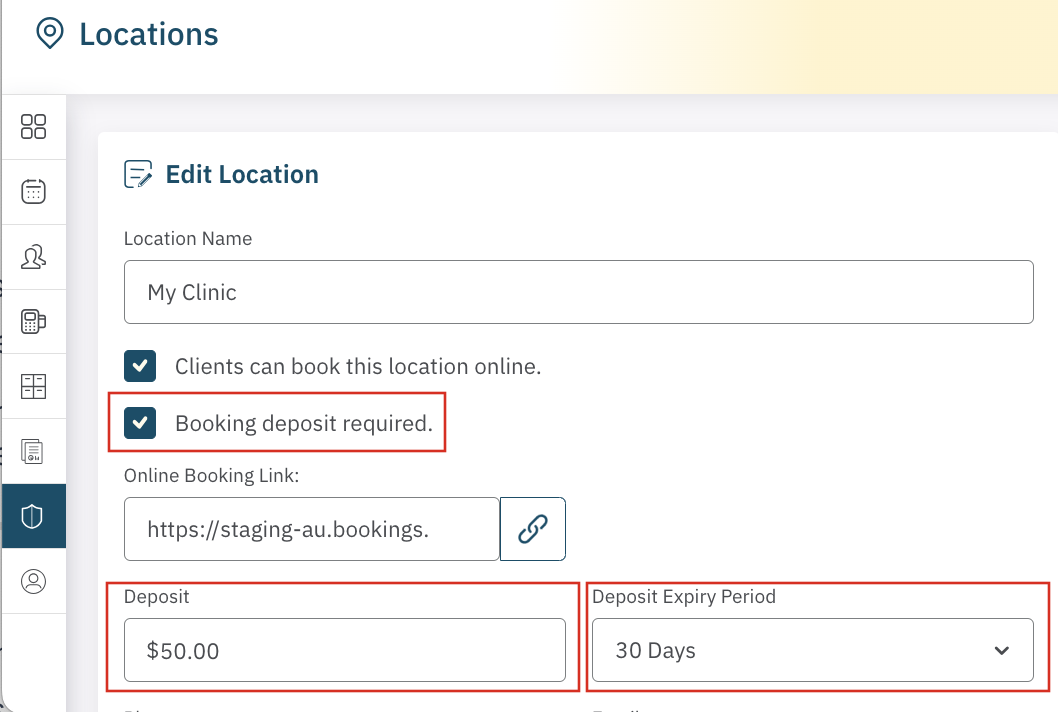
Go to Location Setup set a default deposit amount and an expiration period specific to each Location you operate from.
- Go to Admin | Locations and Edit Details.
- Select Booking Deposit Required to turn on deposit functionality for the location.
- Set a Default Deposit Amount: This is the amount clients will be required to pay upfront to confirm their appointment.
- Deposit Expiry Period: Set the expiry period in days (e.g., 30 days). In the event of a no show or cancellation, the client the selected period to rebook.
3. Excluding Team Members From Requiring Booking Deposits
Even though the business location may require depostis for selected services, Team members can be manually excluded from requiring deposits to be paid. All staff are INCLUDED by default (excluded not checked).
Team Mebers may also require a custom deposit be held.
To check a team members status:
- Go to Admin } My Team and Edit Details (under the Action Menu for each team member).
- Make sure that the checkbox Exclude from Requiring Booking Deposits is NOT ticked.
- If desired, you can set a custom deposit amount for this specific team member. If left blank, the default deposit amount set in the Location setup will apply.
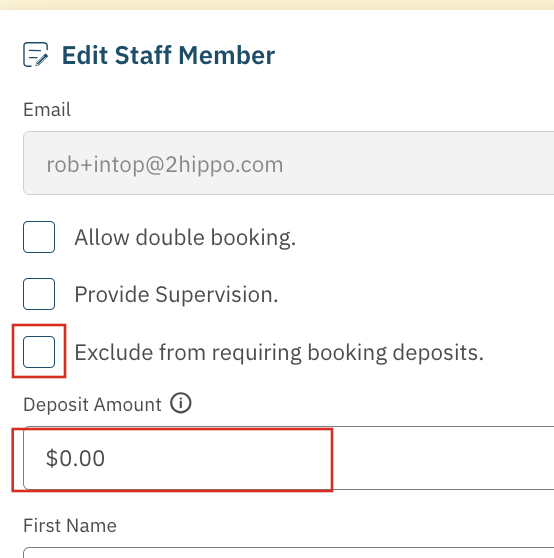
If deposits are not working for certain team members, revisit their profile settings and make sure the deposit feature is active.
4. Enable Deposit Requirement for Services
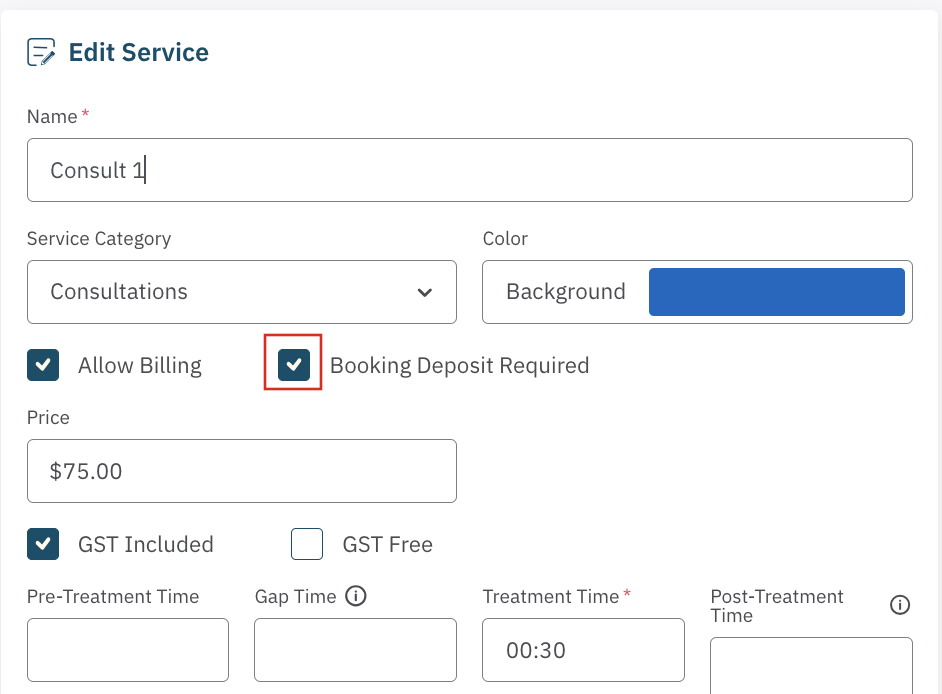
Each service must have the Booking Deposit Required option enabled to enforce deposit collection. This is essential for controlling which services require a deposit. The default is DEPOSIT NOT REQUIRED (not checked).
- Go to Services | Edit Service Details.
- For each service that requires a deposit, ensure the Booking Deposit Required checkbox is ticked.
- If a service doesn’t require a deposit, leave this option unticked.
By configuring services this way, you can control which appointments are flagged for deposit collection and which are not.
How It Works: Booking and Processing Deposits
Client Booking Online
When clients book services online through your website:
- Select Service: Clients select the service(s) they want to book.
- Deposit Required?: If the service requires a deposit, the client will be required to pay a deposit before confirming the appointment.
- Checkout Process: The client must checkout and enter their payment details to complete the deposit payment. The appointment will be confirmed only after the deposit is paid.
This online process ensures that clients are financially committed to their bookings before the appointment is finalised. When the booking appears on the calendar, the status will be set as Deposit Paid. The transaction will be recorded in POS Transactions and linked to the booking and client's file.
Reception In-Clinic Booking
For clients booking in person or over the phone, deposits are still required to confirm the appointment. Here’s how it works:
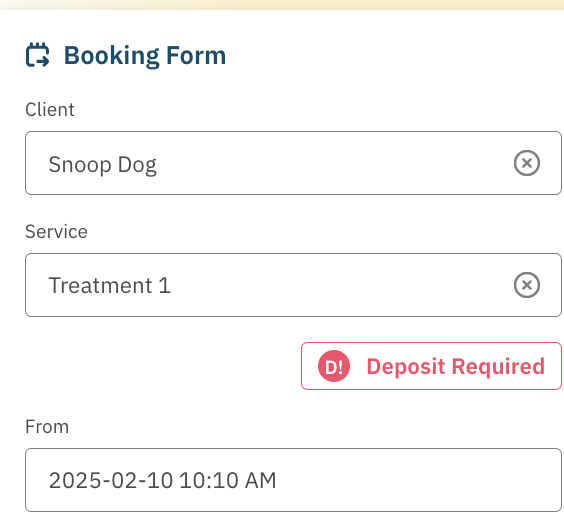
Deposit Required?: If the service requires a deposit, the user will be notified and prompted to collect the deposit before saving the booking.
In Clinic:
The receptionist can process the payment using POS 2Pay to pay via card or wallet or any other payment method selected.
Phone Booking:
There are two ways the deposit cvan be collected:
1. Billed to Client Account
The deposit can be paid via POS using the Client Account payment method. If a sale on the "Client Account" results in a negative balance, the receipt will include a payment link and QR code. Customers can use this to pay their deposit quickly and easily online after the POS checkout when they receive the email or SMS.
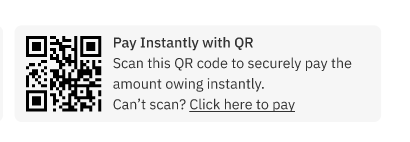
2. Collect Card Details over phone using 2Pay
- Select 2Pay, and Scan to Pay.
- Scan the QR code with your phone
- Collect and enter the client's card details.
Tracking Deposit Status
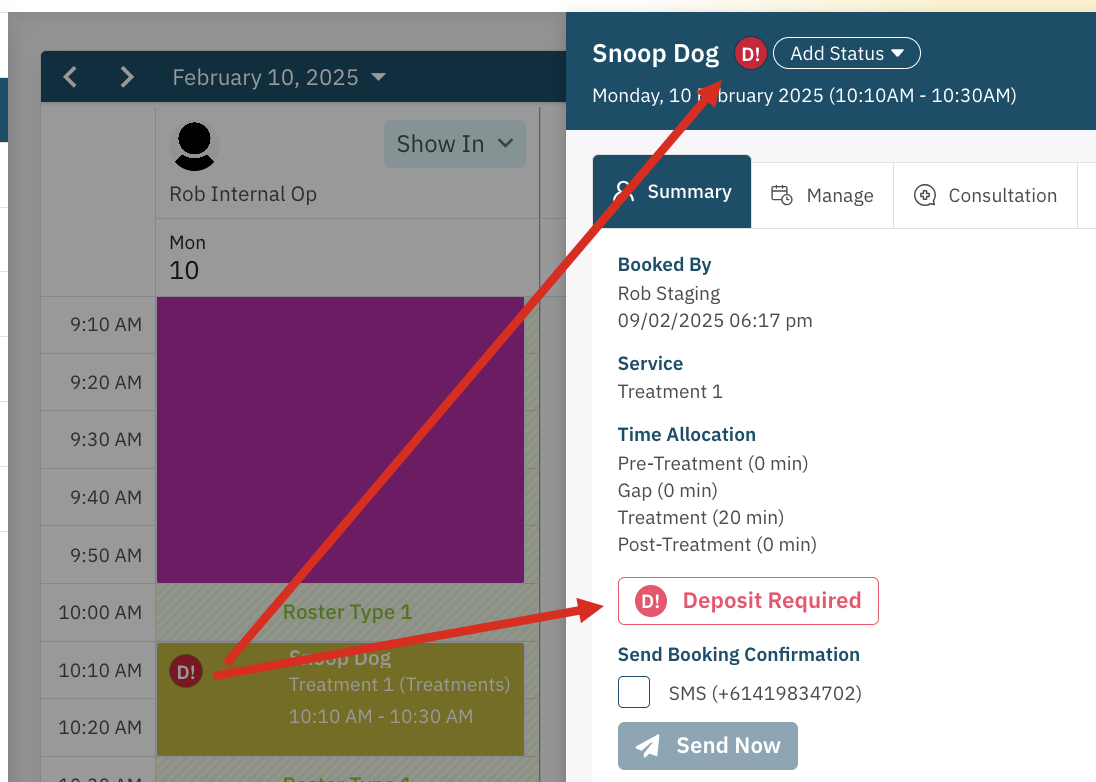
After the client has made the payment, the appointment will be marked with a status:
- Deposit Paid: The client has successfully paid their deposit.
- Deposit Required: The deposit is still pending or has not been processed yet.
This status helps staff track whether or not the deposit has been received and ensures that no appointments are missed or unconfirmed.
What happens if the client does not pay the deposit?
Online bookings cannot be confirmed without the deposit being paid.
Deposit Allocation
When the client’s appointment is settled on the day of the appointment, the deposit is allocated from the Client Account and assigned to the sale as a credit. As a Deposit is linked to the Service booked, a deposit wil only be applied if the booking the deposit was collected for is added to POS.
No-Show or Missed Appointment
If a client fails to attend their appointment, at the end of the deposit expirty period, the deposit will be debited from their account and retained by the business. This helps protect your business from lost revenue due to no-shows or cancellations.
If the client books a future appointment within the deposit expiry period the deposit will be linked to the new appointment and the deposit cycle restarts.
Quick Recap: Key Steps for Setting Up and Managing Deposits
- Payment Account Setup: Ensure a payment account is configured in Accounts > Payment Accounts.
- Location Settings: Enable booking deposits in the Admin > Locations section and set a default deposit amount and expiry period.
- Team Profile Setup: Confirm that team members are not excluded from receiving deposits in their profile settings (Admin > My Team).
- Service Setup: Ensure each service that requires a deposit has Booking Deposit Required selected during service setup.
- Booking Process: Clients must pay the deposit through online checkout, in-clinic, or phone (client account payment).
Conclusion
By following these steps and setting up Cosmesoft deposits correctly, you’ll streamline the booking process, secure deposits from clients, and improve the financial efficiency of your business. Deposits provide a safeguard for both your business and your clients, ensuring that appointments are committed to and reducing the risk of no-shows.
If you encounter any issues or have further questions about booking deposits, don’t hesitate to contact your admin or support team for assistance.