
Managing Sales
Point Of Sale System
The POS (Point of Sale) system efficiently processes sales, refunds, and helps manage your daily financials. When integrated with 2Pay, you can easily collect card payments, receive online booking deposits, and send payment requests to clients from the time you sign up with Cosmesoft.
Permissions
- Default permissions allow for Receptionists/Managers/Admin to process sales.
- Managers and Admin are able to process refunds, balance the Cash Register and perform Cash Movement functions. Receptionists will need permissions granted to process refunds and perform end of day cash register balances as required.
- Operators will require permissions granted to access these functions, which may be required if working alone.
Payment Method
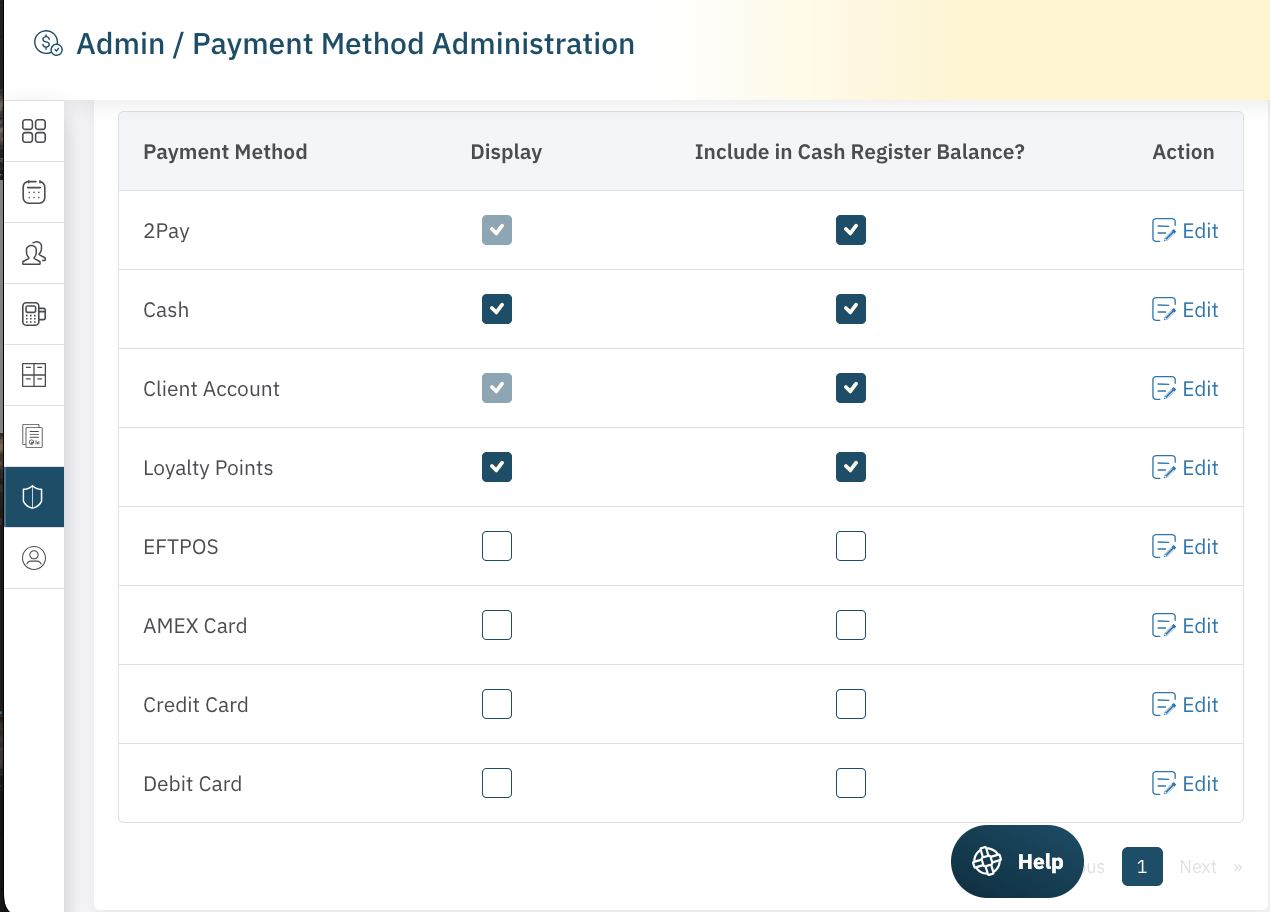
When using POS, the payment methods selected will be the ones you can choose from during sales transactions and when balancing the cash register. Make sure you have already set up your payment methods during the onboarding process.
If you need to make a change, here is how to set up payment methods:
- Go to menu Admin/Payment Method
- Check the payment methods you want to display
- Check the payment methods to include when balancing your register.
Note: 2Pay supports Visa, Mastercard, American Express, and eftpos so there is no need for these to be selected when using 2Pay to process your card payments.
Accessing the POS System
The POS system is accessed via the Main/POS menu (calculator icon) located in the left-hand menu of your dashboard. Clicking this icon will open up the POS interface, which contains four primary tabs:
- Sale
- Refund
- Transaction
- Manage
In the top-right corner, you’ll also see a Location drop-down to ensure you’re working with the correct clinic location if within a multi-site business.

Select the next article to learn how to Process a Sale.
<— PREVIOUS ARTICLE | NEXT ARTICLE—>