
How to Connect 2Hippo 2Pay to Cosmesoft Consult.
This guide will get you setup and ready to accept Tap to Pay and Scan to Pay payments.
Prerequisites
- You have completed the steps in: setup-to-receive-card-payments
- You are logged into Cosmesoft Consult as a Business Admin.
Connect 2Hippo 2Pay from Payment Methods
Please Note: Before proceeding, make sure that your Payment Account is already set up to enable payment processing.
Step 1: From the User Profile menu, select Settings then Payment Terminals.
Step 2: Select Manage Devices
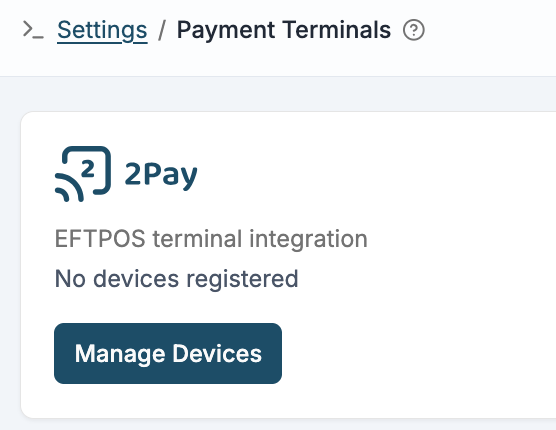
Step 3: Select Link Your Device
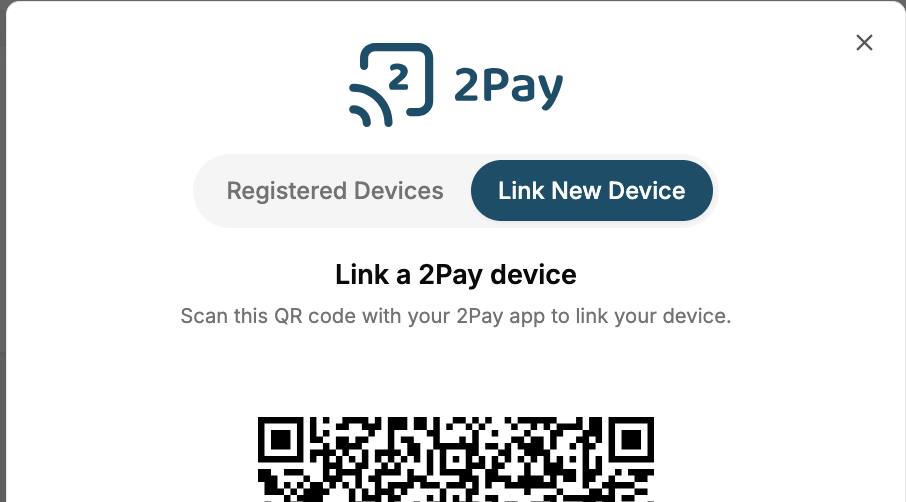
Using your 2Pay app, scan the QR code displayed to complete the linking process.
You can view all registered devices under the Registered Devices tab.
You're all set! The device is now connected and ready to process payments.
Connect 2Hippo 2Pay from the Point-of-Sale Screen
Step 1: After completing a sale, click on the Checkout button.
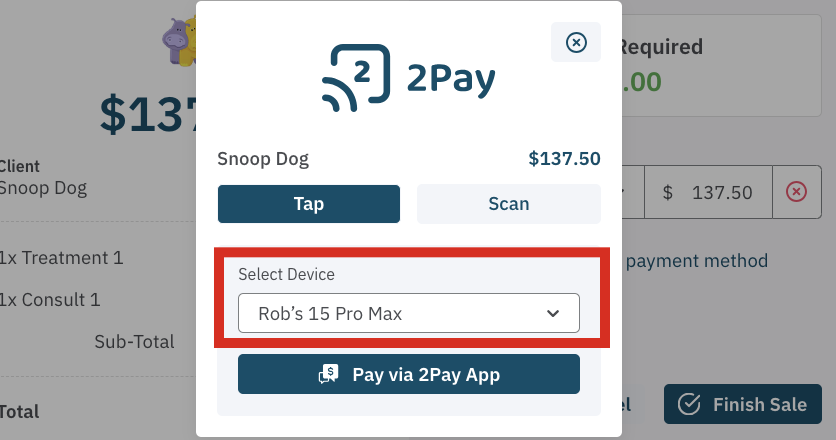
Step 2: 2Pay will show as the default payment method.
Step 3: Select Device
If a device is already linked with 2Pay, it will appear on the list for selection.
OR, To register a new device, click on Link Device.
Step 4: Scan the QR Code
A QR code will appear. Open 2Pay on your device to scan the QR code, and you're all set!
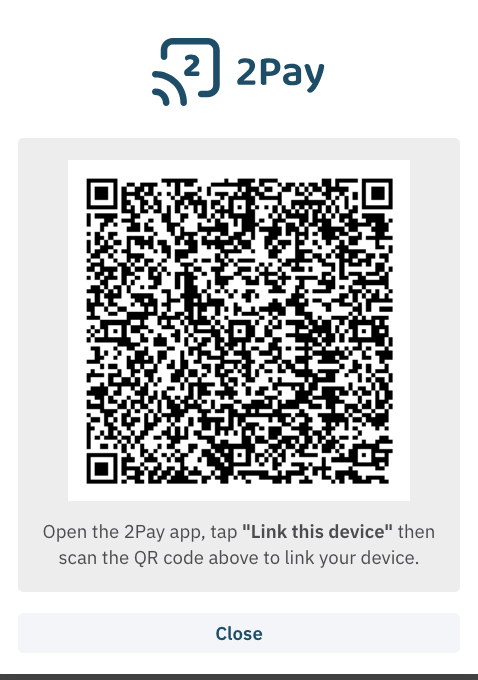
Congratulations: Your device is now linked and ready to use!
Using The Same Device to Login to Cosmesoft Consult AND 2Pay
If you use your mobile device to access Cosmesoft you can still use 2Pay to collect card payments. In fact, it's even easier!
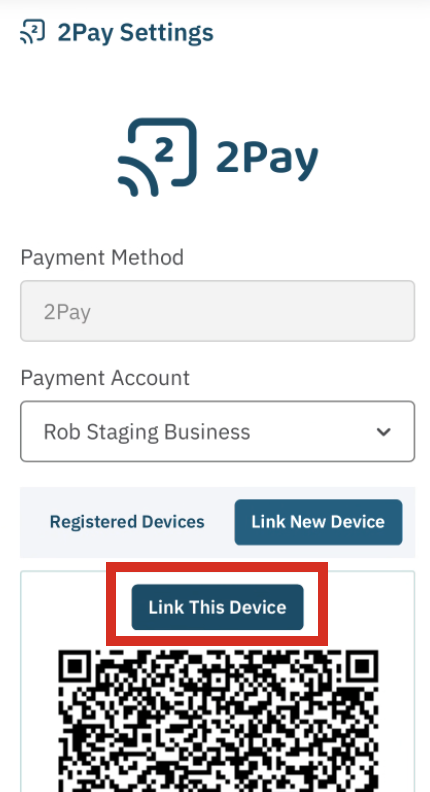
Follow the same procedures as shown above. When the page to Link New Device is shown, you will also see Link This Device. Click this and 2Pay will be linked to your account ready to accept card payments.
Almost there... For Apple devices there is one more step... Register Your Business With Apple
<— PREVIOUS ARTICLE | NEXT ARTICLE—>